Konica Minolta CPA 2.0
Last Updated: September 30, 2026
Complete the requirements, and follow the steps below to install the second-generation Control Panel Application (CPA) on a Konica Minolta printer. For a list of supported devices, refer to Supported Printers for Printer Apps.
Installation Requirements
Complete all Universal Requirements, and ensure functionality prior to CPA setup. Konica Minolta also requires the following:
- Konica Minolta authorized the installation of the PrinterLogic CPA on its devices in the North American, South American, European, and Caribbean regions. The installation fails when attempted in other regions.
- To confirm which firmware versions PrinterLogic supports, refer to the PrinterLogic bEST Technology Suite.
- To locate the local firmware version, enter admin mode, and select Maintenance
 ROM Version. The firmware version is the last five digits of the MFP Controller number.
- To locate the local firmware version, enter admin mode, and select Maintenance
- The printer must run a compatible function version.
- To locate the function version, go to the printer's control panel, and go to Menu Utility Device Info. This screen should show the function version.
- To locate the function version, go to the printer's control panel, and go to Menu
- Confirm that the printer's regional settings are correct.
- Ensure that the certificate has Secure Hash Algorithm (SHA)-256 encryption. Refer to the Certificates section below.
- Configure the network and Web Distributed Authoring and Versioning (WebDAV) settings following the Network Settings section below.
- Non-i-Series models requires a lower TLS version for Simplified Scanning features to function correctly. For more details refer to Transport Layer Security (TLS) Settings.
Additional Port Information
CPA installation and uninstallation occur between the Service Agent and the printer over TCP 50003.
CPA operation requires two main communication paths:
- From the printer to the Service Agent object over TCP 31988.
- From the printer to the PrinterLogic instance, cpp-ui.app.printercloud.com and cpa-api.app.printercloud.com adjusted for your region, over TCP 443.
Communication with WebDAV from the Service Agent to the PrinterLogic instance over TCP 443.
Everyday print communication occurs from the device to the printer over TCP 9100 or TCP 515 for Line Printer Remote (LPR) queues.
By default Certificate Revocation List (CRL) checks occur over TCP 80 from the Service Agent. The installation might fail if the CRL check cannot complete over port 80.
Additional Badge Information
The Konica Minolta CPA supports most rf IDEAS, ELATEC, YSoft, and AU-205H badge reader models. Testing included the following models: rf IDEAS RDR-80581 AKU and RDR-6381 AKO, ELATEC TWN4 MultiTech, YSoft MUS3076, and AU-205H OMNIKEY 5427 G2.
For badge scan authentication to work, you must install the CPA in Single Sign-On (SSO) Provider mode.
Single Sign-On (SSO)
CPA installation in SSO provider mode requires you to set the printer's Public User Access setting to Restricted.
Certificates
SHA-1 certificates are no longer supported. You need to set a certificate with SHA-256 encryption as default:
- Log in to the printer's web interface as an admin.
- Go to Security PKI Settings Device Certificate Settings.
- Select New Registration.
- Select Create and install a self-signed Certificate, and select OK.
- Complete the certificate information.
- From the Encryption Key Type dropdown menu, select RSA-2048_SHA-256.
- Select OK.
- In the Device Certificate list, set the new certificate as Default, and select OK.
Network Settings
Note that the Konica Minolta user interface (UI) varies across models. The information below describes the general locations in which these settings are typically found. Actual locations might vary.
You might need to restart the multifunction printer (MFP) after adjusting the settings below for them to take effect:
- Go to Network WebDAV Settings WebDAV Client Settings, and turn on WebDAV TX.
- Go to Network WebDAV Settings WebDAV Server Settings, turn on WebDAV Settings, and set the SSL/Port Settings to use SSL and not a password.
- Go to Security PKI Settings Enable SSL Version Mode Using SSL/TLS. Select Admin Mode and User Mode, and turn on TLS 1.2.
- Go to Network TCP Socket Setting Use SSL/TLS, and select SSL Only or SSL/TLS.
- Go to Network Open API Settings. Select Enabled for OpenAPI and SSL Only or SSL/TLS for SSL/TLS.
- Go to Network Web Browser Settings, and turn on Web browser.
If the device has a Detail Setting section in Web Browser Setting Detail Setting, ensure that you turn on only Transport Layer Security (TLS) 1.2. Keep the other Secure Sockets Layer (SSL) and TLS version options turned off.
Multiple Queue Association
Some environments use multiple print queues for the same printer. For example, one queue might use a black-and-white driver profile, while another uses a color profile. This approach enforces printing restrictions based on the profile but can limit printing on devices with the CPA installed.
If the CPA is on a printer with a color profile, black-and-white Secure Release Print jobs sent to that printer do not appear on the CPA because they do not align with the profile attached to the printer object. The same applies to color print jobs sent to a CPA-enabled printer with a black-and-white profile attached.
Consider this behavior before installing the CPA on printers that are linked to multiple printer objects in the Admin Console.
Daylight Saving Time Considerations
On most Konica Minolta MFPs, you can configure the start and end dates for daylight saving time. Certain MFP models come with predefined dates already programmed.
Having the correct date, time, and time zone on your Konica Minolta MFP, including daylight saving time information, is crucial for accurate reporting.
On specific models, timestamps in PrinterLogic reports might show incorrect hours during the transition periods at the start and end of daylight saving time. To address this issue, you can adjust the MFP's time zone by 1 hour during those particular weeks to maintain accurate timestamps during transitions.
SSO Settings
If you want to use SSO, configure the following setting on the printer:
- Go to User Auth/Account Track Account Track Settings Print Without Authentication, and select Full Color/Black.
General Authentication Options
The authentication options on the TCP / IP printer determine what the CPA shows to the end user. If you use the same authentication options for all printers, you can use the default settings. If you want to set specific methods by printer, you can choose which printer-specific options you want available for setup on individual printers.
Default Settings
Note that default authentication settings vary depending on the identity provider (IdP). Lightweight Directory Access Protocol (LDAP) settings differ from settings available for a cloud IdP, such as Okta and Entra ID (Azure AD).
For provider-specific attribute mapping, refer to
Cloud IdPs like Entra ID and Okta support badge and PIN authentication. The username and password option is not available.
In the Admin Console, go to Tools Settings General, and scroll down to the Identity Provider Settings. Follow the appropriate steps below for your provider.
- Username & Password
- User ID & PIN
- Badge Scan
Users sign in with their network credentials or the same credentials they use to sign in to the device. This method requires no additional setup beyond your LDAP Identity Sync configuration since it uses the credentials already defined there.
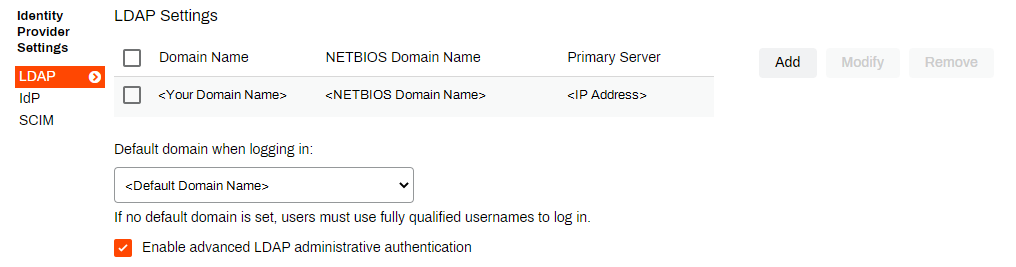
To verify this LDAP option:
-
In the Identity Provider Settings section, select LDAP.
-
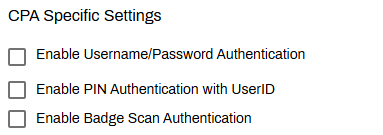
Scroll down to the CPA Specific Settings section and turn on Enable Username/Password Authentication.
- Select Save in the upper-right corner.
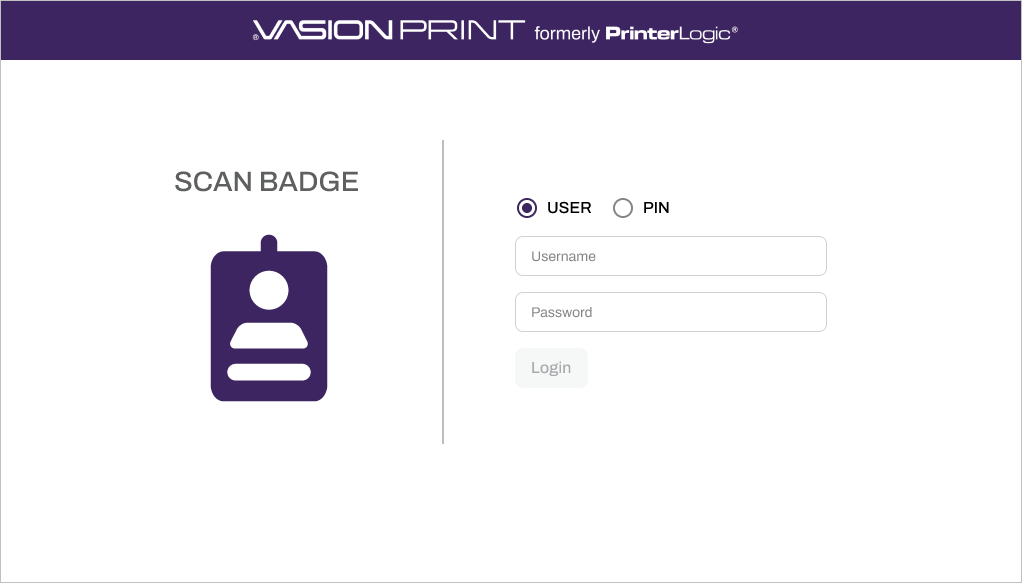
PIN authentication requires the end user to enter a User ID and PIN at the CPA.
 LDAP Settings
Follow these steps:
-
In the Identity Provider Settings section, select LDAP.
-
In the CPA Specific Settings section, select Enable PIN Authentication with UserID.
- Select the PIN storage option:
- Database: Enter The field name containing UserID.
- Active Directory: Enter The field name containing UserID and The field name containing PIN.
- Select Save in the upper-right corner.
If you select the Database option, users set their PIN in the Self-service Portal. For more details refer to PIN Self-Registration.
IdP Settings
Follow these steps:
-
In the Identity Provider Settings section, select IdP.

-
In the Control Panel Application (CPA) Authentication section, select Enable PIN Authentication.
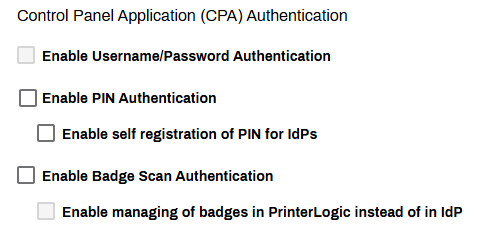
- If you do not use your IdP to map and manage PINs, select Enable self registration of PIN for IdPs.
- Select Save in the upper-right corner.
Do not select Enable self registration of PIN for IdPs if you already have a PIN attribute mapped through your IdP.
If you select the Enable self registration of PIN for IdPs option, users set their PIN in the Self-service Portal. For more details refer to PIN Self-Registration.
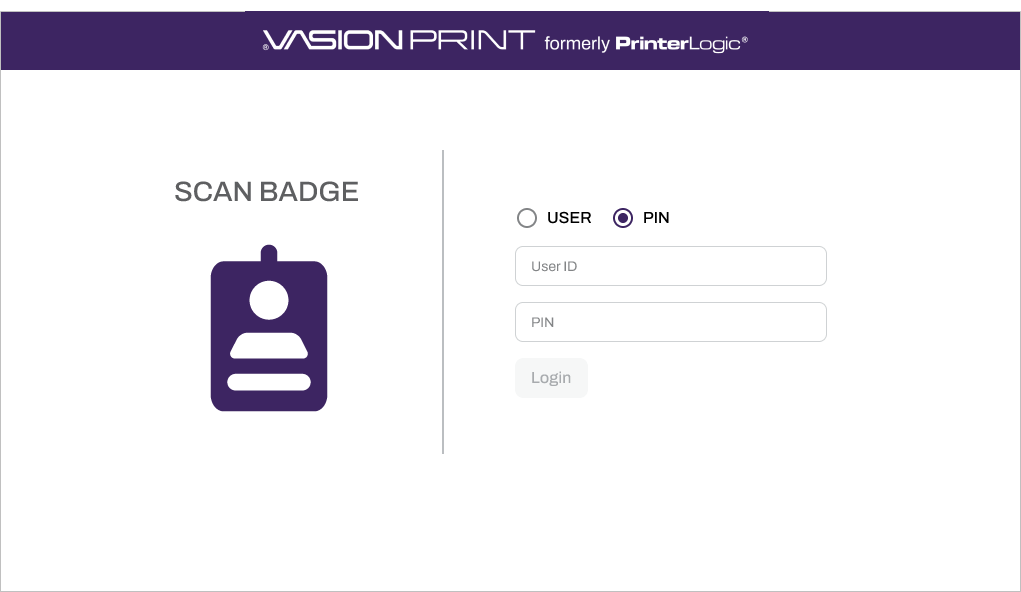
Badge scan authentication requires the end user to scan a badge, card, or dongle at the CPA.
LDAP Settings
Follow these steps:
-
In the Identity Provider Settings section, select LDAP.
-
Scroll down to the CPA Specific Settings section, and select Enable Badge Scan Authentication.
- Select whether to store badges in the Database or pull them from Active Directory. For AD, provide the field name that contains the badge ID attribute.
- Select Save in the upper-right corner.
If you select the Database option, badge registration becomes mandatory.
Register badges in one of the following ways:
- Manage and import badges using the PrinterLogic Badge Management page.
- Have users set up their badge in the Self-service Portal. For more details refer to Badge Self-Registration.
IdP Settings
Follow these steps:
-
In the Identity Provider Settings section, select IdP.
-
In the Control Panel Application (CPA) Authentication section, select Enable Badge Scan Authentication.
- If you do not use your IdP to map and manage badges, select Enable managing of badges in PrinterLogic instead of in IdP.
- Select Save in the upper-right corner.
Do not select Enable managing of badges in PrinterLogic instead of in IdP if you already have a badge attribute mapped through your IdP.
If you select the Enable managing of badges in PrinterLogic instead of in IdP option, users set their badge in the Self-service Portal. For more details refer to Badge Self-Registration.
Global Install Credentials, Security, & Single Sign-On (SSO)
Go to the Control Panel Application section on Tools Settings General to set global installation credentials if the username and password to access the printer's UI are the same. Adjust credentials per printer on the Apps tab or through the CPA Manager.
The Control Panel Application section also includes the global settings for SSO
Review the following information:
- In Provider mode you can lock the printer so that a user must authenticate before they can access the printer's control panel.
- In Listener mode PrinterLogic listens for when another app acting as the SSO provider authenticates a user and passes that user information to the CPA. The user can then select PrinterLogic on the control panel.
- To review and understand the Enable higher security options and impact, refer to Transport Layer Security (TLS) Settings.
To set global installation credentials or turn on SSO
- Go to the Control Panel Application section.
-
Use the Username and Password fields to set the global installation credentials.
The credentials must have admin rights to the printer.
-
Turn SSO on or off using the Enabled and Disabled options.
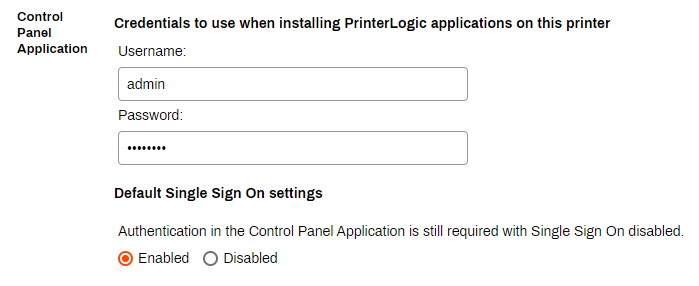
- Turn on higher security using the Enable higher security checkbox.
- Select Save in the upper-right corner.
Install the CPA
These steps are for installing the CPA on a single printer using the printer's Apps tab. To install the CPA on multiple printers at once, refer to CPA Manager.
Follow these steps:
- From the Admin Console tree structure, select the printer on which you want to install the CPA.
- Select the Apps tab.
-
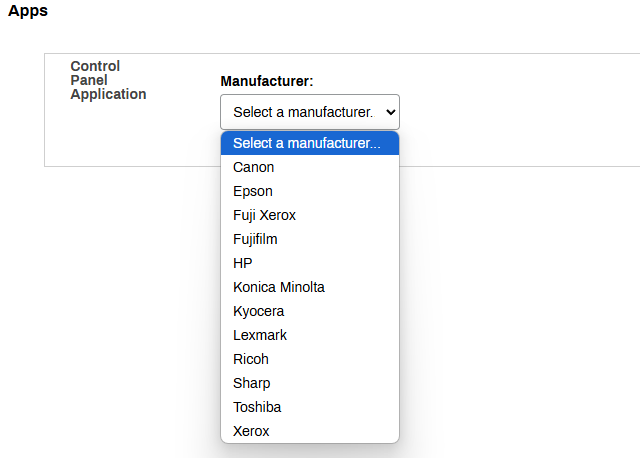
From the Manufacturer menu, select the printer manufacturer.
- Select the Service Agent that you want to use to install the CPA.
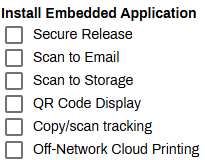
- In the Install Embedded Application section, select the Secure Release option.
- Select the checkboxes for any additional apps that you want to install:
Installation Credentials
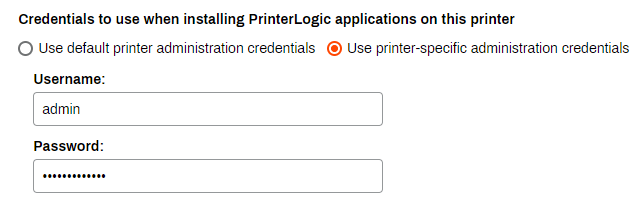
If your printers do not share the default username and password, defined on Tools Settings General in the Control Panel Application section, follow these steps to set printer-specific credentials:
- Go to the Apps tab, Credentials to use when installing PrinterLogic applications on this printer section.
- Select Use printer-specific administration credentials.
- Enter the admin username and password for that printer.
The credentials must have admin rights to the printer.
CPA Authentication Options
The options below appear depending on what you select in the IdP settings. Note that authentication features vary depending on the printer manufacturer.
The CPA supports only badge and PIN authentication for cloud IdPs.
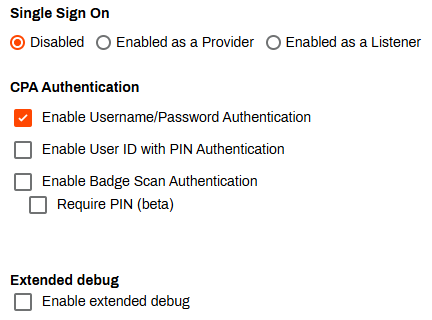
For SSO, select from the following options:
- Disabled: Normal CPA authentication without SSO.
- Enabled as a Provider: Users authenticate through the CPA screen before accessing apps.
- Enabled as a Listener: Users authenticate through another SSO provider and the CPA listens in the background and accepts the authorization.
For CPA Authentication, select from one of the options you turned on in the General Authentication Options.
The Extended debug section is for troubleshooting and contains the following:
- Certificates to download the PrinterLogic CA.
- PrinterLogic Control Panel Application manual install URL.
Start the Installation
With your settings in place, select Save to start the installation.
If the installation fails, do the following:
- Note the error message, and check the Printer Apps logs. For more details refer to PrinterLogic Log File Locations.
- Review and adjust your configuration to verify that it meets all requirements.
- Select the Try Again button to restart the installation.

The installation process might trigger a device restart once complete.
Uninstall the CPA
Follow these steps:
- In the Admin Console, select the Apps tab for the printer from which you want to remove the CPA.
-
Deselect the options in the Install Embedded Application section.
- Select Save.
Troubleshooting Help
Is an Identity Provider Configured?
The CPA requires the use of an IdP. This can be LDAP or another IdP such as Entra ID (Azure AD), Okta, etc.
Check the Default Printer Admin Credentials
Are the default printer admin credentials correct?CPA installations can fail if the admin username and password are incorrect. You can resolve this issue by modifying the credentials used for CPA installation. With the Modify option in the CPA Manager, update the credentials for multiple printers as long as they are the same brand. Often, the default admin name and password are the same multiple manufacturers.
Is There a Self-signed Certificate?
At a minimum, the printer requires a self-signed certificate. If an Amazon Root CA 1 certificate is not installed, refer to Amazon Root CA 1 Cert for the steps to obtain the certificate so you can manually install it on the printer.
Is There a Time Difference Between the Service Agent and the Printer?
If a certificate did not authorize, it could be because a printer is in a different time zone than the Service Agent hosting the Printer Apps. When the Service Agent pushes out the CPA application with the certificate, due to the time difference, the certificate may be expired.
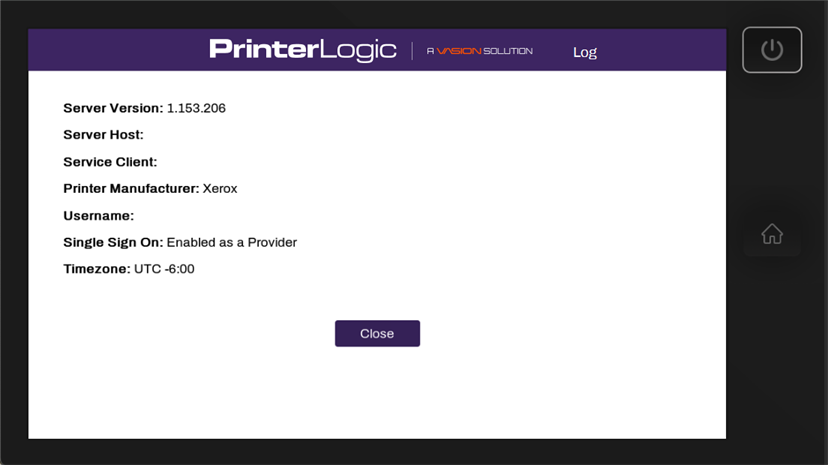
You can reach the info page to check the timezone in two ways:
- Log in to the CPA, then select the PrinterLogic logo at the top.
- Install the CPA with Extended Debug mode enabled, then select the PrinterLogic logo at the top (without the need to log in first).
Check the Network Settings
- Verify that the IP address assigned to the printer is accurate within the Admin Console.
- Ensure that you can successfully ping the printer from the Service Agent machine.
Are You Using a Universal Print Driver?
Sometimes printer-specific drivers can cause installation issues for the CPA. Use a universal print driver to ensure a smooth and successful installation.
This is a generic communication error. A few things to check are:
- The Service Agent is not listening over port 31988. Update the configuration to allow listening over port 31988.
- The printer does not trust the PrinterLogic certificate. Register or upload a new certificate.
Fuji Xerox Specific
In the printer settings, configure the Domain Name within the DNS Configuration settings to find out whether that resolves the issue.
The CPA requires a Service Agent to install apps to the printer. Check that the Service Agent machine is not shut down or in an error state.
On the machine, open the Task Manager and select the Details tab. In the Search field, type "printer" to locate the Agent processes.
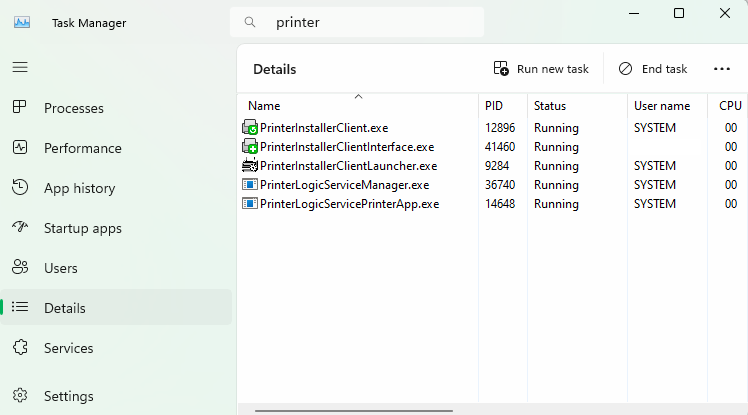
If neither the PrinterLogicServiceManager.exe nor PrinterLogicServicePrinterApp.exe process is running on the Service Agent device, verify the Agent installation and / or Service Agent installation.
Verify the Client Installation
Verify the Agent is installed, authorized, and pointing to the correct instance. A quick test is to click the system tray icon to open the Self-service Portal. If it opens to the correct URL, and you can sign in and view / install printers from the portal, then the Agent is authorized.
If you are prompted for an authorization code in the Self-service Portal, refer to Device Authorization for steps on how to create one.
If the Self-service Portal opens to an incorrect URL, you need to set the home URL. Refer to Update the Home URL.
Verify the Service Agent Configuration
Navigate to C:\Program Files (x86)\Printer Properties Pro\Printer Installer Client\ServiceHost, and check the following:
If the Service Host folder is not created, check the machine's hostname or IP address and compare with what you entered for the Service Agent in the Admin Console.
If the folder is created, check the config folder in it. A token.json file is saved here when the Service Agent is authorized.
If the folder is created, but the token.json file is not there, you need to reauthorize the Service Agent, refer to Reauthorization Steps. Please note that the Service Agent authorization is different from the Agent authorization.
By default, the Visual C++ Redistributable for Visual Studio 2015 (32-bit/64-bit) or newer is typically already installed. However, both the x86 and x64 redistributable packages must be installed on the Service Agent to generate the items required for a successful installation. Without the packages, the Service Agent cannot initiate the app service. You can find these packages in the Microsoft Download Center.
The CPA requires an email address associated with each IdP user, which it uses as the username when logging in. This scenario occurs when an email address has not been associated with the user within the IdP.
You can find the log file on the Service Agent machine at the following path:
Windows:
C:\Program Files (x86)\Printer Properties Pro\Printer Installer Client\ServiceClientLogs\PrinterLogicServicePrinterApp.log
Mac/Linux:
/opt/printerinstallerclient/log/printerlogicserviceprinterapp.log
If the installation fails with an InvalidSolutionsKeyError, update the printer's region in the firmware settings.
In this topic:
The CPA can show text in the following languages. For more details refer to Supported Languages.
- Dutch: 0413.
- English: 0409.
- French: 040C.
- German: 0407.
- Italian: 0410.
- Japanese: 0411.
- Polish: 0415.
- Portuguese: 0416.
- Simplified Chinese: 0404.
- Spanish: 040A.
- Swedish: 0409.
- Thai: 041E.
- Turkish: 041F.