PrinterLogic Troubleshooting
Last Updated: October 08, 2026
Below are some common troubleshooting tips organized by product / feature. If you still require assistance to resolve your issue please contact Product Support.
API Cloud Link
401 Unauthorized Error response when submitting a print job.
Confirm the following:
- You have generated an API Key via Tools
 Tokens API Keys.
 - Ensure you have a header called "Authorization" with a value of the API Key.
400 Bad Request Error when submitting a print job.
Check the body of the response. If it mentions your queue is not configured for Off-Network, ensure your instance and print queue(s) is configured to use Off-Network Print, including an assigned External Gateway and Internal Routing Service.
My job was received but never printed.
If you submit a print job and received a 202 success response, but the print job was never printed, check the following:
- The Output Console to make sure the job was received and check its status.
- If the job has failed, ensure the Off-Network Internal Routing Service is up and running. If not, check the general health of Off-Network Print.
- The Internal Routing Service log for print job activity to determine whether the print job is being routed to the customer's network. Jobs may be getting downloaded to the routing service, but the printer may be offline.
- The Printers tab of the Output Console to check on the SNMP health of the destination.
Badge Management
Which common errors appear when importing badges?
Common errors that appear when importing badges are:
- Badge ID Already In Use: If the existing user information for that badge is incorrect, unregister the existing badge.
- User does not exist: Verify the user is within
- Invalid user identifier: Check if there are additional backslashes or characters added between the domain and username.
Bring Your Own Simple Mail Transfer Protocol (BYO SMTP)
The SMTP.SendAsApp permission is not appearing in the API permissions interface.
You can add the SMTP.SendAsApp permission manually with the app manifest:
- In your app registration, go to Manifest.
- Find the requiredResourceAccess array in the JSON.
- Add the following object to the array:Copy Code
{
    "resourceAppId": "00000002-0000-0ff1-ce00-000000000000",
    "resourceAccess": [
        {
            "id": "7146a1f0-8703-45b3-9eae-527a64c00995",
            "type": "Role"
        }
    ]
} - Select Save at the top of the manifest editor.
- Return to API permissions, and confirm that the permission appears.
- Select Grant admin consent for <your tenant>.
Getting error 5.7.57 Agent not authenticated to send mail.
The following can cause this error:
- SMTP AUTH is not turned on for the mailbox or organization.
- The service principal is not registered in Exchange Online.
- The service principal does not have the required permissions.
Do the following to fix the issue:
- Confirm that SMTP AUTH is turned on.
- Ensure that the service principal is registered.
- Confirm that mailbox permissions are granted.
- Wait 5-15 minutes for propagation.
Getting error 535 5.7.3 Authentication unsuccessful.
This error occurs when the OAuth token or authentication string is incorrect.
Do the following to fix the issue:
-
Ensure that you are sending EHLO after STARTTLS.
-
Use
server.docmd('AUTH', 'XOAUTH2 ' + auth_string)instead ofserver.auth(). -
Confirm that the token scope is https://outlook.office365.com/.default.
Getting error 430 4.2.0 STOREDRV; mailbox logon failure.
This error occurs when the service principal does not have FullAccess permission to the mailbox.
Do the following to fix this issue:
-
Grant FullAccess permission using Add-MailboxPermission.
-
Wait 5-15 minutes for propagation.
Getting error 503 5.5.2 Send hello first.
This error occurs when EHLO was not sent after STARTTLS.
Do the following to fix this issue:
-
Ensure that you call server.ehlo() twice: once before STARTTLS and once after.
Agent
How do I resolve a Filter Failed error, or similar driver errors when printing from a macOS device?
This error appeared on macOS ARM devices that were using a printer with an Intel driver attached.
To resolve this error:
-
Install Rosetta on the macOS device.
- Or re-upload the macOS drivers from a device using an ARM processor.
Control Panel Application (CPA)
Are the default printer admin credentials correct?
CPA installations can fail if the admin username and password are incorrect. You can resolve this issue by modifying the credentials used for CPA installation. With the Modify option in the CPA Manager, update the credentials for multiple printers as long as they are the same brand. Often, the default admin name and password are the same multiple manufacturers.
Is the Service Agent running?
The CPA requires a Service Agent to install apps to the printer. Check that the Service Agent machine is not shut down or in an error state.
Is the PrinterLogicServicePrinterApp.exe running?
On the machine, open the Task Manager and select the Details tab. In the Search field, type "printer" to locate the Agent processes.
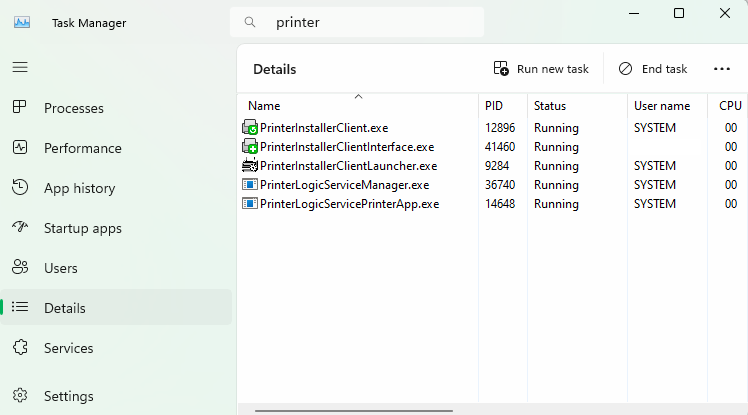
If neither the PrinterLogicServiceManager.exe nor PrinterLogicServicePrinterApp.exe process is running on the Service Agent device, verify the Agent installation and / or Service Agent installation.
What can I do if the PrinterLogicServiceManager.exe or the PrinterLogicServicePrinterApp.exe is not running?
Verify the Agent is installed, authorized, and pointing to the correct instance. A quick test is to click the system tray icon to open the Self-service Portal. If it opens to the correct URL, and you can sign in and view / install printers from the portal, then the Agent is authorized.
If you are prompted for an authorization code in the Self-service Portal, refer to Device Authorization for steps on how to create one.
If the Self-service Portal opens to an incorrect URL, you need to set the home URL. Refer to Update the Home URL.
How do I check if the Service Agent was configured properly?
Navigate to C:\Program Files (x86)\Printer Properties Pro\Printer Installer Client\ServiceHost, and check the following:
If the Service Host folder is not created, check the machine's hostname or IP address and compare with what you entered for the Service Agent in the Admin Console.
If the folder is created, check the config folder in it. A token.json file is saved here when the Service Agent is authorized.
If the folder is created, but the token.json file is not there, you need to reauthorize the Service Agent, refer to Reauthorization Steps. Please note that the Service Agent authorization is different from the Agent authorization.
How do I reauthorize a Service Agent?
Follow these steps to generate a new authorization token for a Service Agent if it is missing or the PrinterLogicServiceManager.exe service stops responding.
Reauthorize the Service Agent only if you checked the URL, Agent authorization, and folders first. Complete the steps below within 2 minutes, or the reauthorization fails.
- On the device that is set up as the Service Agent, navigate to C:\Program Files (x86)\Printer Properties Pro\Printer Installer Client\ServiceHost\Config.
- Confirm whether there is an existing token JSON file. If one exists, delete the file.
- Open the Task Manager.
- Select the Details tab.
- Right-click the PrinterInstallerClientLauncher.exe service, and select End process tree. There are three PrinterInstallerClient processes running for the Agent. If the other two services do not end, end them individually.
- In the PrinterLogic Admin Console, navigate to the Service Agent object.
- Select the Service Agent, and in the General tab, select .
- Select OK to close the message.
- On the Service Agent device, select the Services tab in the Task Manager.
- Right-click the PrinterInstallerLauncher service, and select Start.
After the services start, the device generates a new authorization token.
Why am I getting a "Login Service Unavailable" error on the printer?
This is a generic communication error. A few things to check are:
- The Service Agent is not listening over port 31988. Update the configuration to allow listening over port 31988.
- The printer does not trust the PrinterLogic certificate. Register or upload a new certificate.
Fuji Xerox Specific
In the printer settings, configure the Domain Name within the DNS Configuration settings to find out whether that resolves the issue.
Is there a self-signed certificate installed on the printer?
At a minimum, the printer requires a self-signed certificate. If an Amazon Root CA 1 certificate is not installed, refer to Amazon Root CA 1 Cert for the steps to obtain the certificate so you can manually install it on the printer.
Is there a time difference between the Service Agent and the device?
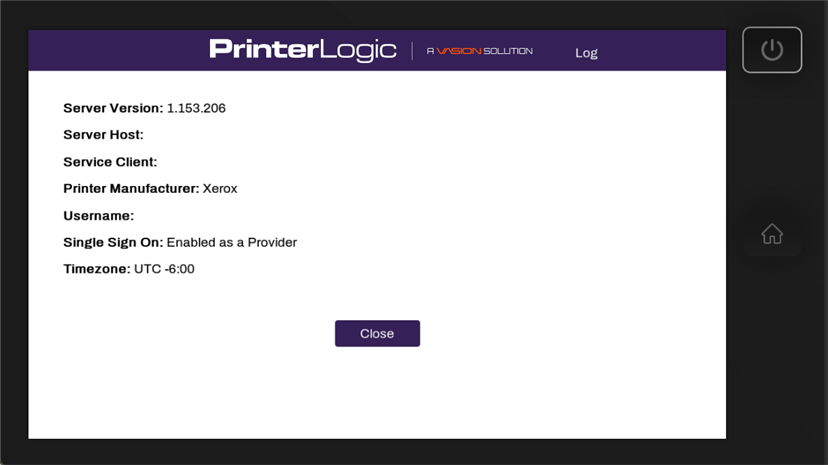
If a certificate did not authorize, it could be because a printer is in a different time zone than the Service Agent hosting the Printer Apps. When the Service Agent pushes out the CPA application with the certificate, due to the time difference, the certificate may be expired.
You can reach the info page to check the timezone in two ways:
- Log in to the CPA, then select the PrinterLogic logo at the top.
- Install the CPA with Extended Debug mode turned on, then select the PrinterLogic logo at the top (without the need to log in first).
For a Service Agent on Windows, do you have the correct Visual C++ redistributable version?
By default, the Visual C++ Redistributable for Visual Studio 2015 (32-bit/64-bit) or newer is typically already installed. However, both the x86 and x64 redistributable packages must be installed on the Service Agent to generate the items required for a successful installation. Without the packages, the Service Agent cannot initiate the app service. You can find these packages in the Microsoft Download Center.
Have you refreshed the Agent on the Service Agent machine?
A quick way to do this is to right-click the Agent icon in the system tray of the Service Agent machine and select Refresh Configurations.
Is an identity provider configured?
The CPA requires the use of an IdP. This can be LDAP or another IdP such as Entra ID (Azure AD), Okta, etc.
Why am I getting a "Login Successful" message, but not being logged in?
The CPA requires an email address associated with each IdP user, which it uses as the username when logging in. This scenario occurs when an email address has not been associated with the user within the IdP.
Are you using a universal print driver?
Sometimes printer-specific drivers can cause installation issues for the CPA. Use a universal print driver to ensure a smooth and successful installation.
Are the network settings configured correctly?
Check the following:
- Verify that the IP address assigned to the printer is accurate within the Admin Console.
- Ensure that you can successfully ping the printer from the Service Agent machine.
If I get an error, where can I find the log files?
You can find the log file on the Service Agent machine at the following path:
Windows:
C:\Program Files (x86)\Printer Properties Pro\Printer Installer Client\ServiceClientLogs\PrinterLogicServicePrinterApp.log
Mac/Linux:
/opt/printerinstallerclient/log/printerlogicserviceprinterapp.log
When swiping my badge, why does the CPA freeze on "Badge Authenticating?"
This issue likely stems from incorrect Authentication / Accounting Type settings located at Permissions  Authentication and Accounting Authentication / Accounting Type. When using badging, ensure the setting is configured to Custom and restart the device.
Did the Amazon Root CA and PrinterLogic CA get installed?
At a minimum, the printer requires a self-signed certificate. If an Amazon Root CA 1 certificate is not installed, refer to Amazon Root CA 1 Cert for the steps to obtain the certificate so you can manually install it on the printer.
Why is my badge reader not working?
Some Ricoh models may require specific card reader settings.
Before you follow the steps below, if the CPA is installed in SSO provider mode you will need to uninstall the CPA first.
- Ensure the USB card reader is connected to the device's panel and NOT the back of the device.
- From the device's panel, log in as Machine Administrator.
- Navigate to User Tools Screen Features Screen Device Settings IC Card/Bluetook Software Settings Select IC Card Reader and set to Proximity Card Reader.
- Select Proximity Card Reader Settings.
- Empty the list.
- Return to the Select IC Card Reader settings accessed in step 3, and set to Do not use.
- Reboot the device.
What if my CPA install fails with an InvalidSolutionsKeyError
If the installation fails with an InvalidSolutionsKeyError, update the printer's region in the firmware settings.
What if there is no Customized Login option in the Login Types on my FujiXerox printer?
The Fuji Xerox CPA requires that the Customized Login option be set and turned on. This typically happens during the CPA installation. If the option is not visible on the printer, turn on the Customized Login option using the printer's Service Mode.
- Log in to Service Mode from the panel on the device.
- Select Tools.
- Select Common Service Settings.
- Select Maintenance / Diagnostics.
- Select the NVM Read / Write option.
- Set the chain-link to 700-497.
- Set the New Value to 0.
- Exit Service Mode and reboot the device.
Once the device reboots:
- Log in to the printer's control panel.
- Navigate to the Login Types settings. The path to these settings may vary by model.
- Select the Customized Login option.
What if special characters / CJK fonts appear on the Release Portal, but do appear on the Xerox CPA?
Some devices do not support these characters by default. Install the related language packs for the characters and fonts on the printer.
CPA Manager
Are the default printer admin credentials correct?
CPA installations can fail if the admin username and password are incorrect. You can resolve this issue by modifying the credentials used for CPA installation. With the Modify option in the CPA Manager, update the credentials for multiple printers as long as they are the same brand. Often, the default admin name and password are the same multiple manufacturers.
Scan to Email
What can I do if I scan a lot of documents to send to the same email, but the email cannot be sent?
This is likely happening because you have exceeded the maximum email attachment size. The current file size maximum is 30MB in this version of Scan to Email. Any scans larger than that size cannot be sent via email. We recommend doing a few separate scans and sending them in separate emails.
Delegated Release
My delegates do not appear in the prompt when I print.
-
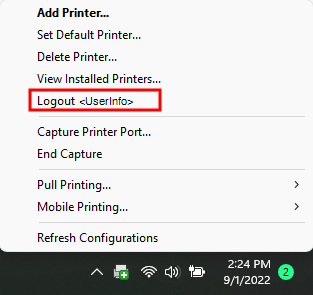
Verify that you are logged in to the Agent. You can right-click the PrinterLogic icon to confirm you are signed in.
-
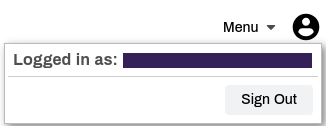
You can also go to the Self-service Portal and select the user avatar to check who is signed in.
My Delegates list does not match the Portal or CPA.
- Ensure the right user is signed in on the CPA, Agent, and portal.
- Check the print queue log.
- Windows: C:\Windows\Temp\ppp\Log\PrinterInstallerPrintQueue.log.
- Mac/Linux: /opt/PrinterInstallerClient/log.
Direct Email Printing
What do I do if the alias is being stripped from the To: field?
If the alias is automatically stripped from the To: field, set up a distribution group:
- Remove the alias from the original account.
- Create a distribution list called <printername>@<domain>.com. Example: HPXXX@example.com.
-
Set the only member of the list to the main mailbox. Example: example@example.com.
The main mailbox set for the pull printer on the Service Agent's Email Printing tab.
Mail should be delivered to the main mailbox, with <printername>@<domain>.com in the To: field.
Enterprise Data Warehouse (EDW)
Why is new data not appearing in EDW?
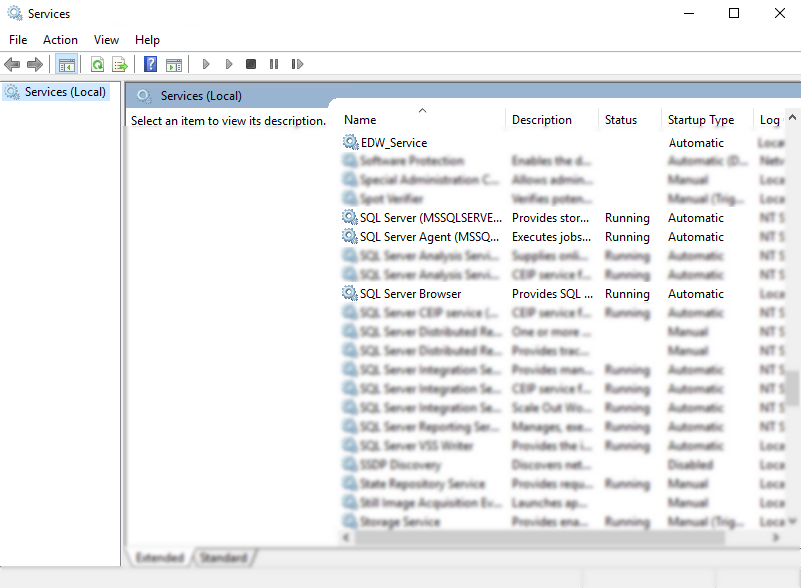
If you have any issues with data flowing to the database, ensure the services are running by doing the following:
- Open your Services app.
- The following services should have the Status set to Running and the Start-up Type set to Automatic:
- SQL Server.
- SQL Server Agent.
- SQL Server Browser.
- EDW_Service.
PrinterLogic mobile app (Mobile)
What if I printed and held a document from my workstation and the held print job is not visible in the mobile app?
If held print jobs are not visible in the mobile app, make sure the end users are logged into the client on the workstation and the same user credentials are being used to log into the mobile app.
When I select a print job to release and select the printer icon, there are no printers I can select to print the job.
Most commonly this is because when you printed from your workstation, you selected a specific printer to print to. Depending on how your environment is configured, it is assumed you are performing a secure print function, and want to print to that specific printer. If this is the case, go to the selected printer and either select the Print Release  option, or if configured, scan the QR code
  option.
If you want to release to any printer that is an authorized release printer, you must print to a Pull Print queue that has been configured by your application administrator. When printing to a Pull Print queue, all available printers are displayed.
What if one of my users is not able to sign in to the mobile app?
If your user cannot sign in to the mobile app, make sure they can log into the Self-service Portal with the same credentials they are using on the app. If they cannot, then it is most likely an issue with the IdP implementation.
What if my users are not able to print to a specific printer with their mobile device?
If your end users are not able to print to a specific printer, first make sure their mobile device can communicate with the printer. Another thing to check is that the printer supports IPP, that it is turned on, and that TCP Ports 631 and 80 are open. If those do not fix the issue, check to make sure IPPS is not turned on because IPPS is not supported by PrinterLogic and conflicts with the printing process.
My users are having problems printing from iOS devices.
If your environment uses complex FDQN The complete domain name for a specific device or host on a network, consisting of the hostname, the domain name, and the top-level domain. names on your printers, iOS considers having the complex names with a self-signed certificate an unsafe connection for IPP / IPPS requests. To confirm this is the issue, check your logs for the following error from the printer or server: "Error Domain=NSURLErrorDomain Code=-1200".
The solution is to install the root certificate for the used domain on the device. Refer to iOS Printing Fails with -1200 Error..
I sent a print job to a printer, but it is not showing on the print release screen.
Although held print jobs generally show up on the app very quickly, depending on your network, a print job may take a short period of time to show in the app. Sometimes you may need swipe down on the print release screen to refresh.
Another consideration is how long it has been since you printed the job. As a default, held print jobs are kept for only 12 hours before being purged. This setting can be modified to be shorter or longer by the application administrator. Confirm with them on what this time is set to.
I am trying to delete printers from my mobile app, but some of them will not let me delete them.
Only printers that are manually added to the mobile device can be deleted. Printers that have been deployed to the mobile device by the administrator cannot be deleted from within the app.
Where can I find logs for the mobile app?
- Open the PrinterLogic mobile app on the device that needs log information.
- Select the App icon
 from the app header.
 - Select the Settings button
 .
. -
Select the toggle to turn on event logging.

-
On the Enable Logging modal select Start.
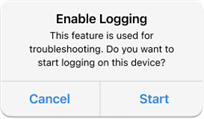
Turn on Event Logging for print release to assist you with troubleshooting efforts. Only the app details are logged and should be turned only on for the time necessary to gather the needed information, since the log data is stored on the device.
Only one log is stored on the device at a time. So when logging is enabled again, the previous log information is replaced with the new log.
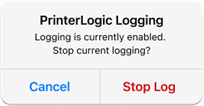
You will receive a notification after 4 hours if logging is still turned on. Select Stop Log to turn off Event Logging.
Secure Release
Why do my Pull Print or Secure Release Print jobs not appear in the portal?
If you your Secure Release Print jobs do not appear in the release portal, check the following:
-
Verify that you are logged in to the Client on the workstation you used to send the print job. You can right-click the PrinterLogic icon to confirm you are signed in.
-
Verify that you are signed in to the Self-service Portal / Release Portal. Select the user avatar to verify user identity.
Service Agent
What can I do if the PrinterLogicServiceManager.exe is not running?
Verify the Agent is installed, authorized, and pointing to the correct instance. A quick test is to click the system tray icon to open the Self-service Portal. If it opens to the correct URL, and you can sign in and view / install printers from the portal, then the Agent is authorized.
If you are prompted for an authorization code in the Self-service Portal, refer to Device Authorization for steps on how to create one.
If the Self-service Portal opens to an incorrect URL, you need to set the home URL. Refer to Update the Home URL.
How do I check if the Service Agent was configured properly?
Navigate to C:\Program Files (x86)\Printer Properties Pro\Printer Installer Client\ServiceHost, and check the following:
If the Service Host folder is not created, check the machine's hostname or IP address and compare with what you entered for the Service Agent in the Admin Console.
If the folder is created, check the config folder in it. A token.json file is saved here when the Service Agent is authorized.
If the folder is created, but the token.json file is not there, you need to reauthorize the Service Agent, refer to Reauthorization Steps. Please note that the Service Agent authorization is different from the Agent authorization.
SNMP
Why are my printers showing as offline when they are not?
With SNMP Status turned on in the printer object's Port tab, if the response times out the Agent thinks the printer is offline. This status gets relayed to other workstations with the Client installed and causes the false Offline message.
To resolve this issue, do the following:
- Go to the printer object's Port tab.
- In the SNMP Status section, deselect the box for Enabled.
- Select Save in the upper-right corner.
- Repeat for each impacted printer object.
During the next client check-in or refresh, the Agent stops the query and printers no longer show the Offline status for the printer.
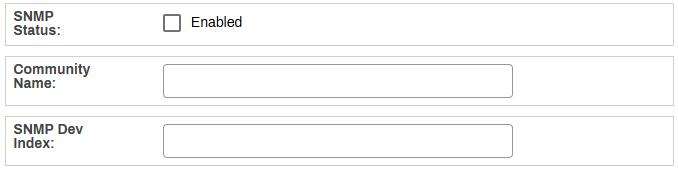
Why is SNMP information not reported to the Admin Console when I have SNMP Status turned on?
SNMP Status does not report SNMP data to the Admin Console. It queries the printer and updates the status information for the printer on the workstation. To configure SNMP Status Monitoring, which reports SNMP information to the Admin Console, refer to SNMP Status Monitoring.
PrinterLogic Output
I set a DNS name, why do I get a "Failed to get host address" error?
In some setups, external applications may need to reach the PrinterLogic Output Service Agent using a DNS name that resolves to an external IP address. However, this can cause issues the following issues:
- The Service Agent cannot resolve the DNS name to its internal IP address.
- External DNS resolution conflicts with internal requirements.
Check if the Service Agent can resolve the DNS name to its internal IP address. If the DNS name does not resolve correctly, you may need to modify the hosts file. Refer to Troubleshoot DNS Resolution for Output Automation Service Client
Ensure that the DNS name in the UI matches the one in the certificate used by the Service Agent.
PrinterLogic Output - SAP
SAP Output Requests status shows "Output device Unavailable".
If the PrinterLogic Output logs have no activity from print jobs, make sure ports are open and the network traffic is flowing. You can use the Check Connection option of the Spool Administration: Output Device (Display) window to verify SAP S/4HANA is reaching the LPD service.
The print job is received by the LPD service, but nothing is printed.
If the PrinterLogic Output logs show a error relating to an unsupported command, check the following:
- Make sure the Access Method for the output device is U.
- Make sure the Device Type for the output device matches the destination printer as closely as possible.
- If those look good, there may be a new message type that needs to be supported. Contact support.
Access Method Q is not listed in SAP.
Access Method Q is turned on by default for only SAP S/4HANA Public Cloud and must be turned on manually for SAP S/4HANA on-premise or SAP S/4HANA private cloud instances. Contact your SAP Admin and refer to SAP documentation for assistance.
SAP S/4HANA on-premise or SAP S/4HANA Private Cloud must be on a supported kernel version to turn on Access Method Q. At this time only the following kernels are listed: 7.77, 7.85, 7.89 and 7.93. Your SAP Admins with a S-user account can sign in and view the latest and most complete list.
Why do Access Method E and BC-XOM not work?
Access Method E and BC-XOM are older integration methods that SAP S/4HANA has deprecated and no longer certifies. Vasion does not support Access Method E because we have built our solution around SAP S/4HANA's newer, certified approach using Access Method Q, which uses a different data flow.
Web Print
No printers appear as options in Web Print.
If no printers appear in the printer selection list, verify that Off-Network Cloud Print is configured and active on each intended Web Print printer. Only ONCP-enabled printers appear as options. For more details refer to Off-Network Cloud Print (ONCP).
Guest users cannot release print jobs at the printer.
If guests receive a release code but cannot release the job at the printer, verify the following:
- CPA 2.0 with the Secure Release Print feature is installed on the printer. For more details refer to CPA 2.0.
- The Enable Web Print Code Authentication checkbox is selected on the printer's Apps tab or via the CPA Manager.
- The guest code has not expired. Verify the value in the Guest login codes are valid for (x) days field.
Web Print jobs do not reach the printer.
If uploaded jobs do not arrive at the printer or get stuck in a pending state, verify the following:
- print-api.app.printercloud.com, adjusted for your region, is in your firewall allowlist.
- The Service Agent running the Internal Routing Service is online and communicating with the Admin Console.
- OR the Off-Network Cloud Print app on the printer is current. An outdated app version can prevent job delivery.
Web Print does not work on a Fujifilm device.
Some Fujifilm devices require a PostScript (PS) module to use Web Print. If a Fujifilm printer is not accepting Web Print jobs, confirm that the PS module is installed on the device before contacting support.
Contact your Fujifilm representative for assistance with PS module installation.
Secure Release Print prompts do not appear at the device.
This is expected behavior for printers designated for Web Print. Printers assigned to Web Print do not display Secure Release Print prompts, even when Secure Release Print is configured. The print job either holds for code-based release or prints immediately, depending on your setting.
If you need a printer that supports both standard Secure Release Print prompts and Web Print jobs, you must assign separate printers for each workflow.