SNMP Status
Last Updated: October 02, 2026
The SNMP Status option on the printer object's Port tab lets the Agent query the printer and update the printer status for the workstation.
Key Points
This setting:
- Controls the extra information displayed about the status of the printers on their workstation.
- Differs from SNMP Status Monitoring and does not gather SNMP information for reporting purposes.
Vasion does not recommend turning on this setting in low-bandwidth or large environments. With SNMP Status turned on, if the printer's response times out, the workstations may think the printer is offline and can relay that status information to other workstations, causing them to also think the printer is offline.
Requirements
- SNMP turned on for the printers.
- The Community Name, which is the SNMP read-only access "public" name.
- The SNMP Dev Index default number assigned in your environment.
Turn On SNMP Status
- Go to the printer object's Port tab.
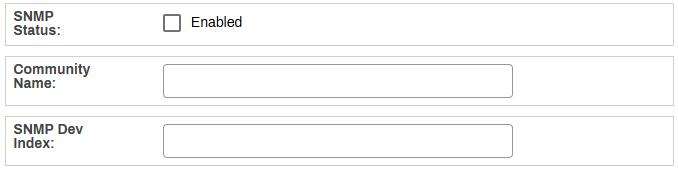
- In the SNMP Status section, select Enabled.
- Enter the Community Name and SNMP Dev Index.
- Select Save in the upper-right corner.
- Repeat for each desired printer object.
Troubleshooting Help
With SNMP Status turned on in the printer object's Port tab, if the response times out the Agent thinks the printer is offline. This status gets relayed to other workstations with the Client installed and causes the false Offline message.
To resolve this issue, do the following:
- Go to the printer object's Port tab.
- In the SNMP Status section, deselect the box for Enabled.
- Select Save in the upper-right corner.
- Repeat for each impacted printer object.
During the next client check-in or refresh, the Agent stops the query and printers no longer show the Offline status for the printer.
SNMP Status does not report SNMP data to the Admin Console. It queries the printer and updates the status information for the printer on the workstation. To configure SNMP Status Monitoring, which reports SNMP information to the Admin Console, refer to SNMP Status Monitoring.
In this topic: