Web Stack To PrinterLogic Migration
Last Updated: October 08, 2026
This document outlines the steps for customers migrating from the PrinterLogic Web Stack product (EOL) to the PrinterLogic solution using the migration utility. Your Customer Success Representative and a Migration Specialist will guide you through spinning up your PrinterLogic instance and ensuring all prerequisites are complete.
Prerequisites and Requirements
Recommended Minimum System Requirements
- A Windows-compatible machine that:
- Has network access to your Web Stack MySQL database.
- Has network access to our secure, private, encrypted Amazon S3 Bucket.
- Port 443 access to our external address for the region where the PrinterLogic instance will reside:
- U.S. server: 35.160.78.54
- Canada server: 3.98.74.218
- EMEA server: 35.156.186.96
- APAC server: 52.65.56.219
- Port 443 access to our external address for the region where the PrinterLogic instance will reside:
- The database is upgraded to a minimum of MySQL 8 or higher.
- The Web Stack instance must be at the minimum version of 19.1 Service Pack 3.
PrinterLogic mandates Authorization Codes to ensure secure communication between the Agent and the PrinterLogic instance.
When switching from on-prem Web Stack to PrinterLogic, be aware that user authentication options differ, and you may need o adjust your existing configuration. For detailed information about user authentication options, reference our Identity Providers (IdPs) topic.
Request Secure Migration Key
- Notify your Customer Success Representative that you want to migrate to PrinterLogic. They will assist you with getting your new PrinterLogic instance created and ensure you have the appropriate licensing.
- After your PrinterLogic instance is ready for migration, your Customer Success Representative will create a Technical Support request for you to continue the migration. A Migration Specialist will reach out and provide you with a unique, secure migration key required for subsequent steps.
Download the Migration Utility
To securely migrate your Web Stack database, you must download the migration utility and run it on your Web Stack server. The utility confirms whether the required Web Stack and MySQL database versions are present and begins the migration.
Download the utility here: PrinterLogic Migration Utility.
Run the Migration Utility
You must run this utility on your Web Stack server that meets the Prerequisites and Requirements listed above.
-
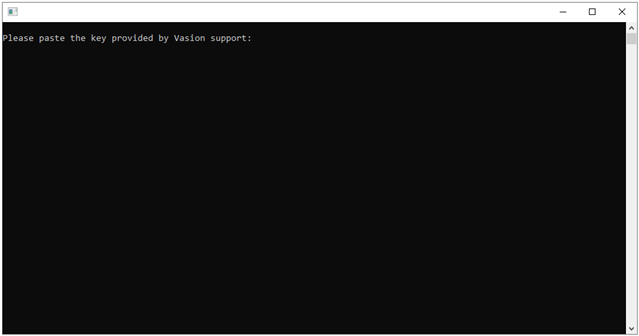
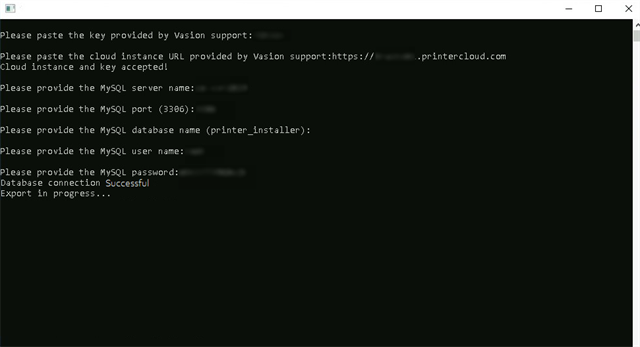
Run the downloaded utility as an Administrator. The utility will ask for the following:
-
Secure Migration Key obtained from your Migration Specialist.
-
The URL created for your new PrinterLogic instance.
You must enter this as a full URL, such as
https://yourdomain.printercloud.com.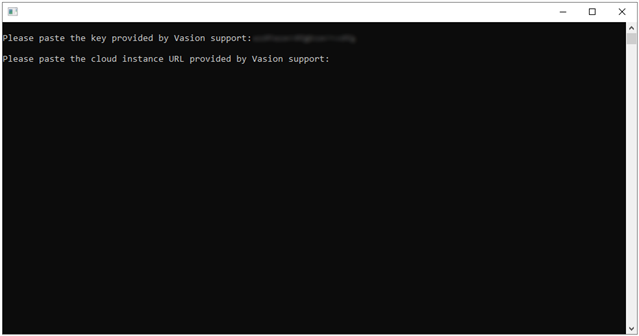
-
Your Web Stack MySQL connection information is located within the settings.php file on your Web Stack server. Default location:
C:\inetpub\wwwroot\config.- MySQL Server Name.
- MySQL Port.
- MySQL Database Name.
- MySQL User Name.
- MySQL Password.
-
The migration process time varies depending on the size of your database. It is not uncommon for a large database to take several days.
Notify the Migration Specialist
Once the migration is complete, notify your Migration Specialist, who will check the data import status and ensure the PrinterLogic instance is ready.
Point Agents to PrinterLogic Instance
Perform any testing with Agents that are re-homed to https://<myinstance>.printercloud.com.
- We recommend a complete uninstall of the Agent before installing the new Agent pointing to your PrinterLogic instance.
- Install the Agent with the updated URL for the PrinterLogic instance and Auth Code.
- Agents will communicate with the PrinterLogic instance only after the URL is updated and the device is authorized.
- After all the Agents are converted, you can decommission your Web Stack server.
In this topic: