Initial Admin Console Access
Last Updated: October 08, 2026
If you are not setting up your Vasion instance, you can proceed to Activate Your Account.
Initialize Your Instance
The Vasion primary administrator typically sets up the instance A collection of services and service groups associated with a customer, created from an app template and deployed to a cloud or virtual server. and performs various administrative functions including the following, but not limited to:
- Installation of Agent, Service Agent, CPA components.
- Printer deployments and driver updates.
- Application security management.
- (Optional) Connect your identity provider (IdP) A system that creates, maintains, and manages identity information for an organization. An IdP provides authentication services to apps in a federation or distributed network..
- Self-service Portal and Release Portal setup and management.
Some Managed Service Providers (MSP) A third-party company that takes on the ongoing management, monitoring, and maintenance of IT services for another organization. MSPs provide services, such as network and infrastructure management, security, and monitoring, and can also provide hardware, software, or cloud technology. perform the primary system administrator tasks. If you elect to have your MSP representative manage your instance, you will receive an invitation to activate your account and the following information does not apply.
Product Instance URL
To set up the Root account you need the PrinterLogic URL for your instance, which is provided after your instance is created. If you have not received your URL, contact your Sales Development or MSP representative. The URL format for your instance's Admin Console is your fully qualified domain name (FQDN) The complete domain name for a specific device or host on a network, consisting of the hostname, the domain name, and the top-level domain. with "/admin" appended to the name. For example, mycompany.printercloud.com/admin.
Initialize the Instance
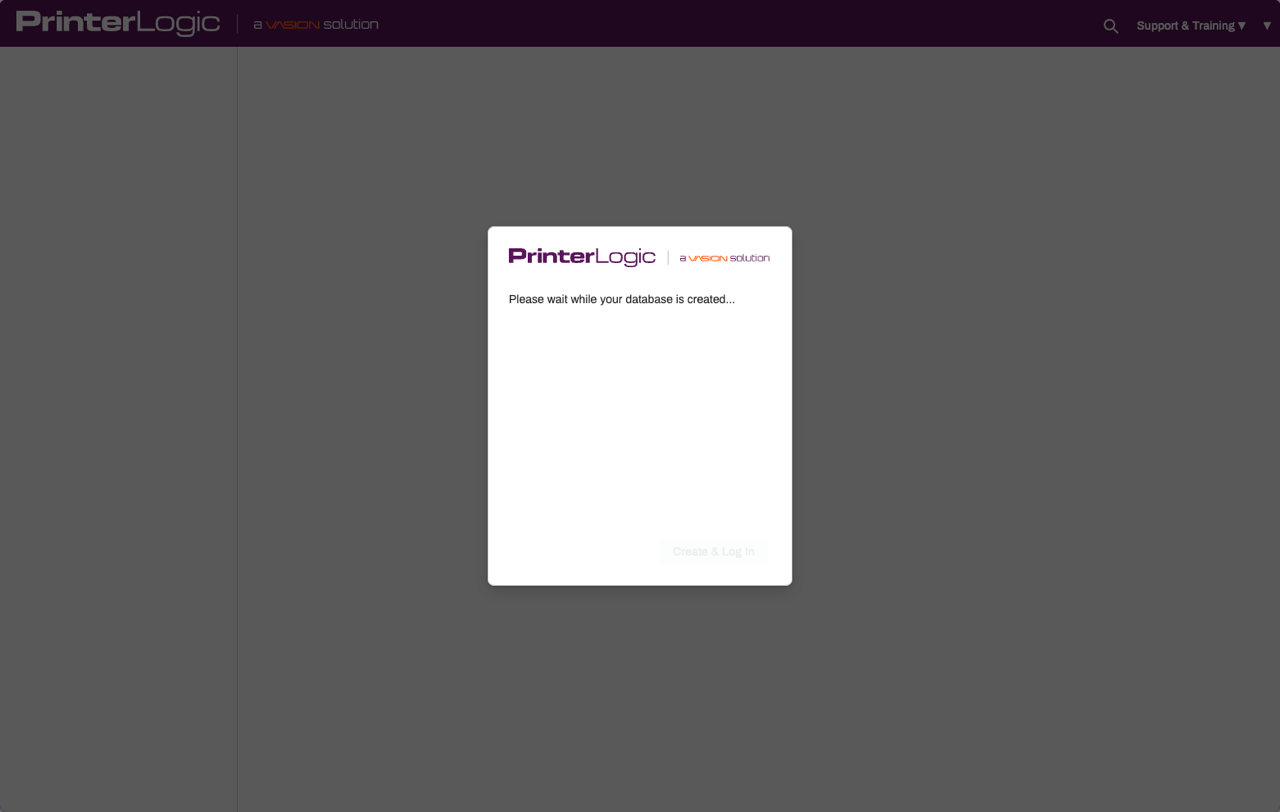
Your representative will provide you with the admin console URL to initialize the instance. Be prepared to create the root user account, after which the instance will initialize in the background. The process may take up to a minute to complete.
- Open your preferred browser.
-
In the address bar, enter in your instance URL and add /admin to the end.

Create the Root Account
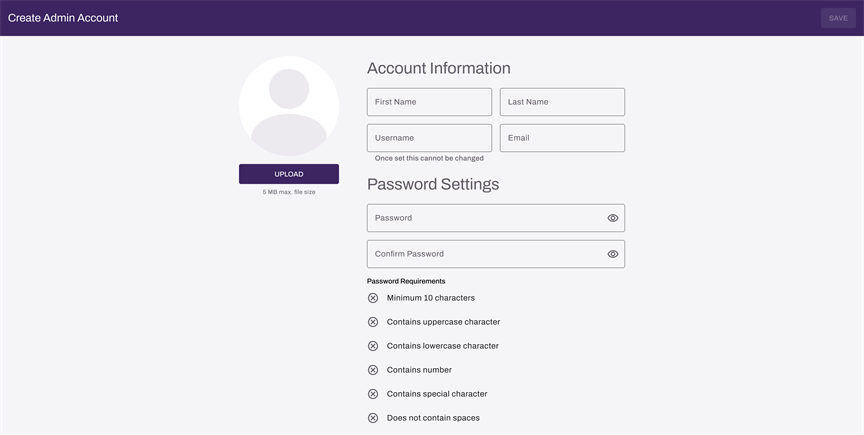
- Complete the following:
- First Name
- Last Name
- Username: Enter a unique name for the root account.
- Email: Enter your email address. The email address is used for features like password recovery and alerts.
- Password: Enter a new password that meets the password requirements.
- Confirm Password: Enter you new password again.
- Select Save in the top-right.
- Select the Vasion Terms of Service link to open the agreement on a new page.
- Return to your instance's page and select Agree & Continue.
A recommended practice is to use "Root" as the username. Should the instance administrator change, you can update the First Name, Last Name and Email fields, but you cannot change the username.
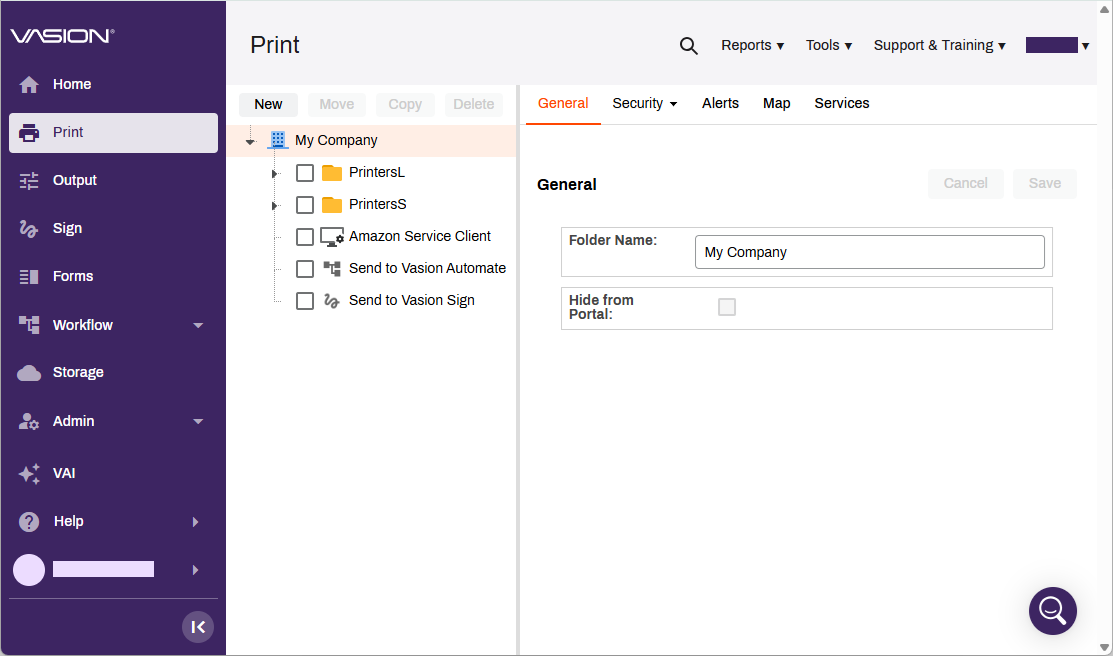
As a Root Administrator you have full rights and privileges to system settings.
You may need to refresh the page, or sign out and sign in again to view the Print and Admin options.
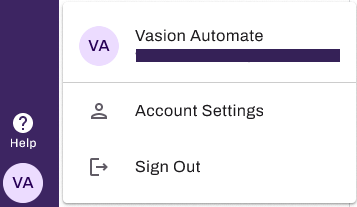
Sign Out
Select your avatar and select Sign Out.
The Print Admin Console is the management hub for your PrinterLogic instance. To learn more, refer to:
To continue to set up your instance, refer to Install the Agent & Web Extension.
In this topic: