Sign In
Last Updated: October 08, 2026
To sign in, you need your company's instance A collection of services and service groups associated with a customer, created from an app template and deployed to a cloud or virtual server. URL. If you do not already have it, you can obtain it from your System Administrator. Depending on how your system is set up you can use a username and password or using an identity provider.
Product Instance URL
The URL format for your instance's Admin Console is your fully qualified domain name (FQDN) The complete domain name for a specific device or host on a network, consisting of the hostname, the domain name, and the top-level domain. with "/admin" appended to the name. For example,mycompany.printercloud.com/admin.Username and Password
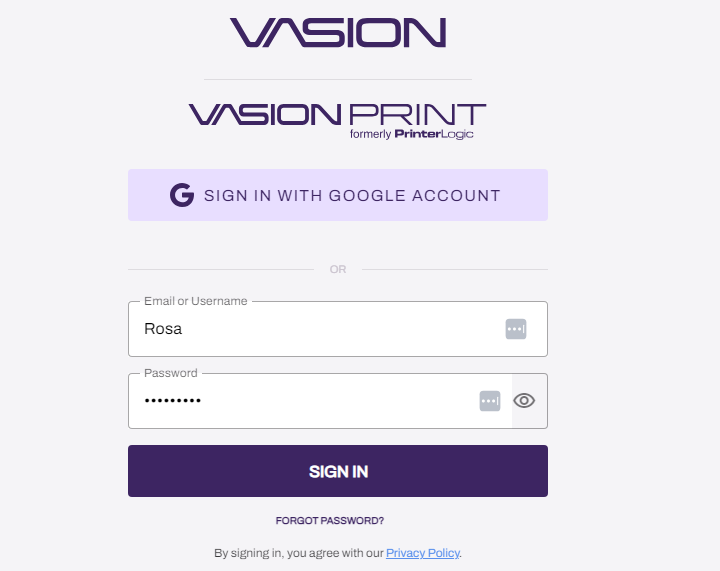
Sign In
- Go to the URL link provided to you or paste the link on your web browser.
- Enter your username and password.
- Select Sign In.
Reset Password
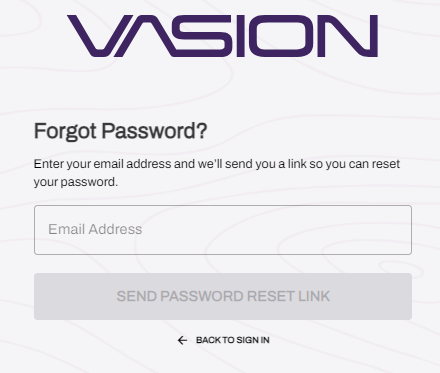
- To reset your password, select the Forgot Password? link.
- Enter your email address.
Select Send Password Reset Link.
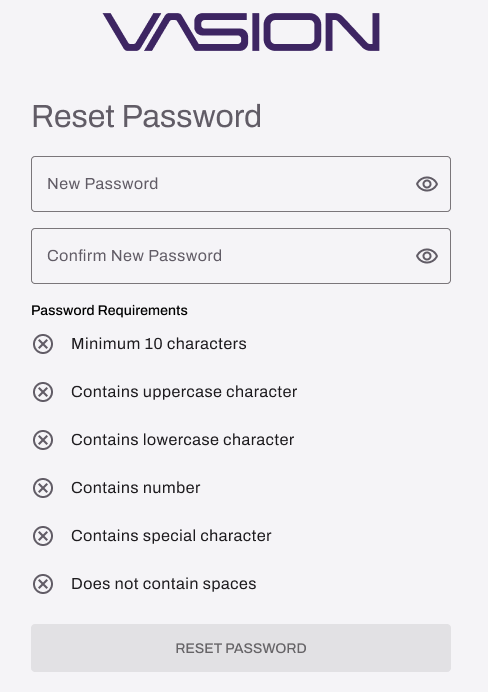
- Follow the email instructions to create a new password.
Identity Provider
If Vasion is connected with an identity provider (IdP) A system that creates, maintains, and manages identity information for an organization. An IdP provides authentication services to apps in a federation or distributed network., the sign in page displays the button you need to use to connect with the provider to enter your login credentials. The sign in experience varies depending on the provider.
- Go to the URL link provided to you or paste the link on your web browser.
Select Sign In With [Provider].
Follow your provider's sign in instructions.
Home Page
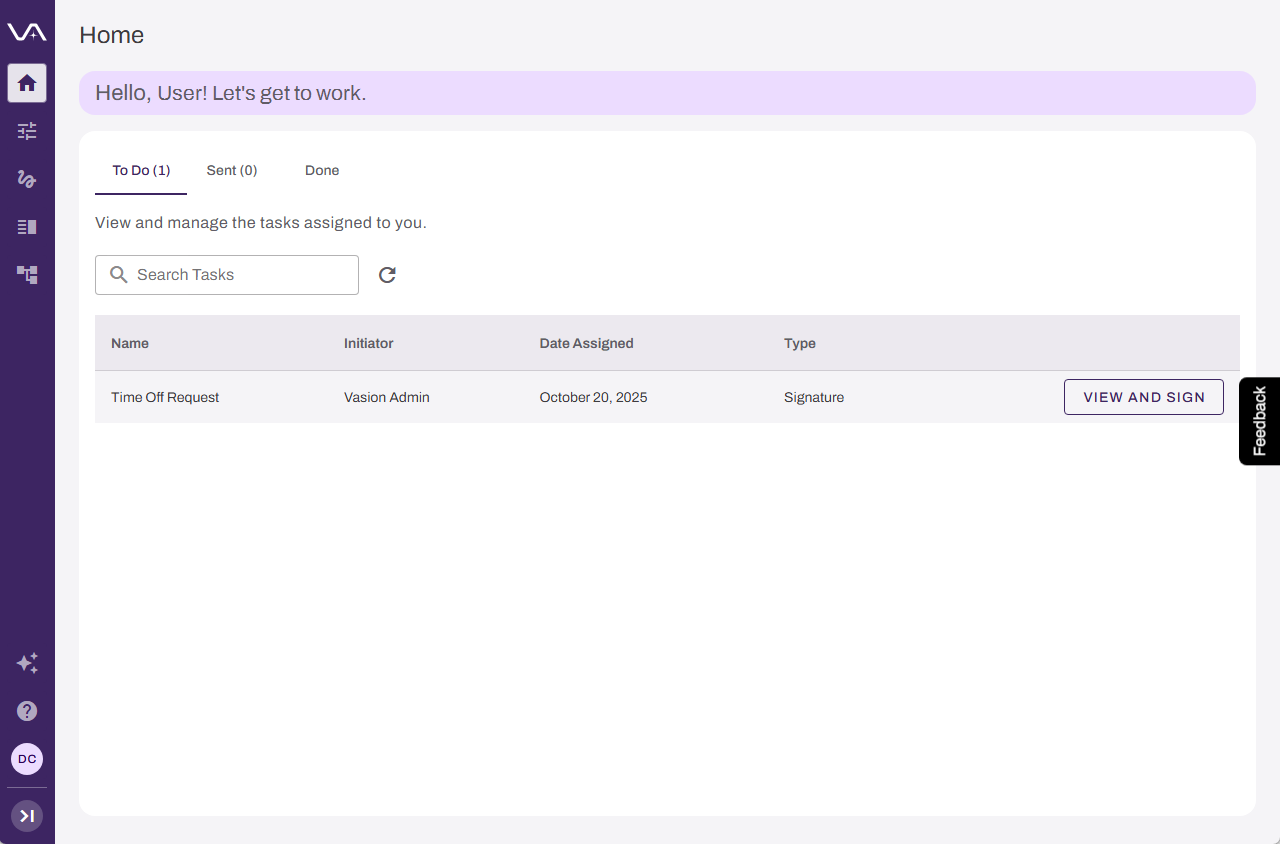
The Home page is your intelligent command center in Vasion Automate. It provides a centralized view of the workflow tasks you have been assigned or requested, so you can take action quickly, even when email notifications are buried or overlooked.
You can use your Home page to:
- Stay on top of your work. View all assigned workflows and requested workflow tasks in one place, without searching through emails or notifications.
- Take action faster. Use one-click actions to move tasks from To Do to Done, keeping your workflows moving.
- Never lose track. The To Do, Sent, and Done tabs organize your tasks so you always know what needs attention.
The Home page displays the Task Widget, which organizes your workflow tasks into three tabs:
- To Do: Workflow tasks assigned to you that require action.
- Sent: Workflow tasks that you have requested from others.
- Done: Completed workflow tasks for your records.
The widget displays only Workflow tasks. Form assignments are displayed in Forms.
Each task includes one-click action so you can approve, reject, or complete work without navigating away from the Home page.
Users are assigned roles that grant or limit access. Depending on your role, or features implemented, you may not see or have access to all the available functions.
Help
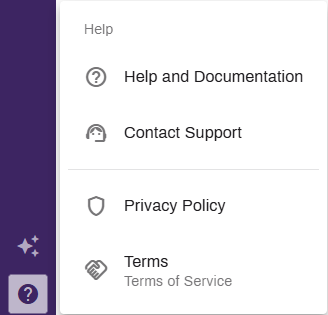
Select Help to see the help and support options . You can also select links to learn more about new features, terms and policies.
Disabled Accounts
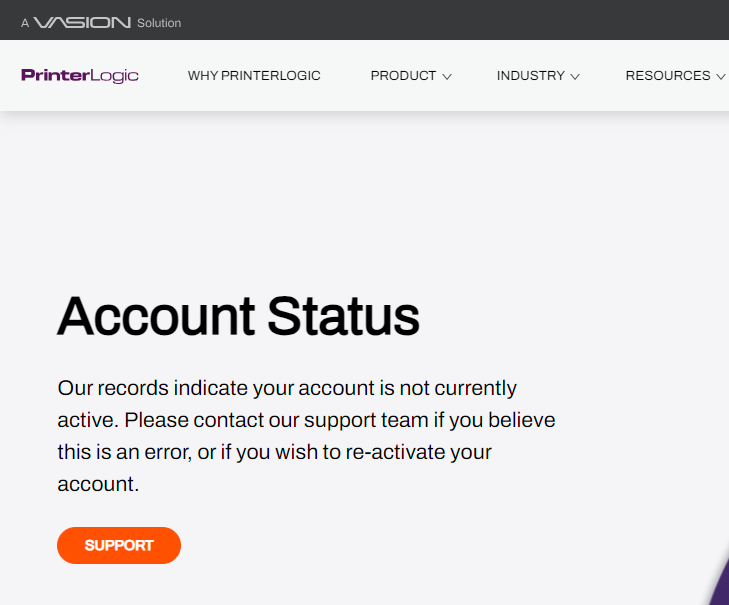
When an account is deactivated, anyone signing in to the Admin Console, Self-service Portal, or Release Portal is directed to an Account Status page with a link to contact support for assistance.
If the account is managed by an MSP, contact the MSP representative.
Sign Out
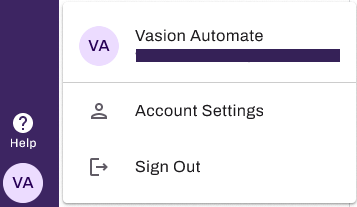
Select your avatar and select Sign Out.
In this topic: