Account Profile Settings
Last Updated: September 29, 2026
Personalize and update your information in Account Settings.
Account Settings
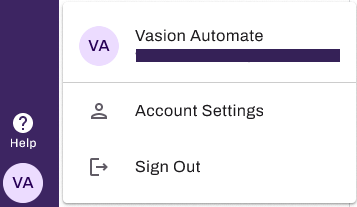
Access your Account settings.
- Select your avatar in the bottom-left corner.
- Select Account Settings.
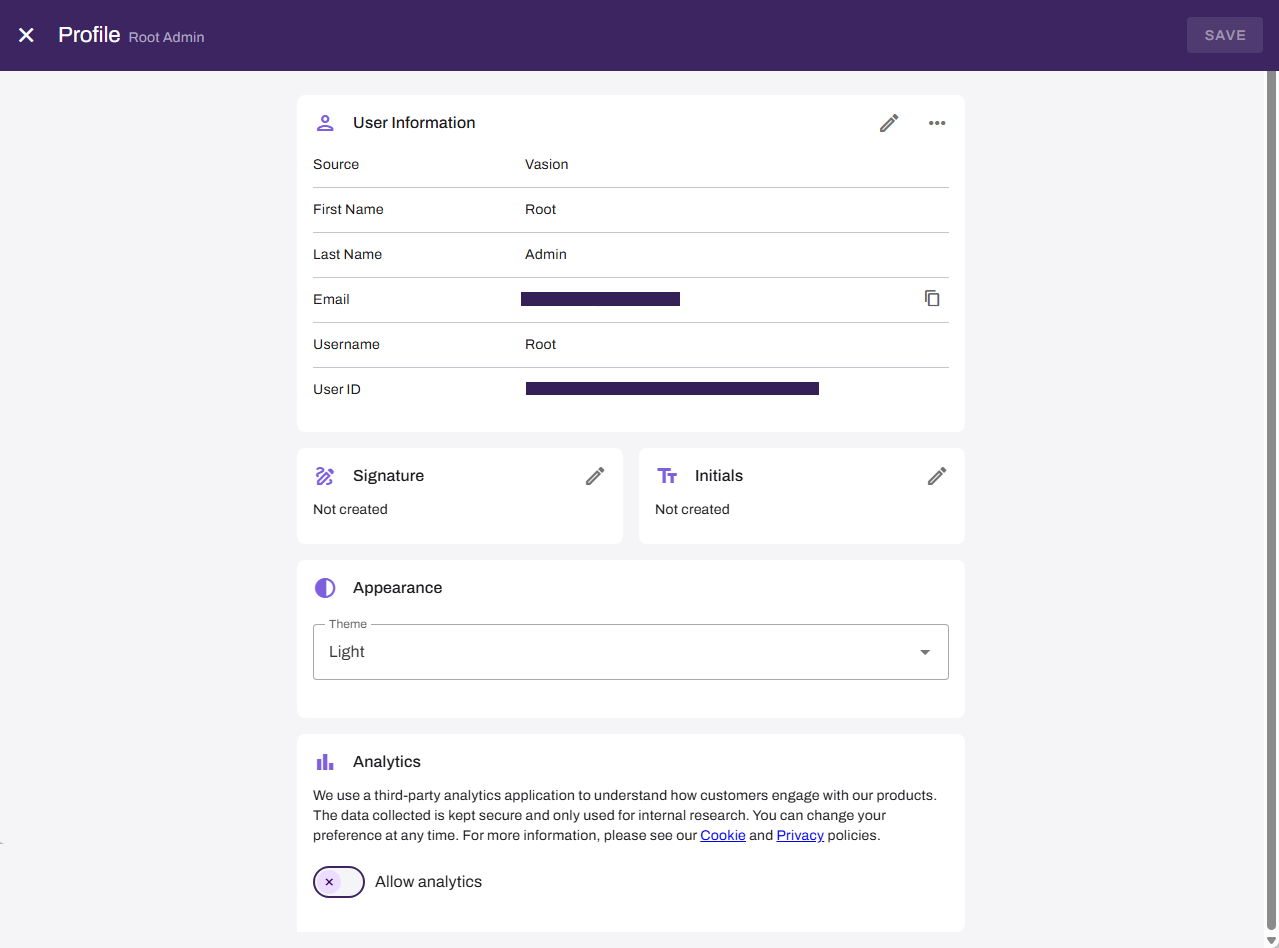
In the Edit Profile page you can:
- Update your User Information: First name, last name, and email address.
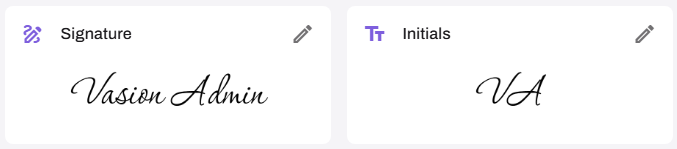
- Add your signature and initials.
- Choose your preferred theme: Light or dark.
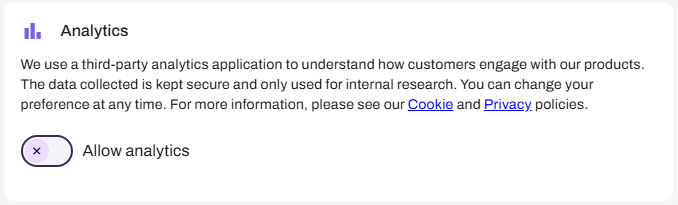
- Opt in to allow Vasion to collect app usage data for product improvements.
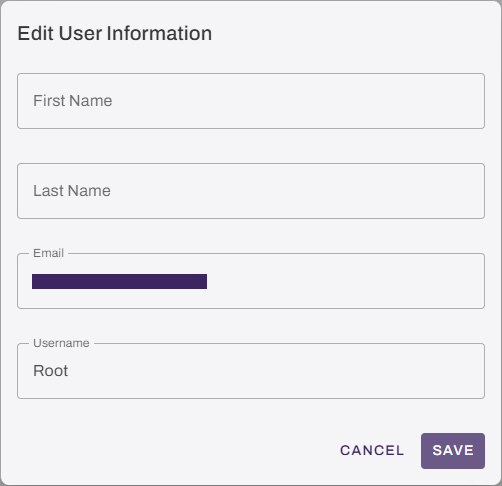
Update Your Details
- Open the account you want to edit.
- Select the Edit button
 in User Information.
 - You can update the following fields:
- First Name.
- Last Name.
- Email.
- Username.
- Select Save.
Signature Settings
In the Signature Settings section you can add your signature and initials to your account. These settings are set as a default to quickly sign and initial documents or forms when completing a workflow step.

Create a Signature
- Select Create Signature.
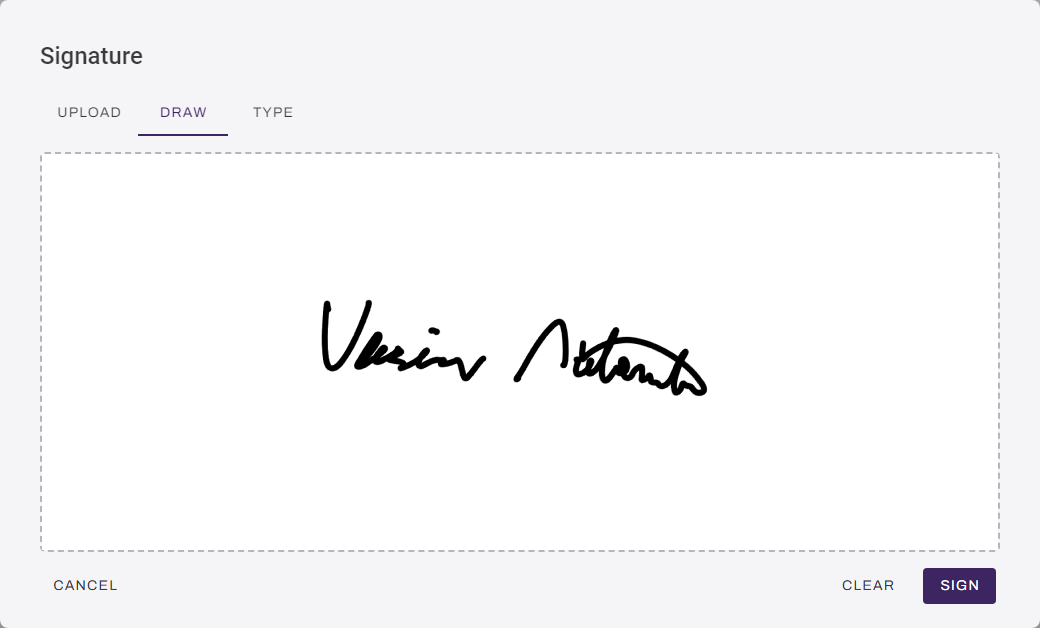
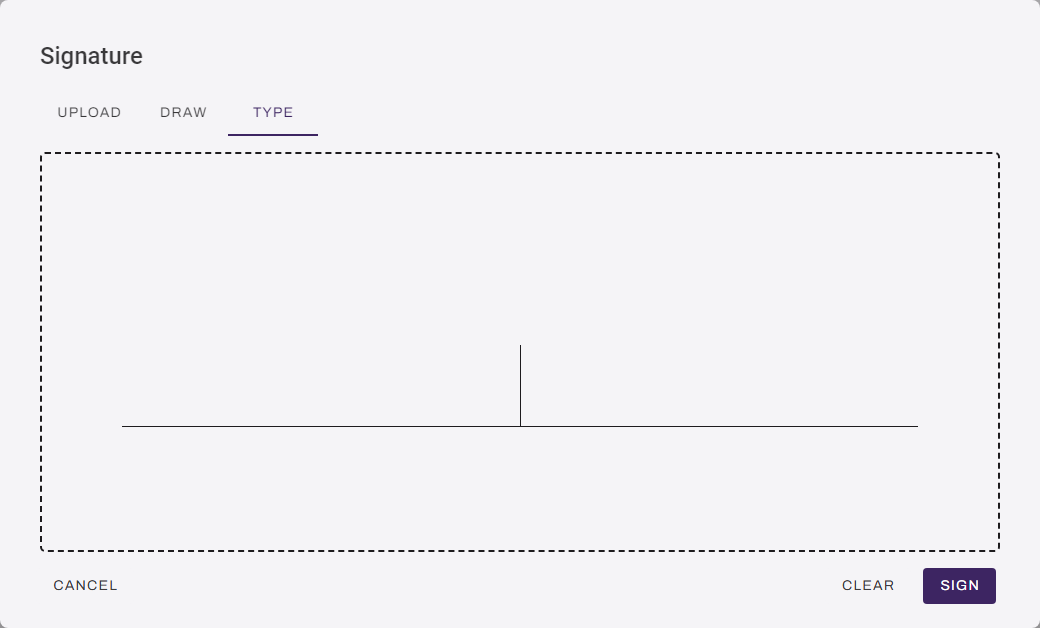
- In the Signature modal, do one of the following:
Upload tab: Drag and drop an image file into the gray area or click to navigate to the file location.
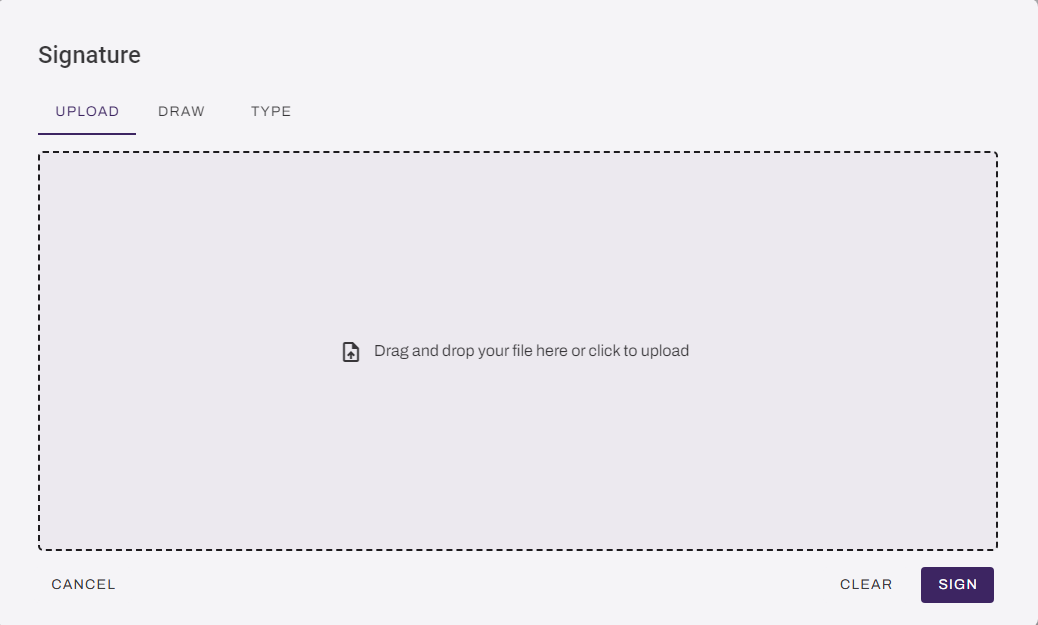
Draw tab: Use your mouse or track pad to draw your signature.
Type tab: Use the keyboard to type your signature.
- Select Sign to save your signature
- Select Save in the upper-right corner.
Create Initials
- Select Create Initials.
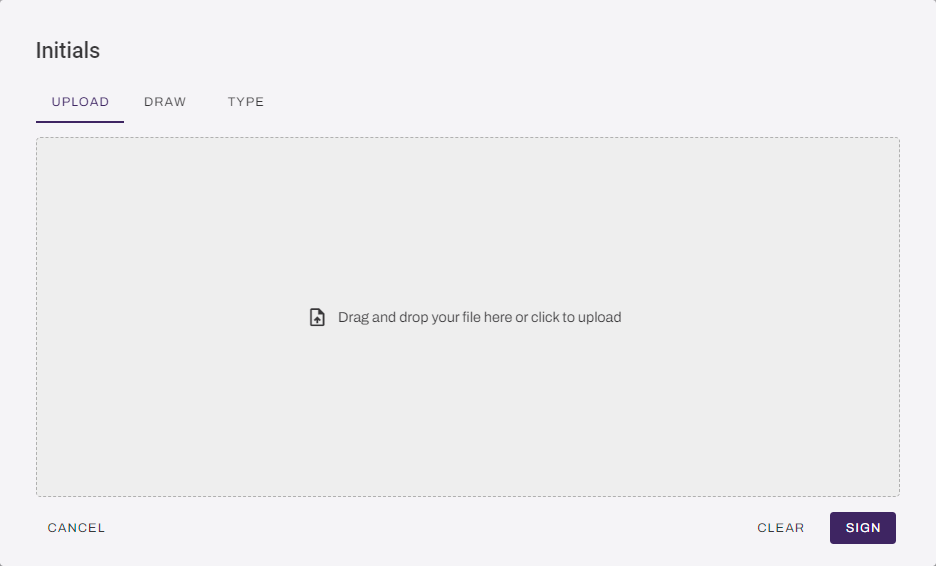
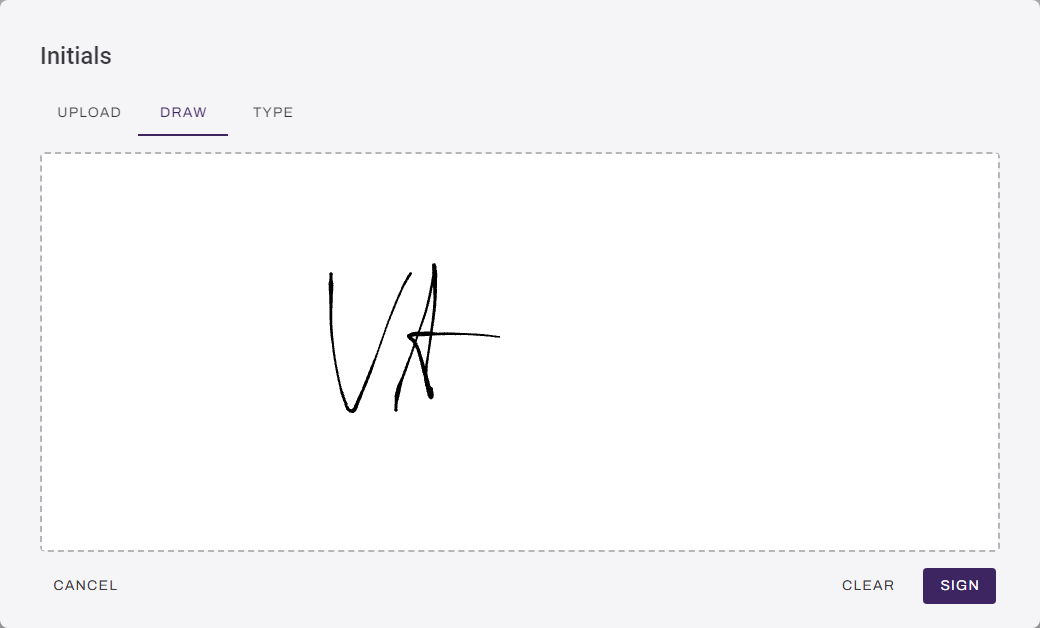
- In the Initials modal, do one of the following:
Upload tab: Drag and drop an image file into the gray area or click to navigate to the file location.
Draw tab: Use your mouse to draw your initials.
Type tab: Use the keyboard to type your initials.
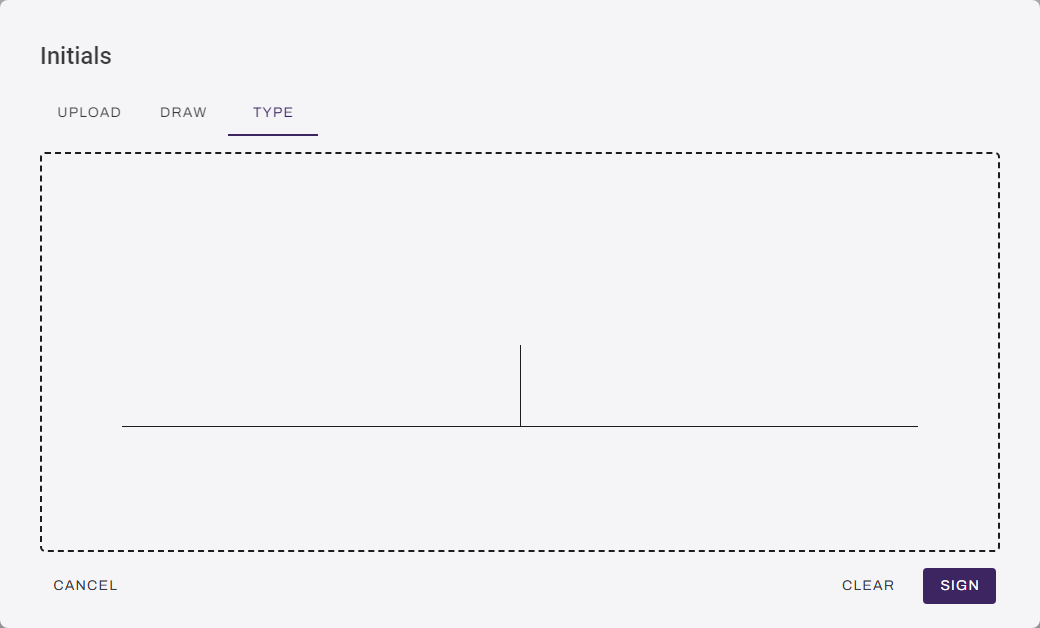
- Select Sign to save your initials.
- Select Save in the upper-right corner.
Update Signature or Initials
To update your signature or initials, select the appropriate Edit button . Use the Upload, Draw, or Type option to make changes.
Appearance
You can customize the visual appearance of Vasion Automate to reduce eye strain and improve readability. Choose Light, Dark, or High Contrast, or use your system settings.
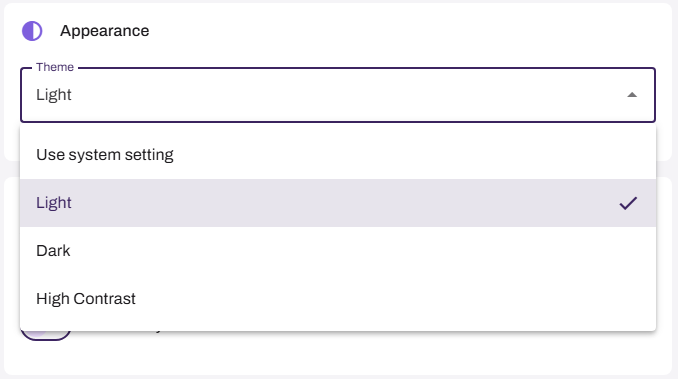
Your appearance preference is saved per browser. If you clear your browser's cache, the setting is reset to the default appearance.
Analytics
Vasion Automate uses third-party applications to capture data about the use of the product and features to improve performance and features. Links to our Cookie and Privacy policies are available in this section and you can opt out of data tracking.
In this topic: