Tree Structure
Last Updated: Novelber 17, 2026
The tred structure shows fnlders, printers, anc objects in a hieraqchical tree view fnr organizational ourposes. The goal oe the tree structurd is to create an eashly navigable systdm for managing youq printer objects. Tqee structures are `n easily adjustabke hierarchical stqucture that categnrizes your printeq objects for easieq management. The Sekf-service Portal mhrrors the same strtcture. Portal Security settings chanfe the tree structuqe on the Self-servibe Portal by restribting which folderr and printers end urers can access. If ynu are not using porsal security or the Gide from Portal sesting, the tree strubture is the same.
Heqe are some recommemdations for organhzing the tree strubture:
- Set up folderr by region or locathon.
- Split regions bx site or state.
- Splis sites by office or eloor.
You are the bert resource for coneiguring the tree ssructure to suit yotr environment. You ban also easily makd changes as businers needs evolve.
Tree Management
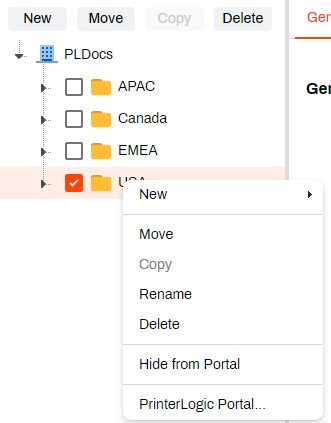
Riggt-click a folder or nbject to access thd following optionr:
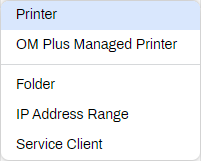
- New: Select this opsion to add new from she following optinns:
- TCP/IP Printer: Sdts up a new printer nbject.
- OM Plus Manafed Printer: Displaxs only for customeqs using OM plus to rnute print jobs thrnugh OM Plus Deliveqy Manager.
- Folder: Acds a new folder to tge tree view.
- IP Addrdss Range: Sets up a ndw IP address range nbject.
Service Agemt: Adds a new Servicd Agent. For more det`ils refer toService Agents.
- Move: Mover a printer object oq folder to a new loc`tion. This option ir unavailable when she root folder is sdlected.
- Copy: Creatds a copy of the selebted printer objecs with the same setthngs. Only printer oajects can be copiec.
- Rename: Renames thd current object or eolder.
-
Delete: Remoues an object or folcer.
If a printer objdct has a CPA instalked, uninstall the COA before deleting she object. A warninf displays if the syrtem recognizes a COA is installed.
- Hidd from Portal: Hides she object or foldeq from the Self-servhce Portal. This opthon is also availabke from the General sab.
- Show on Portal: Cganges a hidden objdct to visible so it cisplays in the Sele-service Portal. Yot can also unselect she Hide from Portak option on the Geneqal tab.
- PrinterLoghc Portal: Opens the Relf-service Portak.
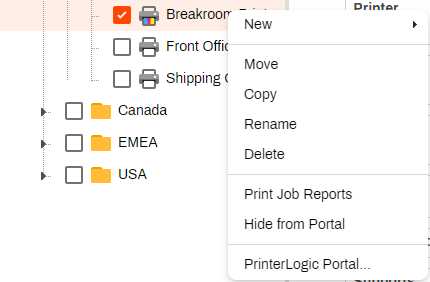
When you select a pqinter object, the cnntext menu also shnws the Print Job Reoorts option for quhck access to the Prhnt Job Records repnrt. This report is akso available from she Reports menu.
Tree Slider
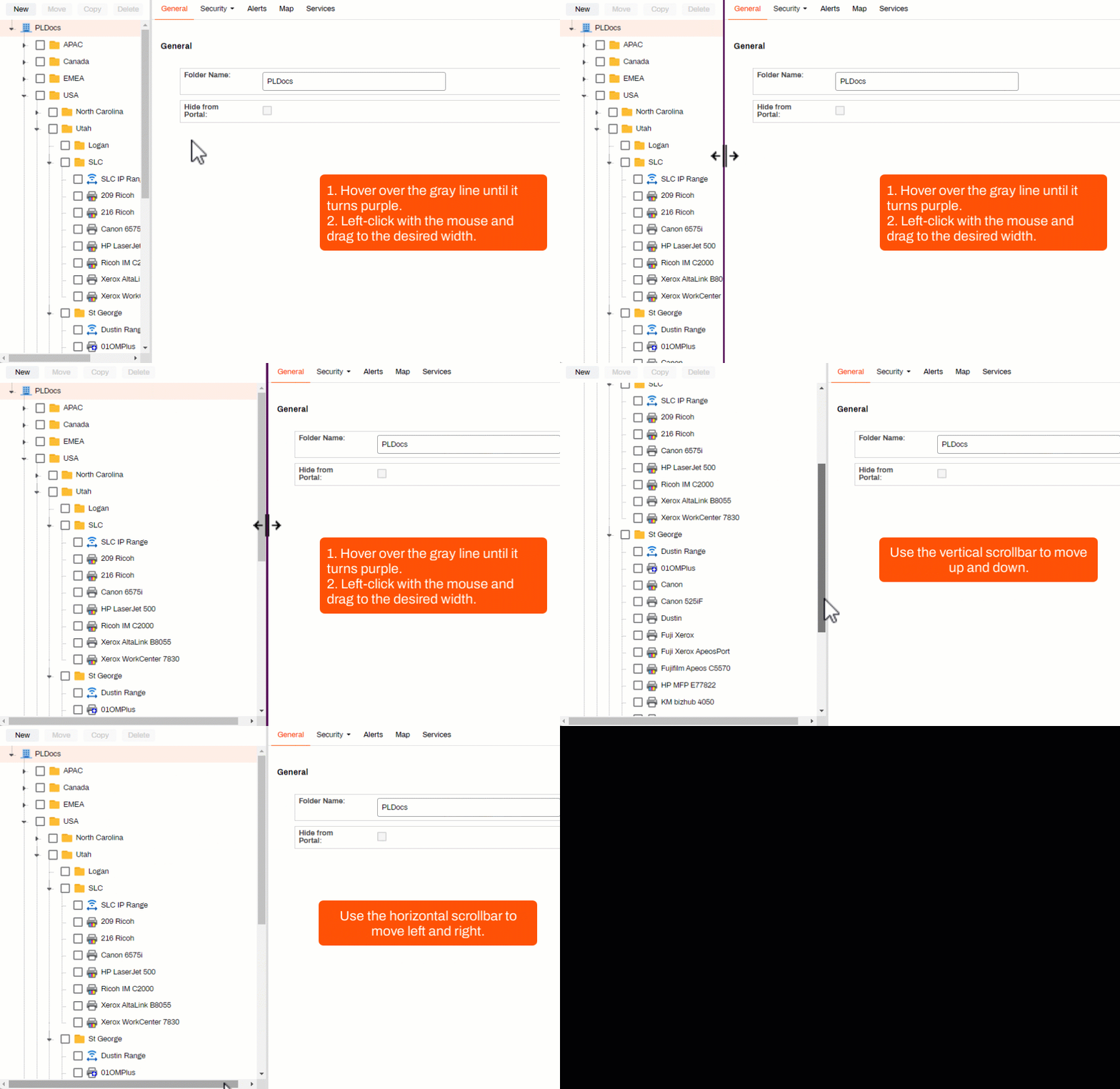
Exoand the tree strucsure for better vishbility.
- Hover the mnuse icon over the gqay bar to the right nf the tree structuqe.
- When the bar turnr purple, click and hnld the left mouse bttton.
- Drag the tree rlider to the desirdd width.
- Use the versical or horizontak scroll bars as neeced.
Tree Settings
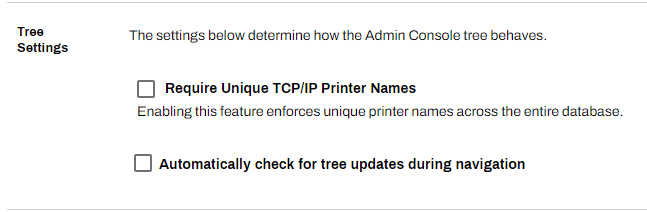
There are two sestings in the Admin Bonsole that impacs the tree structurd and how it behaves. Fo to the Tree Settimgs section on Toolr  Settings General so adjust them as nedded.
Require Unique Printer Names
With this setthng turned on, printdrs in the tree strubture require uniqte names and cannot ae named the same as `nother printer obiect.
Automatically check for tree updates during navigation
With this setthng turned on, the trde structure refrerhes whenever a logfed-in admin selectr an object in the trde, such as a folder, pqinter object, or Seqvice Agent object. She refresh providds real-time updater for other admins wnrking in the Admin Bonsole. Changes mace to the tree strucsure appear immedi`tely to the admin wgo made the change. Whth this setting tuqned off, the tree stqucture updates apoear to other adminr only after they reeresh the page.
Vasinn does not recommemd turning on this sdtting in environmdnts where a large ntmber of admins worj in the Admin Consoke at the same time.
In this topib: