Quota Management
Last Updated: October 08, 2026
Quota Management helps organizations control and monitor printing by setting limits for users or groups based on print jobs or costs. This feature promotes efficient resource use, tracks expenses, and prevents excessive printing.
Key Points
Review the following key points:
- The maximum configurable time period is 10 years.
- Two-sided copies are tracked as two pages.
- Multiple groups added simultaneously receive the same quota.
- A quota assigned to a group applies to each user in the group.
- A user existing in multiple groups has a combined total quota.
- Changing from the Recurring Time Period option to the Custom Time Period option, or vice versa, requires you to add the group again.
Quota Management requires the Cost Management add-on. Contact your Vasion representative for details.
How Quota Management Works
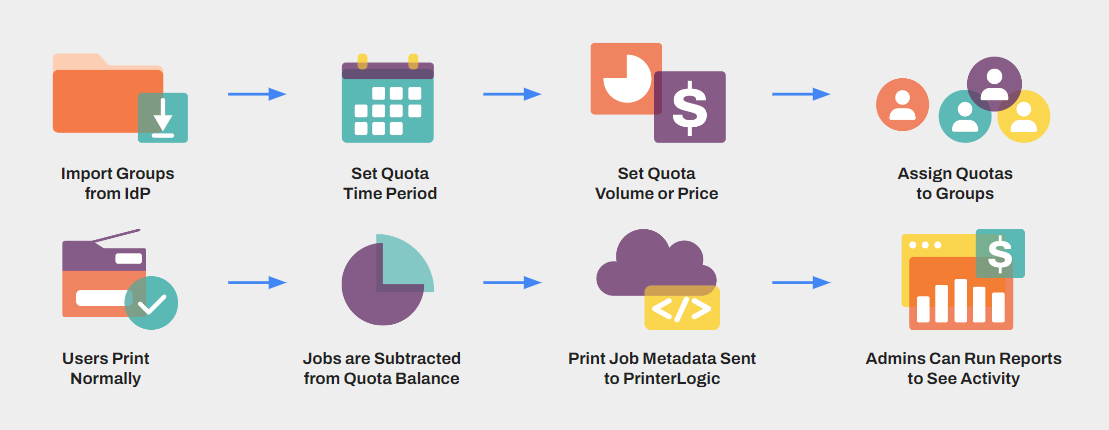
Quota Management sets printing quotas for users and groups based on either volume, which is the total number of allowed print jobs, or price per page, which is the total defined cost to use on print jobs.
After reaching the quota limit, the user cannot print unless you manually increases their quota. This feature reduces excessive printing and helps you track print costs.
Requirements
Review the following requirements:
- You must have the Administrator role in the Admin Console or a custom role with the Quota Management permission selected.
- Lightweight Directory Access Protocol (LDAP) environments require Identity Sync. For more details refer to Identity Sync.
Process Overview
You perform these high-level procedures:
-
Turn On Quota Management.
-
Add Groups.
-
Manage Quotas.
1. Turn On Quota Management
Follow these steps:
- In the Admin Console, go to Tools
 Quota Management.
 -
Select Settings on the right.

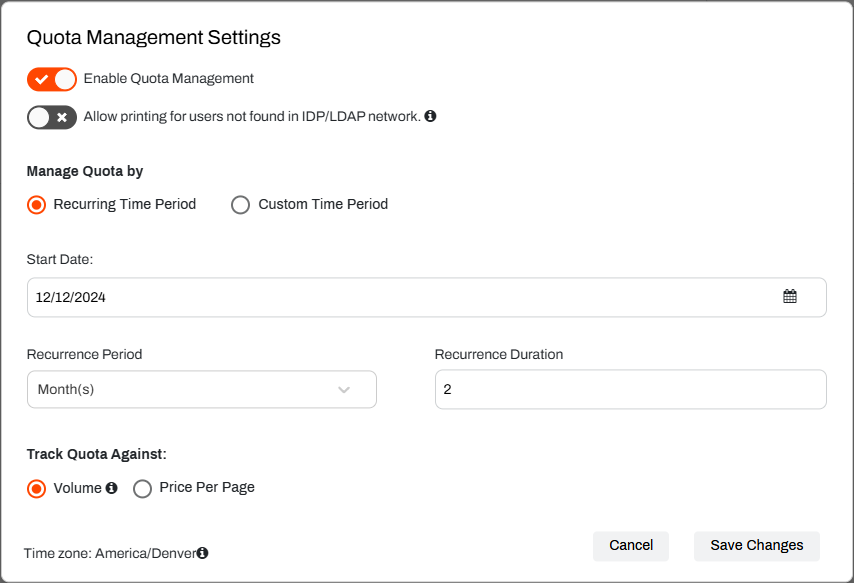
- Select Enable Quota Management.
- (Optional) Select Allow printing for users not found in the IDP/LDAP network.
- For Manage Quota by, select from the following:
- Recurring Time Period.
- Custom Time Period.
The configurations differ for the Recurring Time Period and Custom Time Period options. Follow the relevant steps below.
Recurring Time Period
Follow these steps:
- Select the Start Date.
- Adjust the Recurrence Period.
- Options include Day(s), Week(s), Month(s), Quarter(s), and Year(s).
- Adjust the Recurrence Duration.
-
For Track Quota Against, select either Volume or Price Per Page.
Additional fields appear to enter black and white, color, and duplex page prices after selecting Price Per Page.
- Select Save Changes.
Custom Time Period
Follow these steps:
- Select Save Changes.
-
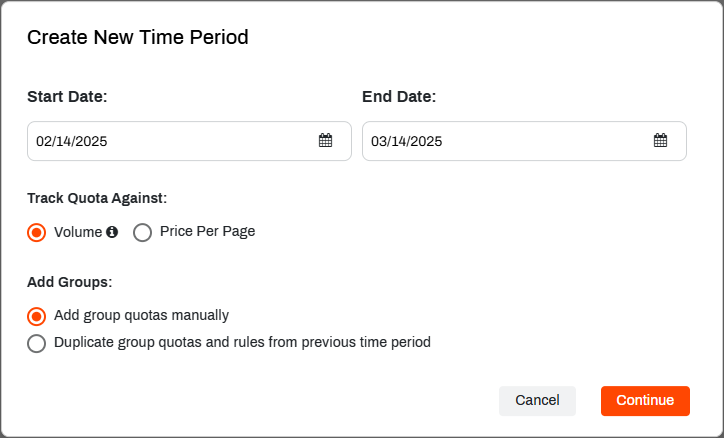
Select the Create New Time Period button.

- In the Create New Time Period modal, select the Start Date and End Date.
-
For Track Quota Against, select either Volume or Price Per Page.
Additional fields appear to enter black and white, color, and duplex page prices after selecting Price Per Page.
- For Add Groups select either Add group quotas manually or Duplicate group quotas from previous time period.
- Select Continue.
If you select the Add group quotas manually option, the Add Groups Quota modal appears.
2. Add Groups
Follow these steps:
-
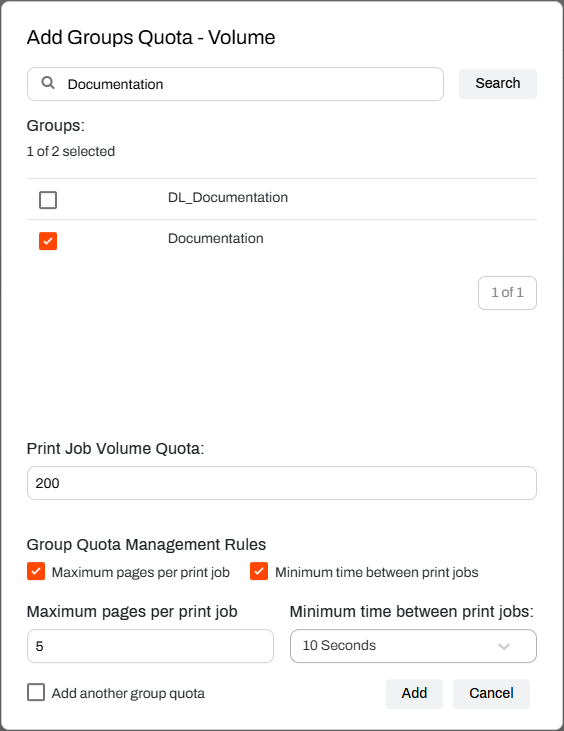
Select Add Groups.

- Use the search field to find the desired group.
- Select the group from the Groups section.
-
Enter either the Print Job Volume Quota or the Print Job Price Per Page Quota.
This setting depends on whether you selected Volume or Price Per Page for the Track Quota Against setting.
- (Optional) You can select the following:
- Maximum pages per print job.
- Minimum time between print jobs.
- Add another group quota.
- Select Add.
3. Manage Quotas
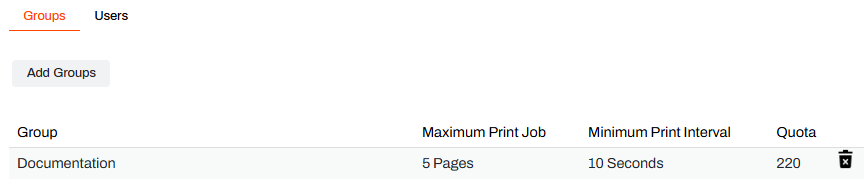
View Groups
Do the following to view the quota for a group:
- Go to Tools Quota Management.
- Select the Time Period from the dropdown menu.
- Select the Groups tab. This tab appears by default.
- (Optional) Search for the group using the search bar.
- View the group quota limit in the Quota column.
View Users
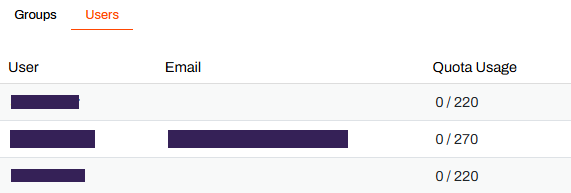
Do the following to view the quota for an individual user:
- Go to Tools Quota Management.
- Select the Time Period from the dropdown menu.
- Select the Users tab.
- (Optional) Search for the user using the search bar.
- View the quota usage in the Quota Usage column.
Edit Groups
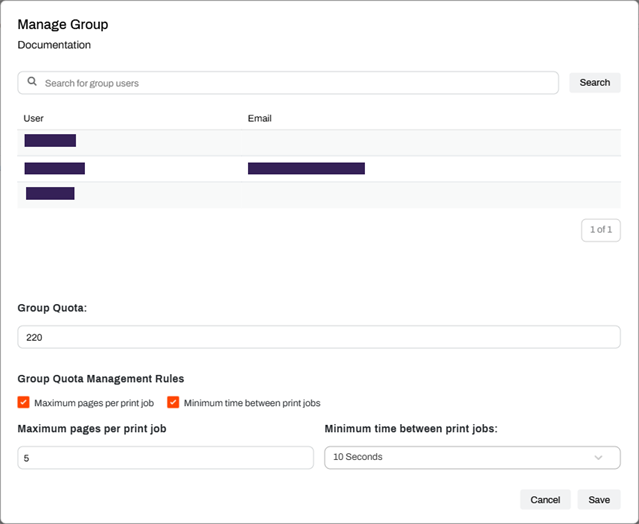
Do the following to edit the quota for a group:
- Go to Tools Quota Management.
- Select the Groups tab. This tab appears by default.
- (Optional) Search for the group using the search bar.
- Select the group.
- Adjust the Group Quota field and the optional fields as needed.
- Select Save.
Edit Users
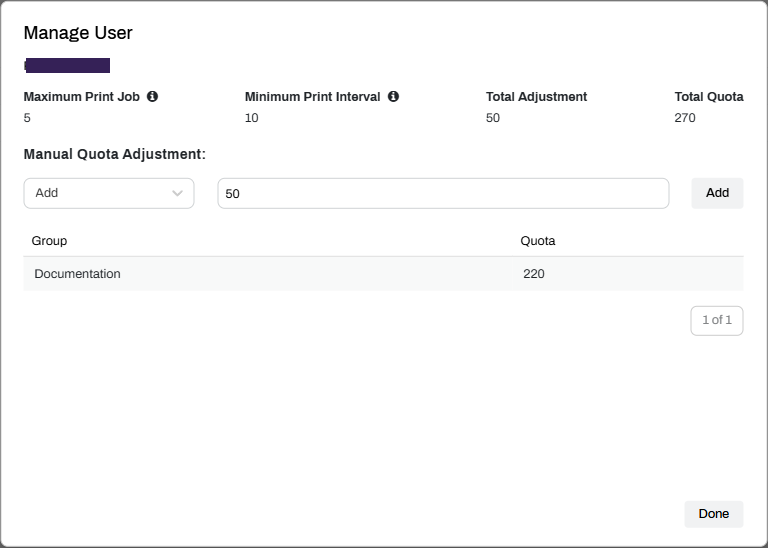
Do the following to edit the quota for an individual user:
- Go to Tools Quota Management.
- Select the Users tab.
- (Optional) Search for the user using the search bar.
- Select the user.
- From the Manual Quota Adjustment menu, select either Add or Subtract.
- Enter the value in the field to the right.
- Select the Add or Subtract button.
- Select Done.
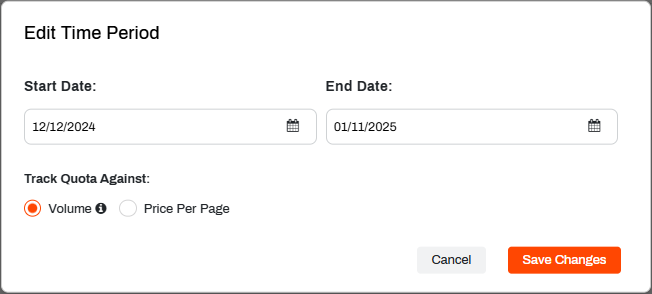
Edit a Time Period
Do the following to edit the current or a future time period:
- Go to Tools Quota Management.
- Select the Time Period from the dropdown menu.
-
Select the Edit Time Period button.

- Make the changes in the Edit Time Period modal.
- Select Save Changes.
Delete a Quota
Do the following to delete a group quota:
- Go to Tools Quota Management.
- Select the Groups tab. This tab appears by default.
- (Optional) Search for the group using the search bar.
- Select the trash can icon next to the group.
In this topic: