Off-Network Printing
Last Updated: October 02, 2026
The Off-Network Cloud Print (ONCP) and Off-Network Print (ONP) features solve two printing challenges:
- Managing print in a Zero Trust Architecture (ZTA).
- Providing simple and secure access to users without a virtual private network (VPN) or web portal.
Organizations can create an isolated, secure printer network that is separate from the main network used by employees, contractors, or guests. This separation adds an extra layer of security and keeps the printers in a controlled network environment. ONCP and ONP bridge the gap between networks, allowing users on the main network to print without compromising the security of the printer network.
Key Points
Review the following key points:
- Additional licensing required. Contact your Vasion representative for details.
- Uses RAW printing on the Windows platform.
- Line Printer Remote (LPR) is not currently supported.
ONCP
- Supports Windows, macOS, and mobile devices (iOS and Android).
- Provides two internal routing options:
- Installing the ONCP app on the printer.
- Using an Internal Routing Service (IRS) Service Agent for manufacturers that do not support the app.
ONP
- Supports Windows, macOS, Linux, ChromeOS, and mobile devices (iOS and Android).
- ONP uses RAW printing on macOS platforms.
- Supports customer-hosted and hybrid gateway configurations for additional redundancy.
- You can use your own asymmetric key pair for additional print-job encryption. For more details refer to Asymmetric Key Pair Configuration.
How Off-Network Printing Works
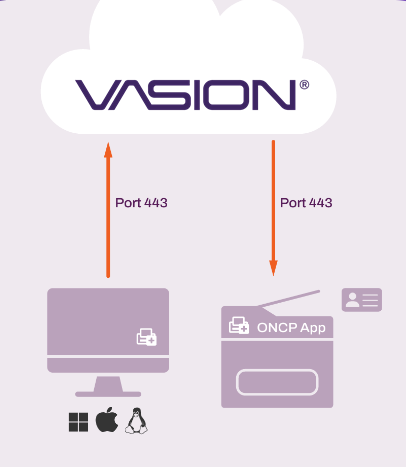
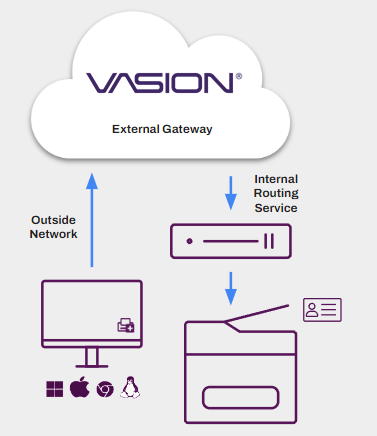
Both features use two main components: an external gateway and an Internal Routing Service, with the ONCP app acting as the IRS. The external gateway receives incoming print jobs from remote devices and acts as the entry point to the secure printer network. The IRS monitors the external gateway, downloads print jobs into the secure network, and delivers each job to the destination printer.
ONCP
ONCP uses regional external gateways hosted in Amazon Web Services (AWS) and the Vasion ONCP app, which installs on the printer. This model reduces infrastructure costs and lets users on other networks print. When a user on another network sends a job to an ONCP-enabled printer, the encrypted job travels to the external gateway. The ONCP app monitors the gateway, immediately retrieves the job, and releases it at the printer.
Not all printer manufacturers support the ONCP app. For unsupported manufacturers, ONCP uses an IRS Service Agent instead. The Service Agent is a designated device on the printer network that monitors the external gateway, retrieves print jobs, and routes them to the correct printer.
ONP
ONP provides more redundancy and more gateway options, but it does not use the ONCP app and requires more infrastructure. ONP supports Vasion-hosted AWS gateways, customer-hosted gateways, and hybrid environments that combine both.
Instead of an app, ONP relies on IRS Service Agents on the printer network to route jobs from the gateway to the printer. You can configure multiple external gateways and IRS Service Agents for failover in high-availability environments.
Compare ONCP and ONP
Use the following comparison to choose the model that fits your environment:
|
Capability |
ONCP |
ONP |
|---|---|---|
|
Supported Platforms |
Windows, macOS, and mobile devices (iOS and Android). |
Windows, macOS, Linux, ChromeOS, and mobile devices (iOS and Android). |
|
External Gateway Hosting |
Vasion-hosted (AWS). |
Vasion-hosted, customer-hosted, or hybrid. |
|
Gateway Assignment |
Automatic, based on the instance region. |
Manual, at the root, folder, or printer-level. |
|
Internal Routing |
ONCP app installed on the printer, or an IRS Service Agent. |
IRS Service Agents only. |
|
Redundancy |
IRS Service Agent redundancy. |
Multiple external gateways and IRS Service Agents. |
|
Off-Network Priority Options |
Off-Network Only and Direct IP Primary. |
Off-Network Only, Direct IP Primary, and Off-Network Primary. |
Off-Network Priority
Off-Network Priority controls where the PrinterLogic Agent tries to send the job first, either directly to the printer or to the ONCP or ONP service.
- Off-Network Only
- The Agent sends the print job using only the ONCP or ONP service and does not try to send the job directly to the printer, which is direct IP printing.
- Direct IP Primary
- The Agent sends the print job directly to the printer, which is direct IP printing. If unsuccessful, the Agent sends the print job using the ONCP or ONP service.
- Off-Network Primary
- The Agent sends the print job using the ONP service. If unsuccessful, the Agent sends the print job directly to the printer, which is direct IP printing.
Note the following:
- The Off-Network Priority options apply only to computers, not to mobile devices.
- ONCP does not support the Off-Network Primary option.
Requirements
Review the following requirements.
IRS Service Agents
For configurations using an IRS Service Agent:
- All devices must access the Domain Name System (DNS) server to resolve names.
- For redundancy, you can add multiple Service Agents.
- Routing from the IRS to the printer occurs over Transmission Control Port (TCP) port 9100 or port 631 for Internet Printing Protocol Secure (IPPS).
For Windows Service Agents, install the Visual C++ Redistributable for Visual Studio 2015-2022 package or later. You must install both the x86 and x64 redistributable packages. You can download these packages from the Windows Download Center.
For more details refer to Service Agent Setup.
ONP Requirements
Review the following requirements:
- Printers using ONP cannot have the SNMP Status option selected on the printer's Port tab. This option is different from SNMP Status Monitoring.
- ONP printing occurs over TCP port 443 from the device to the external gateway and from the external gateway to the IRS.
- Ensure that the following allow list URLs are open
ofn.app.printercloud.com.ofn-gw.app.printercloud.com.
- Customer-hosted gateways require a Secure Sockets Layer (SSL) certificate and key from a trusted Certificate Authority (CA).
- The certificate must be a Base64 Privacy Enhanced Mail (PEM) full chain unencrypted file.
- The key must be in unencrypted Public-Key Cryptography Standards (PKCS) #8 format, and it must correspond to the PEM certificate.
- The certificate must match the external Domain Name System (DNS) or IP address of the external gateway.
Vasion-Hosted Gateways
Vasion external gateways are hosted in AWS and include the following:
-
PrinterLogic U.S.-NOW Gateway: printercloudnow.
Note that the PrinterLogic U.S.-NOW Gateway is for Vasion Now instances only. U.S.-based Scheduled Release SaaS (SRS) customers must use the PrinterLogic U.S. Gateway.
- PrinterLogic U.S. Gateway: printercloud.
- PrinterLogic EMEA Gateway: printercloud5.
- PrinterLogic ASIAPAC Gateway: printercloud10.
- PrinterLogic SE-ASIAPAC Gateway (Singapore): printercloud20.
- PrinterLogic CANADA Gateway: printercloud15.
ONCP Requirements
Review the following requirements:
- For a list of supported devices, refer to Supported Printers for Printer Apps. Filter the results by selecting the Off-Network Cloud Printing option from the Feature dropdown menu.
- You need a Service Agent running the Printer Apps service. The ONCP app installs using the Printer Apps service. You can turn off or delete the Service Agent after installing the app.
- Ensure that the following allow list URLs are open
oncp-ofn.app.printercloud.com.oncp-pgw.app.printercloud.com.
- The Vasion ONCP app for HP requires you to turn on the Workpath platform on the printer.
- Contact your HP representative or your HP-certified reseller to add the Vasion ONCP app from the HP Command Center. The representative needs to do the following:
- Claim and add printers to the HP Command Center.
- Add the Vasion ONCP app as a solution.
- Add the app to your account.
- Manage and deploy the ONCP app to the printers.
Manufacturer Support
The following manufacturers support ONCP. Manufacturers supporting the ONCP app also work with an IRS Service Agent.
- Fujifilm.
- Fuji Xerox.
- HP.
- Kyocera.
- Lexmark.
- Ricoh multifunction printer (MFP) devices.
- Canon.
- Epson.
- Konica Minolta.
- Sharp.
- Toshiba.
- Xerox.
|
Manufacturer |
Ports and Requirements |
|---|---|
|
Fujifilm |
|
|
Fuji Xerox |
|
|
HP |
|
|
Kyocera |
|
|
Lexmark |
|
|
Ricoh |
|
Next Steps
In this topic: