Service Agent Setup
Last Updated: October 08, 2026
The Service Agent is a Vasion Agent that you promote to provide additional service functions in your instance. The Service Agent device can be a workstation or server that is always available on your network.
Requirements
Review the Service Agent types, Device Requirements, and update options before setting up your Service Agent.
1. Designate the Service Agent
- Select a device that meets the minimum requirements.
-
Install and authorize the Agent on the device. For more details refer to Install the Agent & Web Extension.
We highly recommend that the Service Agent run the latest software version because some features might require it.
- Note the device's IP address, which is preferred, or hostname.
2. Create the Service Agent
Follow these steps to create a new Service Agent:
- Sign in to the Admin Console.
- Select the folder in which you want to place the Service Agent.
-
Select the New button at the top of the tree structure.
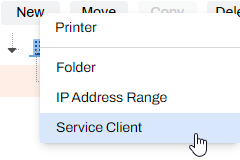
-
Alternatively, you can right-click the folder and select New
 Service Agent.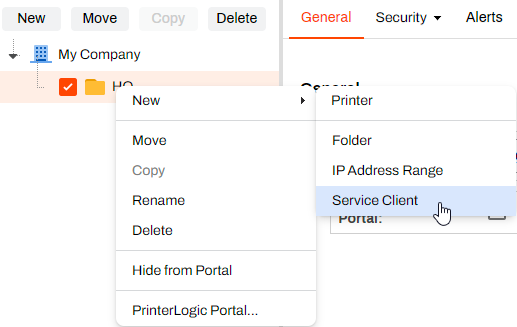
-
- In the Name field, give the Service Agent object an identifiable name.
- In the IP Address or Hostname field, enter the IP address or Fully Qualified Domain Name (FQDN) The complete domain name for a specific device or host on a network, consisting of the hostname, the domain name, and the top-level domain. of the device that hosts the Service Agent.
-
Select Add Service Client.
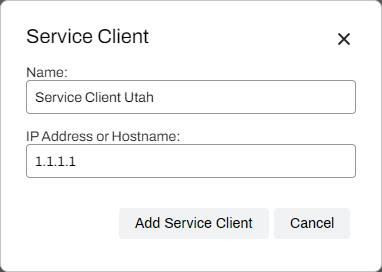
If you use HTTPS, use the FQDN to reduce potential communication issues. This action is especially important for CPA manufacturers, such as Ricoh, Toshiba, and Kyocera.
3. Refresh the Service Agent Device
On the device designated as the Service Agent, refresh the Agent and confirm that processes are running by doing the following:
-
Locate the PrinterLogic icon in the system tray, and right-click to open the context menu.
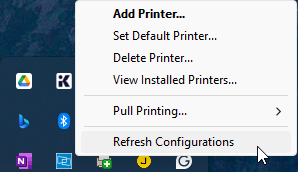
-
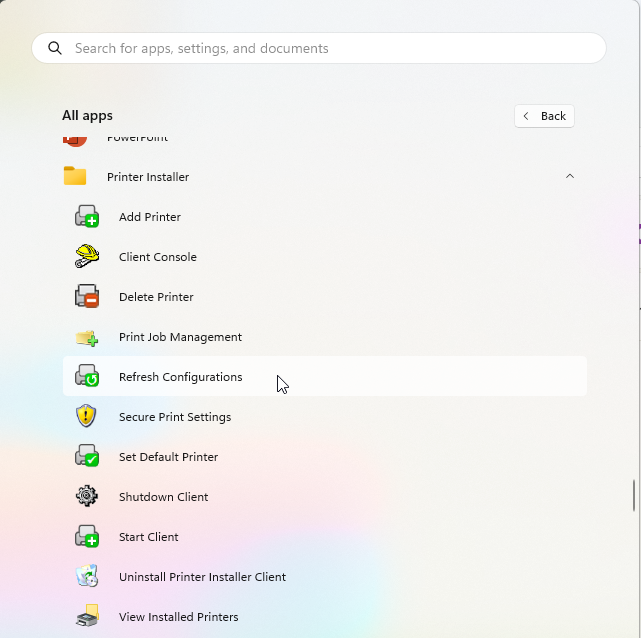
Alternatively, you can open the Start menu, locate the Refresh Configurations app, and open it.
-
- Select Refresh Configurations.
- Open the Task Manager, and select the Details tab.
- In the Search field, enter "printer" to filter the Agent processes.
-
Confirm that the PrinterLogicServiceManager.exe process is running along with the three PrinterInstallerClient processes.
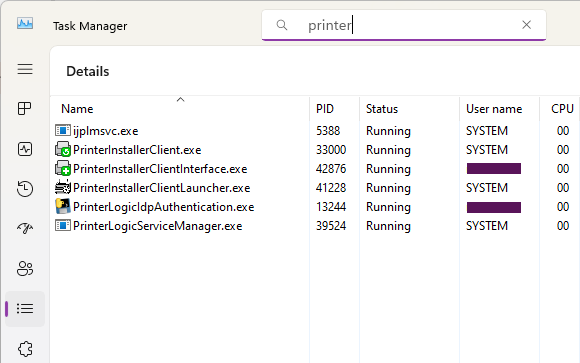
You can view each Service Agent service that you turn on in the Task Manager or similar programs.
Troubleshooting Help
A quick way to do this is to right-click the Agent icon in the system tray of the Service Agent machine and select Refresh Configurations.
Verify the Agent is installed, authorized, and pointing to the correct instance. A quick test is to click the system tray icon to open the Self-service Portal. If it opens to the correct URL, and you can sign in and view / install printers from the portal, then the Agent is authorized.
If you are prompted for an authorization code in the Self-service Portal, refer to Device Authorization for steps on how to create one.
If the Self-service Portal opens to an incorrect URL, you need to set the home URL. Refer to Update the Home URL.
Navigate to C:\Program Files (x86)\Printer Properties Pro\Printer Installer Client\ServiceHost, and check the following:
If the Service Host folder is not created, check the machine's hostname or IP address and compare with what you entered for the Service Agent in the Admin Console.
If the folder is created, check the config folder in it. A token.json file is saved here when the Service Agent is authorized.
If the folder is created, but the token.json file is not there, you need to reauthorize the Service Agent, refer to Reauthorization Steps. Please note that the Service Agent authorization is different from the Agent authorization.
In this topic: