Import Microsoft Printers
Last Updated: August 05, 2026
If you have existing print servers, PrinterLogic can import existing printer information, including names, descriptions, locations, IP addresses, printer drivers, and default settings, by running the Microsoft Printer Importer. This tool works for printers mapped to standard TCP / IP ports.
Type 4 drivers do not work with TCP / IP printer objects with PrinterLogic because they turn off port monitoring, which the app needs. If a TCP / IP printer uses a Type 4 driver, it might cause printing issues. However, USB and software printers, such as Adobe and Microsoft XPS, can still use Type 4 drivers without problems.
Requirements
Review the following requirements:
-
Log in as an admin on the device from which you need to import the printers.
-
Know the location of a print server in the Active Directory or Windows Network, or know the IP address or hostname.
- Install the Vasion Agent on the device.
PrinterLogic does not support Type 4 or class drivers, and attempting to import printers with them results in an error.
Check for Duplicate Printer Names
If you have any printers on your servers with duplicate names, go to Tools  Settings General and do the following:
- Scroll down to the Tree Settings section.
- Ensure that Require Unique Printer Names is deselected to allow the import of duplicate printer names.
When this option is selected, duplicate printer names are not allowed even if they are in separate folders.
Alternatively, you can rename the duplicate printers before selecting this setting; otherwise, the duplicate printer import fails. This option is recommended.
Import Steps
- In the Admin Console, navigate to Tools
 Import / Export.
 - Select Import Microsoft printers into PrinterLogic as Direct IP printers.
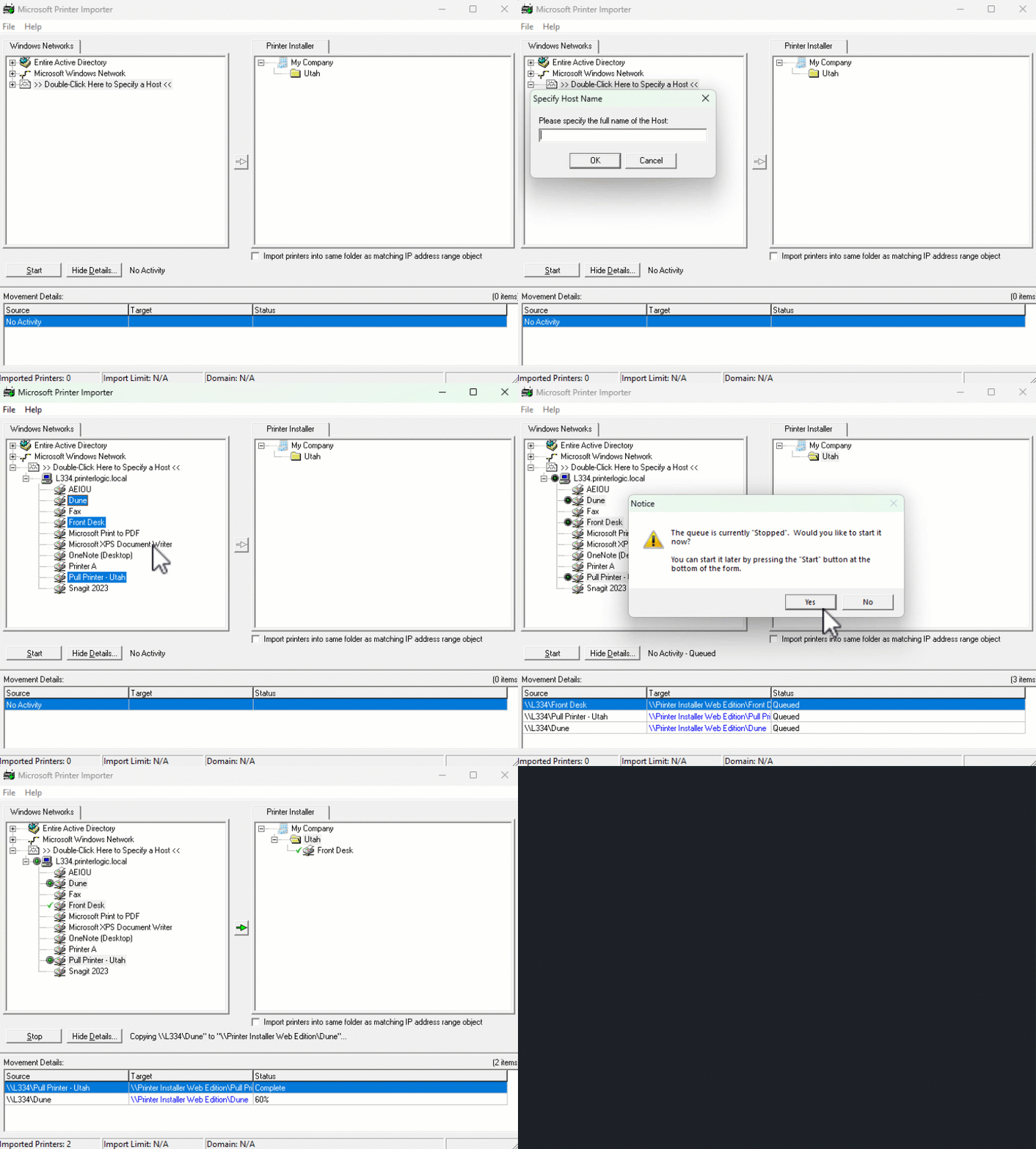
- In the Microsoft Printer Importer screen, select one of the following on the left side:
- Entire Active Directory.
- Microsoft Windows Network.
- Double-Click Here to Specify a Host. For this option, enter the IP address or hostname.
- Expand the server in which the printers are installed.
- Select the printers that you want to import. You can select more than one printer by holding Ctrl and selecting the printers.
- In the Printer Installer section, select the folder in which you want to import the printers.
- When the arrow button turns green, select it to import the printers into PrinterLogic.
- If the queue is not running, you receive a message. Select Yes to start the queue.
- After the printer import finishes and the queue is clear, close the Microsoft Printer Importer.
In the Admin Console, confirm that the imported printers appear in the folder you selected.
Devices with the Vasion Agent can now convert installed printers into managed TCP / IP printers, matching the printer objects imported into the Admin Console. For more details refer to Conversion Settings.
In this topic: