Add & Manage Printers
Last Updated: October 08, 2026
After you create folders to organize your printers, the next step is to add printers to your instance A collection of services and service groups associated with a customer, created from an app template and deployed to a cloud or virtual server.. There are two methods for adding printers:
- Manually add printers.
- Import printers.
The following instructions explain how to add a printer manually. For details on how to import printers, refer to Import Microsoft Printers. For more details on printer scanning tools, refer to Network Scanner and Server Scanner.
Requirements
Review the following requirements:
- Have the Vasion Agent installed on your device. For more details refer to Install the Agent & Web Extension.
- For Windows, have the print driver INF files. You can download the driver package with the INF file from the printer manufacturer's website.
- For Mac, have the print drivers already installed on your device.
Create a Printer
Use the following process to manually create a printer:
1. Select the Printer Option
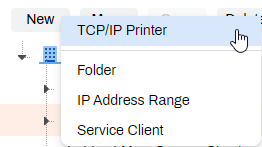
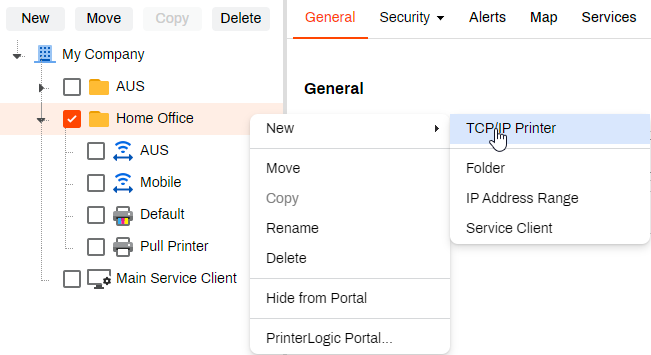
Select the New button from either the tree structure or the context menu.
Tree Structure
- Select the folder in which to create the printer.
- Select the New button at the top of the tree structure.
- Select the Printer option.
Context Menu
- Select the folder in which to create the printer.
- Right-click the folder, and select New from the context menu.
- Select the Printer option.
2. Enter Printer Details
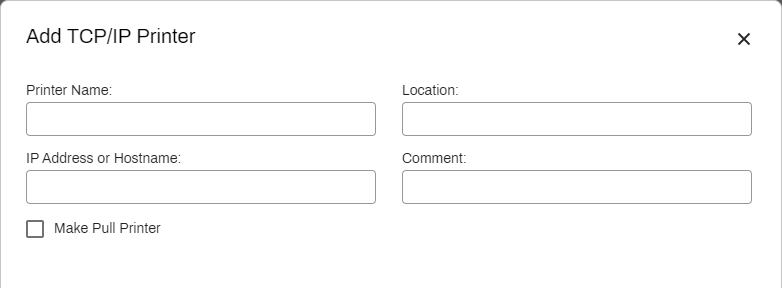
- In the Add Printer modal, complete the following fields:
- Printer Name: Enter a name for the printer.
- Location: Enter a description of where the printer is located. This step is optional.
- IP Address or Hostname: Enter the IP address or hostname of the printer.
- Comment: Enter any additional comments about the printer. This step is optional.
- Make Pull Printer: Select this option to make the printer a pull-print queue for held print jobs. For more details refer to Pull Print.
3. Add or Select a Print Driver
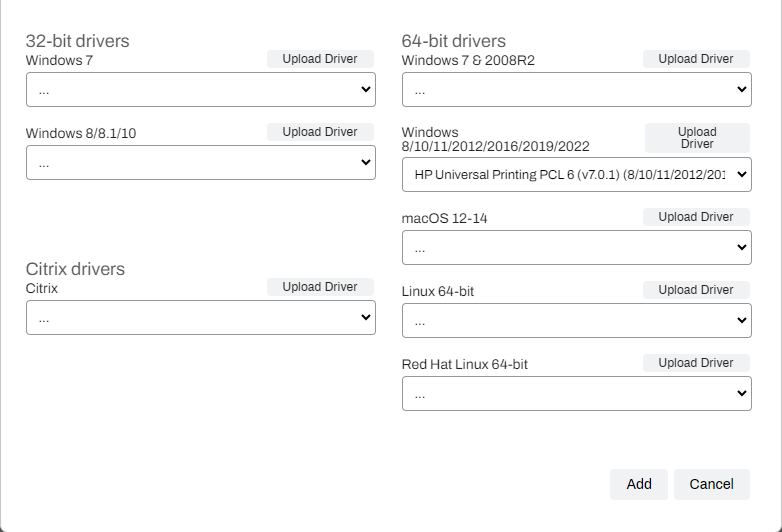
The lower section of the Add Printer modal shows operating systems (OSs) and print driver options.
If the driver already exists, select it from the dropdown menu, then select the Add button.
If you need to upload a driver, follow the instructions below for your OS.
- Windows
- macOS or Linux
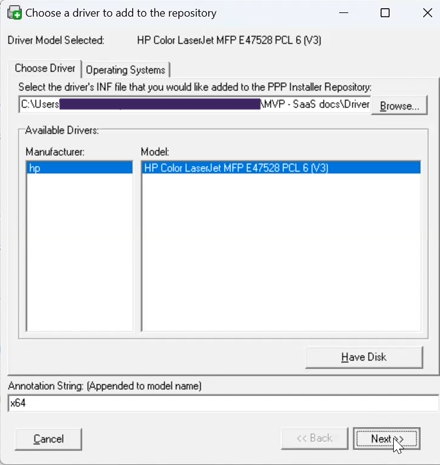
Windows requires an INF file. Note the following:
- If you have an EXE file, extract the files to a folder and find the INF file.
- Some drivers might require installation to access the INF file.
- Some drivers show multiple INF files. These files could be 32-bit, 64-bit, or model specific.
Upload a Printer Driver
-
In the Admin Console, select the printer object's Drivers / Profiles tab.

- If you are using the Driver / Profile Repository, go to Tools
 Driver / Profile Repository.
- If you are using the Driver / Profile Repository, go to Tools
-
Select the Upload button next to the OS you are using.

-
If you are using the Driver / Profile Repository, select Upload New Driver in the upper-right corner.
-
- Select Browse in the modal.
- Navigate to the INF file that you want to upload, select it, and select Open.
- Select the model if more than one option appears.
- Modify the Annotation String with a unique identifier, and select Next.
- If both 32- and 64-bit options appear, select the one that you want and select Upload.
- After the driver uploads, select Save.
- If you upload the driver to the Driver / Profile Repository, use the printer's Drivers / Profiles tab to attach the driver to the printer object.
Depending on the internet connection speed and the size of the driver, the upload might take some time.
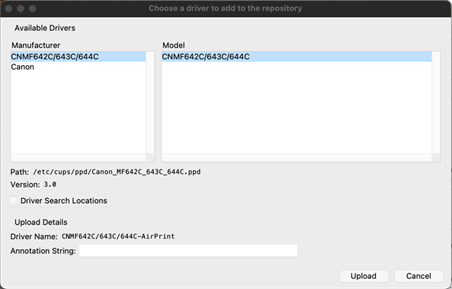
macOS and Linux generally require PPD files. Note the following:
- Some drivers might require installation to access the PPD file.
- If the driver is not installed on the device, select the Driver Search Locations checkbox in the modal below to manually locate the file.
Upload a Printer Driver
-
In the Admin Console, select the printer object's Drivers / Profiles tab.
- If you are using the Driver / Profile Repository, go to Tools Driver / Profile Repository.
- If you are using the Driver / Profile Repository, go to Tools
-
Select the Upload button next to the OS you are using.

- If you are using the Driver / Profile Repository, select Upload New Driver in the upper-right corner.
- Select the manufacturer and printer model from the list of installed drivers.
- Modify the Annotation String with a unique identifier, and select Upload.
- After the driver uploads, select Save.
- If you upload the driver to the Driver / Profile Repository, use the printer's Drivers / Profiles tab to attach the driver to the printer object.
Depending on the internet connection speed and the size of the driver, the upload might take some time.
Move Printers
There are three ways to move printer objects to different folders in the tree structure:
- Select the Move button.
- Right-click the printer object, and use the context menu.
- Drag the printer object.
- While dragging a printer object, hover over a folder to automatically open any subfolders.
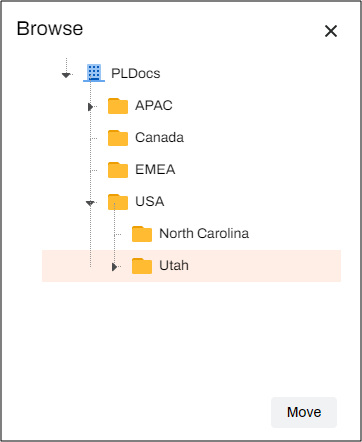
The following steps guide you through moving a printer object to a new location using the Move button:
- Select the printer object.
-
Select the Move button at the top of the tree structure.

- Use the Browse modal to select the desired folder location.
- Select the Move button in the Browse modal.
The printer object moves to the new location in the tree structure.
Copy Printers
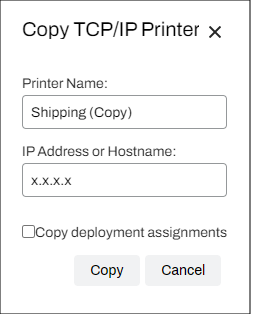
The following steps guide you through copying a printer object using the Copy button at the top of the tree structure. Alternatively, you can right-click the printer object to open the context menu and select the Copy option.
- Select the printer object.
-
Select the Copy button at the top of the tree structure.
- Adjust the printer name in the Copy Printer modal; otherwise, "(Copy)" appends to the new printer name.
- Adjust the IP address or hostname as needed.
- Selecting Copy deployment assignments copies the printer deployments of the original printer.
- Select the Copy button.
The copied printer appears in the same folder as the original.
Rename Printers
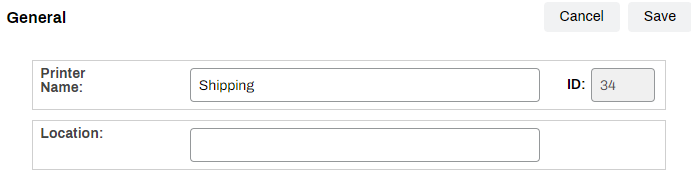
The following steps guide you through renaming a printer object using the printer's General tab. Alternatively, you can right-click the printer object to open the context menu and select the Rename option.
- Select the printer object in the tree structure. The General tab appears by default.
- In the Printer Name field, update the name.
- Select Save.
Delete Printers
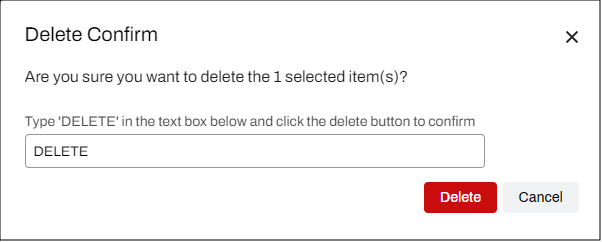
The following steps guide you through deleting a printer object using the Delete button at the top of the tree structure. Alternatively, you can right-click the printer object to open the context menu and select the Delete option.
- Select the printer object.
-
Select the Delete button at the top of the tree structure.
- Enter "DELETE" in the Delete Confirm modal.
- Select the Delete button.
This action removes the printer object from the Admin Console.
In this topic: