Manage Existing Printers
Last Updated: October 08, 2026
The Admin Console has a setting that lets PrinterLogic manage printers that are already installed on end users' devices. Using this setting means that you do not have to uninstall and reinstall printers on devices for PrinterLogic to recognize and manage those printers. The following steps describe the process for configuring PrinterLogic to manage previously installed printers.
Printer Settings
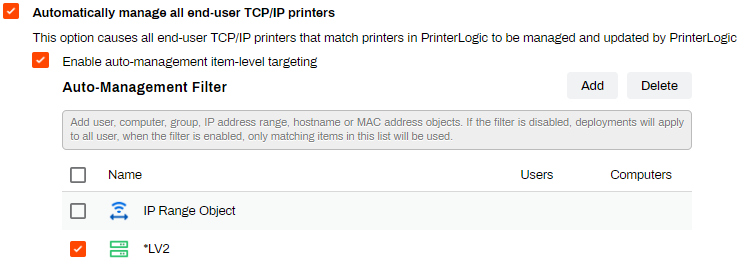
Navigate to Tools  Settings Client, and scroll down to the Printer Settings section. Below are the settings you can use to manage existing printers:
- Automatically manage all end-user TCP/IP printers
- Select this option to use PrinterLogic to manage previously installed printers that match printer objects in the Admin Console.
- Enable auto-management item-level targeting
- You use item-level targeting to designate which users, groups, IP ranges, etc. are affected by the setting above. Select Show Filter to define targets. If you are introducing PrinterLogic to a new environment, item-level targeting lets you do so in phases rather than all at once.
Additional Settings
Use the following settings to control end user interactions with TCP / IP printers and printer ports.
- Allow non-administrators to modify/delete TCP/IP printers
- Select this option to allow end users to alter the settings and delete TCP / IP printers installed with the Self-service Portal.
- Allow end-users to capture printer ports for legacy applications
- Select this option to add commands to the system tray menu and the Self-service Portal menu so that users can capture the output sent to printer ports, such as LPT1, and direct the output to a TCP / IP printer. For more details refer to Capture Printer Port.

Item-Level Targeting
You can restrict the automanagement feature for specific devices, sites, or users. You might want to restrict automanagement if you are doing a staged introduction of the solution. For example, you introduce the Agent to one site, run tests, introduce the Agent to a second site, run more tests, and then introduce the Agent to the rest of the organization. The following steps describe how to restrict which existing printers the Agent manages.
- Log in to the Admin Console.
- Navigate to Tools Settings Client.
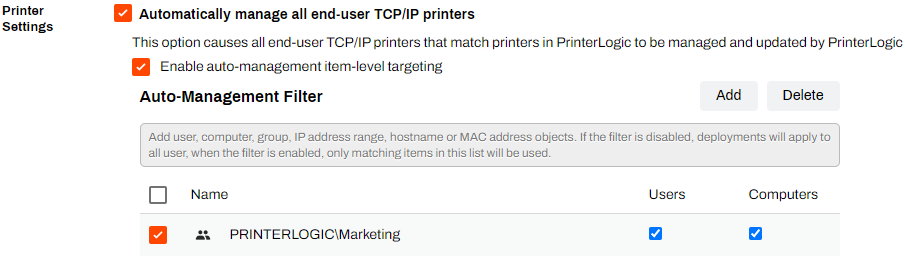
- In the Printer Settings section, select Automatically manage all end-user TCP/IP printers, if it is not already selected.
- Select Enable auto-management item-level targeting.
- Select Show Filter.
-
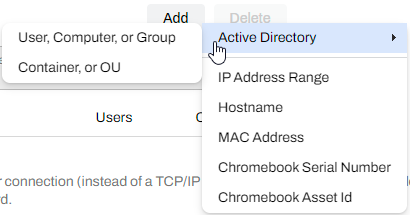
Select Add, and select the object type that you want to filter devices by.
-
Object types include Active Directory User, Computer, or Group; Active Directory Container, or OU; IP Address Range; Hostname; MAC Address; Chromebook Serial Number; and Chromebook Asset Id. Each object type uses its own setup program. Object types that you add appear in the Auto-Management Filter section.
-
- Select Save.
In this topic: