Server Scanner
Last Updated: October 08, 2026
The Server Scanner searches servers in your environment to determine the number of printers that have Simple Network Management Protocol (SNMP) A protocol for collecting and organizing information about managed devices on IP networks and modifying that information to change device behavior. Devices that typically support SNMP include cable modems, routers, switches, servers, computers, printers, and more. configured. This tool creates a list of current printers for auditing records, shows the results, and lets you export the list as a CSV file. The Server Scanner list includes virtual printers created by print-to-PDF services and other virtual document-generation software. After exporting the file, you can filter the virtual print queues and create a list of printer locations that you can reference when importing printers into PrinterLogic.
Before you run the Server Scanner, make sure that you have the appropriate permissions configured to access the servers that you want to scan. If you do not have the correct permissions set, the scan fails.
Run the Server Scanner
-
In the Admin Console, navigate to Tools
 Import / Export Server Scanner.
You can close the Loading Print Server Scanning Utility screen after the Printer Scan Utility screen appears.
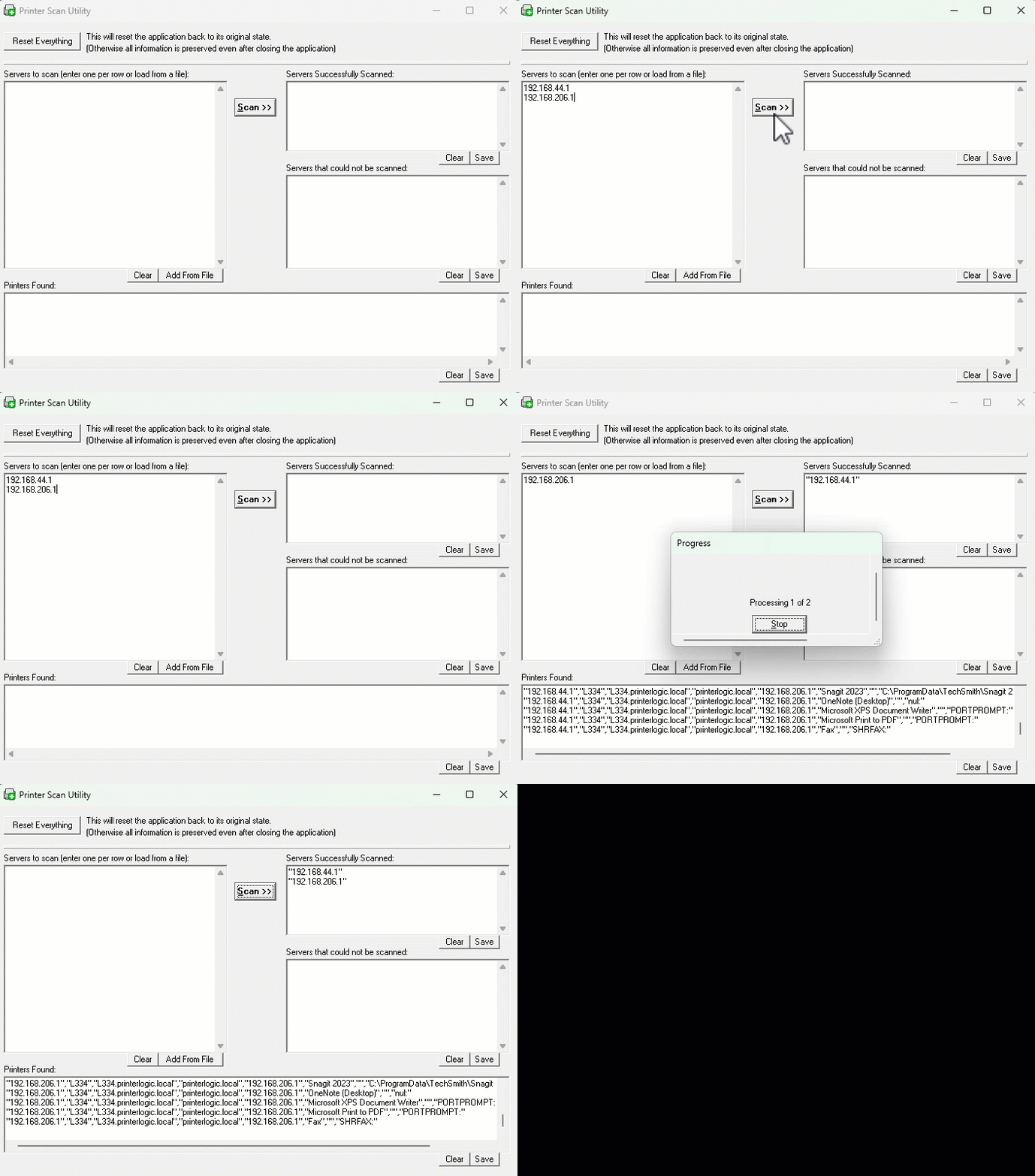
- In the Servers to scan field, enter up to 10 hostnames or IP addresses.
- Press Enter after adding each entry to ensure that each entry is on a separate line.
Alternatively, you can select Add From File to upload a CSV file with the hostnames or IP addresses.
- Select Scan.
- After the scan completes, the following information appears:
- Completed server scans appear in the Servers Successfully Scanned field.
- Devices found with SNMP settings turned on appear in the Printers Found field.
- Servers that cannot be scanned appear in the Servers that could not be scanned field.
- Select Save to download the information as a CSV file.
Make sure that the columns match the data in the CSV file to ensure that you downloaded the correct list.
Data Manager Printer Imports
You can use the Data Manager to import printers into PrinterLogic using the CSV file. For more details refer to Data Manager.
If an alert appears, the system provides a downloadable CSV file that explains the errors. If there are no errors, the import is successful.
In this topic: