OM Plus Printing
Last Updated: October 08, 2026
OM Plus is primarily a back-end print-management solution from Plus Technologies. OM Plus takes print jobs and ensures that they print where, when, and how you need them. Because OM Plus does not support the management of drivers and print queues, the integration with PrinterLogic provides a comprehensive printing solution. The options below only appear in the Admin Console with proper licensing. Contact your Vasion representative for more details.
Key Points
Review the following key points:
- Changing the name of an OM Plus printer object in the Admin Console changes it on the OM Plus server.
- OM Plus printer names cannot contain spaces or special characters.
- Deselecting the Route all print jobs to OM Plus Delivery Manager option on a printer object's Port tab changes the printer to a printer using direct IP printing and stops routing to the OM Plus server.
Requirements
Review the following requirements:
- Have an existing OM Plus environment to integrate with PrinterLogic.
- Know the hostname of the OM Plus server.
- Have a username and password to authenticate requests to the OM Plus server.
Process Overview
You perform these high-level procedures:
-
Add OM Plus Servers.
-
Create OM Plus Printers.
-
Verify and Assign Servers.
-
(Optional) Assign Printer-Specific Servers.
1. Add OM Plus Servers
The steps below guide you through adding OM Plus servers to the Admin Console. Printers use the servers added here as the default option.
Follow these steps:
- In the Admin Console, go to Tools
 Settings General, and scroll down to the OM Plus section.
 - Select the Add button.
-
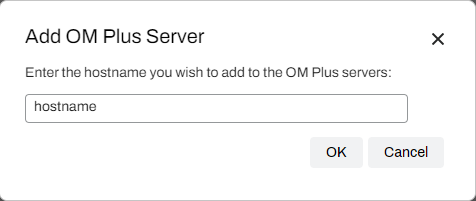
In the Add OM Plus Server modal, enter the hostname of the server.
- Select OK.
- Repeat the above steps as needed for additional servers.
- In the OM Plus section, enter the username and password used to authenticate requests to the OM Plus server.
- Select Save.
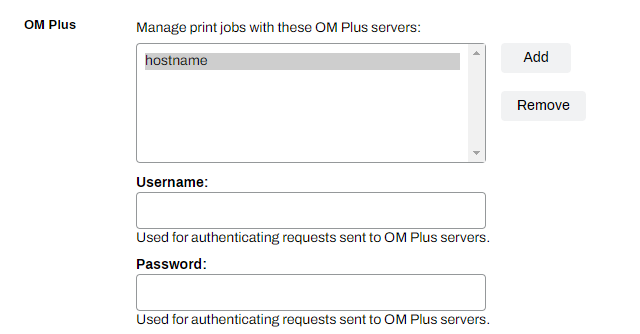
Do the following to remove a server:
- Select the server in the OM Plus section.
- Select the Remove button.
- Select Save.
2. Create OM Plus Printers
The steps below guide you through adding an OM Plus printer object using the New button in the tree structure. Alternatively, you can right-click the folder to view the context menu and printer creation options.
Follow these steps:
- In the tree structure, select the folder.
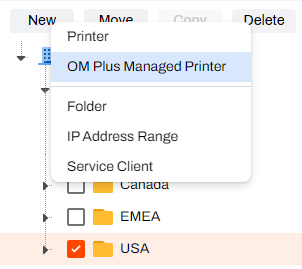
- Select the New button at the top of the tree structure.
-
Select the OM Plus Managed Printer option.
-
In the Add OM Plus Managed Printer modal, complete the following fields:
-
Printer Name.
OM Plus printer names cannot contain spaces or special characters.
- IP Address or Hostname.
- (Optional) Location and Comment.
-
- Upload a new driver, or use the operating system (OS) dropdown menu to select an existing driver.
- Select Add.
The OM Plus printer appear in the folder with a plus sign (+)  on the printer icon.
3. Verify and Assign Servers
If you go to Tools Settings General and add a server in the OM Plus section, the server automatically assigns itself to OM Plus printer objects in the Admin Console. The steps below explain how to confirm the settings on the printer object.
Follow these steps:
- Select the OM Plus managed printer in the tree structure.
- Select the Port tab, and scroll down to the OM Plus section.
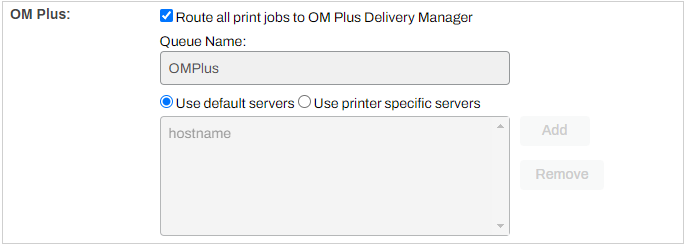
- Confirm that the Route all print jobs to OM Plus Delivery Manager checkbox is selected.
- Confirm that the Queue Name reflects the printer object's name, which you can adjust on the printer object's General tab.
- Select the Use default servers option to route jobs to the default servers listed in the box.
4. (Optional) Assign Printer-Specific Servers
If an OM Plus printer requires a server that is not in the default list, you can add it to the printer object on the Port tab.
Follow these steps:
- Select the OM Plus managed printer in the tree structure.
- Select the Port tab, and scroll down to the OM Plus section.
- Confirm that the Route all print jobs to OM Plus Delivery Manager checkbox is selected.
- Select Use printer specific servers.
- Select the Add button to the right.
-
In the Add OM Plus Server modal, enter the hostname of the server.
- Select OK.
- Select Save.
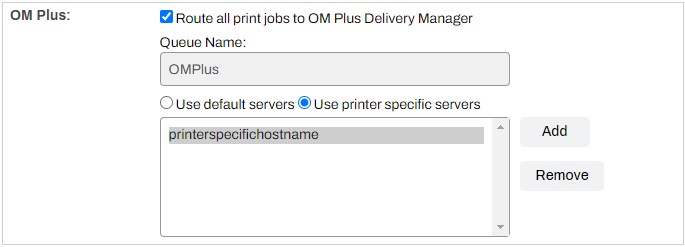
Do the following to remove a server:
-
Select the server in the OM Plus section.
-
Select the Remove button.
-
Select Save.
In this topic: