Email Printing
Last Updated: October 02, 2026
With Email Printing the user can send or forward an email to an email address that is linked to a designated printer. Email Printing is an umbrella term to identify all three types of email printing:
- Email Printing.
- Direct Email Printing.
- Direct Guest Email Printing.
Key Points
Review the following key points:
- Email Printing does not support identity provider (IdP) authentication.
- Email Printing and Direct Email Printing require Lightweight Directory Access Protocol (LDAP) and Active Directory authorization.
- Direct Email Printing and Direct Guest Email Printing require email routing rules on the email server.
- Each designated printer has its own assigned email address. Jobs sent to each email address must route to the primary email printing inbox.
- Email routing varies depending on the email server.
- Post Office Protocol 3 (POP3) is not supported.
- To send the same print job to multiple printers, include the direct email address for each printer in the initial email.
How Email Printing Works
When an authorized user, which is a user validated through an Active Directory, sends or forwards an email to the email address linked to a designated printer, the email sits in a universal print queue and waits for the user to release the job using a method like badge release, PIN, the Release Portal, the mobile app, or the Control Panel Application (CPA). The user can also define a printer in the Self-service Portal to automatically release email jobs.
This configuration requires an active LDAP connection.
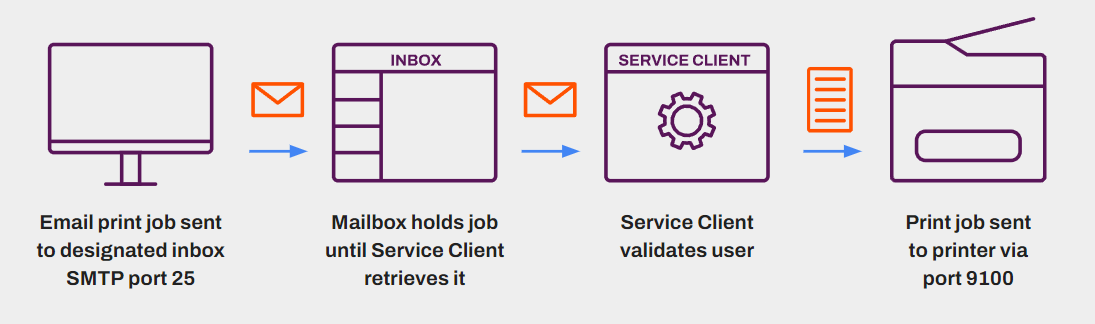
You can grant end users the ability to designate a specific printer to automatically release mobile print jobs.
Direct Email Printing & Direct Guest Email Printing
Direct Email Printing and Direct Guest Email Printing follow a similar process with a few differences:
- Emailed jobs go directly to the printer.
- With Direct Email Printing, the LDAP configuration determines whether the end user's email address can release to the printer.
- Direct Guest Email Printing does not require an LDAP configuration. This configuration is helpful in bring your own device (BYOD) and student-printing environments.
- With Direct Guest Email Printing, you can do the following:
- Limit guest printing to a specific number of pages in a 24-hour period.
- Force black-and-white printing.
The three types of Email Printing provide options for default and printer-specific configurations. These configurations are explained in the topics that follow.
Requirements
Review the following requirements:
-
Create an email account.
For more details refer to the following knowledge base articles: Create subdomain in Office 365 for PrinterLogic Direct Email Printing and How to set up Direct Email Printing using Gmail.
- Turn on Internet Message Access Protocol (IMAP) for communication.
- Office 365 and Microsoft Exchange require Open Authorization (OAuth) for authentication.
- Note the mailbox username / password or OAuth credentials, as well as IMAP and Simple Mail Transfer Protocol (SMTP) connection information.
- Set a subdomain as the internal relay.
- Create and assign a Service Agent Setup object to run the Email Printing service.
- To print attachments, we recommend installing LibreOffice on the device designated as the Service Agent.
-
Email Printing requires a pull printer. For more details refer to Pull Print.
Pull Print is a Secure Release Print mechanism and requires additional licensing.
Printers using a Canon Generic Plus PCL6 driver must have the Spooling at Host setting turned off. If this setting is on, email print jobs remain in a held status and do not print.
Email Attachments
The supported formats for printing email attachments depends on whether you have LibreOffice installed on your server.
Without LibreOffice Installed
The following formats are supported:
- BMP, GIF, HTM, HTML, JPG, PDF, PNG, and TXT.
With LibreOffice Installed
The following formats are supported:
- Document: DOC, DOCX, DOT, DOTX, ODT, and PDF.
- Spreadsheet: ODS, SXLSX, XLS, XLSM, XLT, and XLTX.
- Presentation: ODP, POT, POTX, PPT, and PPTX.
- Text: RTF and TXT.
- HTML: HTM and HTML.
- Image: BMP, GIF, JPEG, JPG, PNG, TIF, and TIFF.
Next Steps
Refer to the following:
In this topic: