Direct Guest Email Printing
Last Updated: October 08, 2026
With Direct Guest Email Printing, a guest can send or forward an email directly to a printer where it is released. Unlike Email Printing, Direct Guest Email Printing does not hold the job or require user authentication.
Requirements
Complete all the  general requirements.
Aliases might not work properly with Office 365 or Microsoft Exchange. Refer to the Troubleshooting Help section at the end of this topic for help.
Process Overview
You perform these high-level procedures:
- Configure the Service Agent.
- Connect the Email Account.
- Configure Attachment Settings.
- Turn On Direct Guest Email Printing.
- (Optional) Configure Public Key Infrastructure (PKI) Encryption.
- Confirm That the Email Printing Service Is Running.
- Configure Domain & Default Settings.
- Configure Printer Email Prefix & Printer-Specific Settings.
1. Configure the Service Agent
Follow these steps:
- In the Admin Console, select the Service Agent.
- Select the Email Printing tab.
-
Select the checkbox for Enable Email Printing.

-
Select the None Selected button. Then browse and select a pull printer.

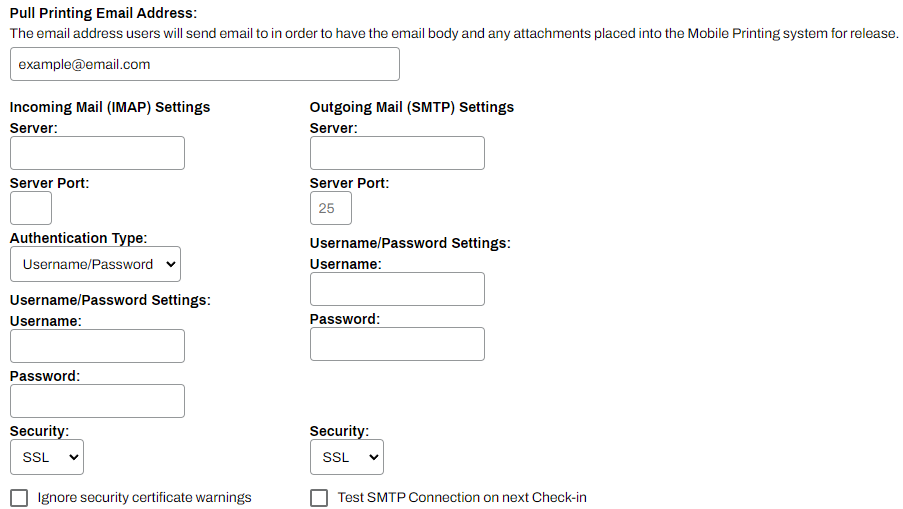
- In the Pull Printing Email Address field, assign an email address to the pull printer. This email is the address of the account created in the Requirements section above.
- In the Incoming Mail (IMAP) Settings section, complete the Server and Server Port fields.
- Complete the Authentication Type field depending on which email service you use.
- Configure the Outgoing Mail (SMTP) Settings:
- Complete the Server, Server Port, Username, and Password fields.
- From the Security dropdown menu, select from SSL, TLS, or None.
- Select the checkbox for Test SMTP Connection on next Check-in.
2. Connect the Email Account
The authentication type that you select for the Incoming Mail (IMAP) Settings depends on which authentication type your email service supports. For username / password configurations, follow the Username / Password Configuration steps below. For Office 365 and Microsoft Exchange configurations, follow the OAuth 2.0 Configuration steps below.
Username / Password Configuration
Follow these steps:
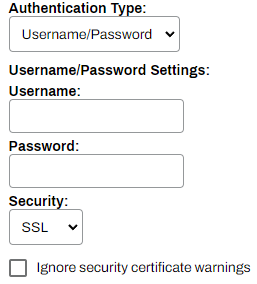
- From the Authentication Type menu, select Username/Password.
- Enter the email account's username and password in their respective fields.
- From the Security menu, select from SSL, TLS, or None.
- (Optional) Select the Ignore security certificate warnings checkbox.
OAuth 2.0 Configuration
Configure OAuth 2.0 in the Entra ID (Azure AD) portal before completing the steps below. If you are not the Entra ID admin for your organization, do the following:
- Send the admin the link to Configure Open Authorization (OAuth) 2.0.
- The steps in the 4. Collect Application & Directory IDs section explain where to find the application and directory IDs that you need.
- Define the email to use, which is used in step two below. The email must have access to Entra ID. You need to log in using that email in step eight below.
After configuring OAuth in Entra ID and collecting the IDs, follow these steps:
- From the Authentication Type menu, select OAuth 2.0
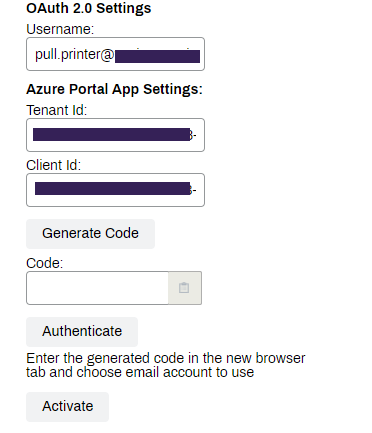
- In the OAuth 2.0 Settings section, enter an email address with access to the Entra ID portal in the Username field.
- Copy the Entra ID Directory (tenant) ID, and paste it in the Admin Console Tenant Id field.
- Copy the Entra ID Application (client) ID, and paste it in the Admin Console Client Id field.
- Select the Generate Code button, and copy the provided code.
- Select the Authenticate button.
-
In the Microsoft window, paste the code, and then select Next.
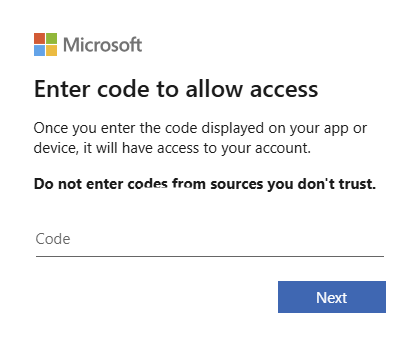
- Sign in with the same account that is connected to the email you entered in the Username field.
- Select the Consent on behalf of your organization checkbox, and then select Accept.
-
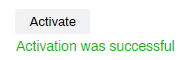
In the Admin Console below the Activate button, confirm that activation succeeded, and then select Save.
3. Configure Attachment Settings
The supported formats for printing email attachments depends on whether you have LibreOffice installed on your server.
Without LibreOffice Installed
With LibreOffice Installed
The following steps guide you through configuring Email Printing with attachments:
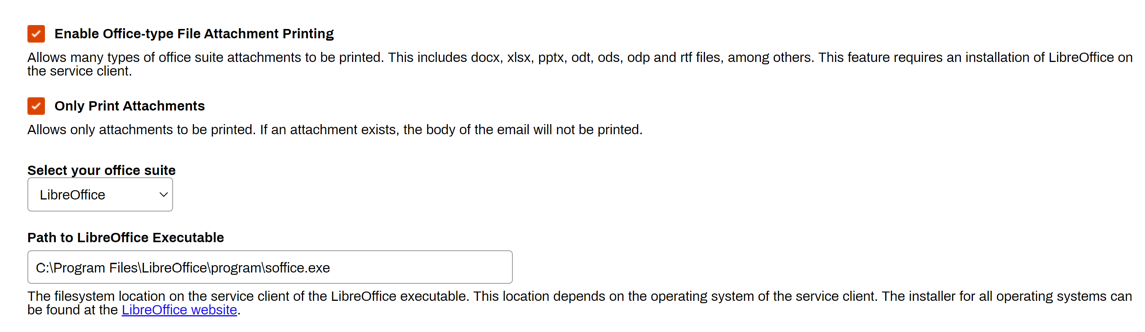
- Select the checkbox for Enable Office-type File Attachment Printing.
- (Optional) Select Only Print Attachments. This option ignores the email body and prints only files that are attached to the email.
- Leave LibreOffice selected in the Select your office suite field.
- In the Path to LibreOffice Executable field, enter the path to the executable file. For example, C:\Program Files\LibreOffice.
- Select Save.
4. Turn On Direct Guest Email Printing
Even if you are only configuring Direct Guest Email Printing, first turn on the Direct Email Printing setting. Follow these steps:
- On the Service Agent's Email Printing tab, select the checkbox for Enable Direct Email Printing.
- Select the checkbox for Enable Direct Email Guest Printing.
- (Optional) Select the checkbox for Permit each guest to print up to (x) pages per 24 hour period, and enter a value for (x).
- (Optional) Select the checkbox for Force guest print jobs to be black and white.
- Select Save.

5. (Optional) Configure PKI Encryption
The last section on the Service Agent's Email Printing tab is for PKI encryption. Follow the steps below if you want to configure PKI encryption for Email Printing in your environment.
PKI Encryption
Install Win32 OpenSSL v3.2.2 on the Windows Service Agent device:
- On the Service Agent device, go to https://slproweb.com/products/Win32OpenSSL.html.
- Select the EXE link to download the file.
- Run the downloaded file, and complete the installation process.
- Add OpenSSL to the Path variable:
- Select the Windows Start menu, and type "path."
- Select Edit the system environment variables.
- On the Advanced tab, select the Environment Variables button.
- In the System variables section, select Path, and then select Edit.
- Select Edit in the window.
- Double-click the next available empty line, and enter the path to the OpenSSL bin folder. For example, C:\Program Files (x86)\OpenSSL-Win32\bin.
- Select OK.
- After you install OpenSSL, restart the device.
- After the device restarts, go to the Service Agent's Email Printing tab in the Admin Console.
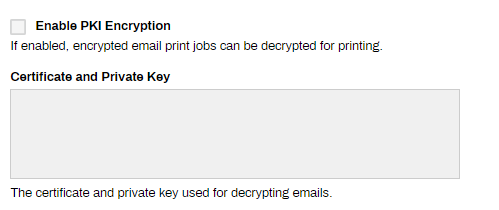
- Select the Enable PKI Encryption checkbox.
-
Copy the certification key, and paste it in the Certificate and Private Key field.
- Select Save.
- Restart the Service Agent.
6. Confirm That the Email Printing Service Is Running
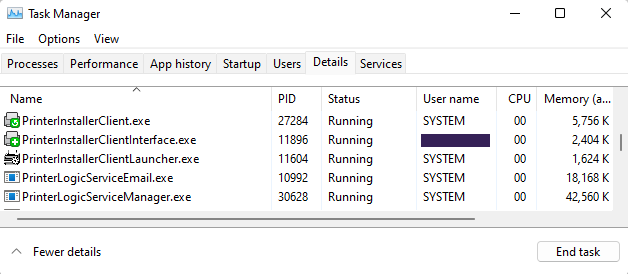
After saving the Email Printing configurations, confirm that the PrinterLogicServiceEmail.exe service is running. The steps below explain how to check the service on a Windows Service Agent device:
- On the Service Agent device, open the Task Manager.
- Select the Processes or Details tab.
- Search for "printer."
- Confirm that the following services are running:
- The three Vasion Agent services: PrinterInstallerClient.exe, PrinterInstallerClientInterface.exe, and PrinterInstallerClientLauncher.exe.
- The Service Agent's PrinterLogicServiceManager.exe service.
- The Email Printing's PrinterLogicServiceEmail.exe service.
Services for other active features on the Service Agent object also appear.
7. Configure Domain & Default Settings
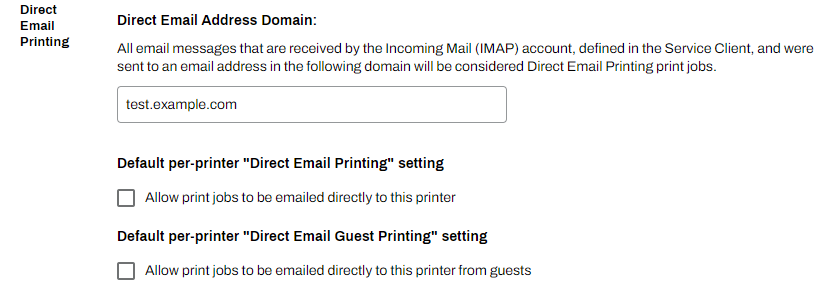
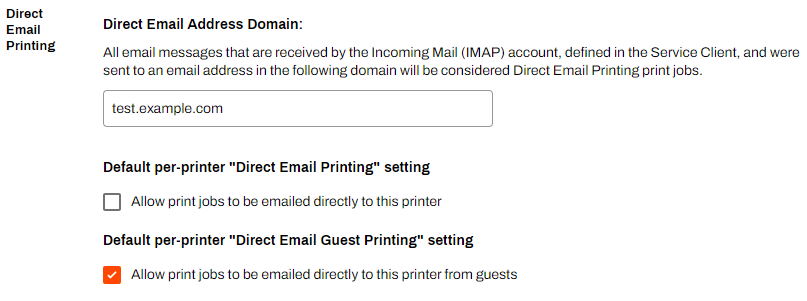
The following settings help you customize the Direct Guest Email Printing user experience. Follow the steps in the Default section to turn on Direct Guest Email Printing for all printers, or follow the steps in the Printer Specific section to turn it on for specific printers.
In the Admin Console, go to Tools  Settings Printing, and scroll down to the Direct Email Printing section.
Here is an overview of the settings:
- Direct Email Address Domain
- Enter the email domain of the email address that you want to use for the printer. This domain appears after the direct email address in the Direct Email Printing section on the printer object's Printing tab.
- Default per-printer "Direct Email Printing" setting
- Select this checkbox to let authenticated users email print jobs directly to printers.
- Default per-printer "Direct Email Guest Printing" setting
- Select this checkbox to let guests email print jobs directly to printers.
Default
Follow these steps:
- In the Direct Email Address Domain field, enter the email address domain.
- In the Default per-printer "Direct Email Guest Printing" setting section, select the checkbox for Allow print jobs to be emailed directly to this printer from guests.
- Select Save.
Printer Specific
Follow these steps:
- In the Direct Email Address Domain field, enter the email address domain.
- Leave the default settings deselected.
- Select Save.
8. Configure Printer Email Prefix & Printer-Specific Settings
Default
Follow these steps:
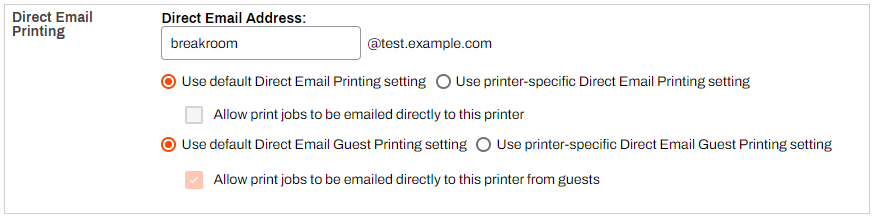
- Go to the printer object's Printing tab, and scroll down to the Direct Email Printing section.
-
In the Direct Email Address field, enter the email prefix for the printer.
Gmail handles aliases using the plus sign (+). For example, if the pull printer email address assigned on the Email Printing tab is printercloud@gmail.com and the printer object's name is "reception," then the direct email address is printercloud+reception@gmail.com. For more details refer to How to set up Direct Email Printing using Gmail.
- Confirm that the following settings are selected:
- Use default Direct Guest Email Printing setting.
- Allow print jobs to be emailed directly to this printer from guests.
- Select Save.
- Repeat these steps for any additional printer objects.
Print jobs sent to the printer object's direct email address now print at that device using the default settings.
Printer Specific
Follow these steps:
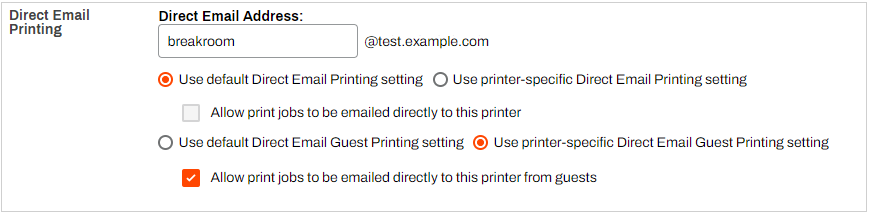
- Go to the printer object's Printing tab, and scroll down to the Direct Email Printing section.
-
In the Direct Email Address field, enter the email prefix for the printer.
Gmail handles aliases using the plus sign (+). For example, if the pull printer email address assigned on the Email Printing tab is printercloud@gmail.com and the printer object's name is "reception," then the direct email address is printercloud+reception@gmail.com. For more details refer to How to set up Direct Email Printing using Gmail.
- Select Use printer-specific Direct Email Guest Printing setting.
- Select the checkbox for Allow print jobs to be emailed directly to this printer from guests.
- Select Save.
- Repeat these steps for any additional printer objects.
Print jobs sent to the printer object's direct email address now print at that device using the printer's settings.
Troubleshooting Help
If the alias is automatically stripped from the To: field, set up a distribution group:
- Remove the alias from the original account.
- Create a distribution list called <printername>@<domain>.com. Example: HPXXX@example.com.
-
Set the only member of the list to the main mailbox. Example: example@example.com.
The main mailbox set for the pull printer on the Service Agent's Email Printing tab.
Mail should be delivered to the main mailbox, with <printername>@<domain>.com in the To: field.
In this topic:
Yes. If the setting option for Only Print Attachments is turned on in the Service Agent's Email Printing tab, only the attachments will print. If the email does not contain any attachments, the email body will print.