Secure Release Print
Last Updated: October 08, 2026
PrinterLogic's Secure Release Print features ensure that documents print only when the user is physically present at the printer to release them. This security feature reduces the risk of exposing sensitive information. The Secure Release Print solution includes the following features:
Key Points
Review the following key points:
- Pull Print uses a one-to-many relationship, allowing print job release to any pull print-enabled printer.
- Direct Secure Release and OSRP use a one-to-one relationship, allowing print job release to only the selected printer.
- Jobs sent to secure release printers link to the printer ID instead of the IP address. Changing the IP address of a printer object does not route secure release jobs to a new printer.
- All options require authentication through an identity provider (IdP) or a Lightweight Directory Access Protocol (LDAP) domain to view and release held jobs.
-
The number of printers with Pull Print turned on must be equal to or less than the number of Pull Print licenses purchased. Keep this requirement in mind when turning on Pull Print by default for all printers.
An error appears during the next Admin Console sign-on if you have more printers than Pull Print licenses.
- You can view license details by selecting your username in the upper-right corner of the Admin Console and selecting My Account.
- You can manage Pull Print for individual printers on the printer object's Printing tab in the Pull Printing section.
- Note that due to caching, adjusting the following Pull Print settings might prevent new held jobs from appearing on the Control Panel Application (CPA) for up to 8 hours:
- Allow Pull Print jobs to be released to all printers by default.
- Allow Pull Print jobs to be released to this printer.
How Secure Release Print Works
Pull printers deploy and install like regular printer objects, and print jobs hold automatically. Turn on the Allow Pull Print jobs to be released to this printer option on any printers that you want to print held jobs.
When you print to a secure release printer, you are prompted to hold or print the job. Held jobs remain in the device queue for that printer object until the user who sent the print job releases it at the printer.
OSRP follows the same structure and process as Direct Secure Release, but a copy of the print job waits in the queue on the device that is designated as the Service Agent. When the user goes to release the print job, if the device is offline or the user is signed out, the job prints using the copy on the Service Agent.
Released jobs typically print within 15 seconds, but several factors affect print time, such as the size of the job, the type of printer, and the number of jobs released from the queue. When you release held jobs, the mobile device sends jobs sequentially, which can be slower.
Secure Release Print Settings
The release prompt that appears when a user prints differs depending on how you configure the Secure Release Print settings for the printer. You select from the following options:
- No: Jobs print immediately and cannot be held.
- Yes (Always): Jobs automatically hold and require the user to release them.
- Yes (Prompt): The user is prompted to select either Hold or Print Now.
Configure prompt settings globally or per-printer.
There is also an option for Allow End-Users to Override which lets users select which printers prompt, hold, or immediately release. For more details refer to Secure Print Settings Guide.
Manage Held Jobs
Release Tab
Use the Release Tab to quickly release or delete held print jobs without walking to or remote connecting to a device or printer.
Purge
Purge settings define the time that active and held print jobs remain in the queue before the system automatically removes them. Set purge times in the Admin Console by going to Tools  Settings Printing and scrolling down to the Purging section. Purge times support a minimum of 1 hour. Review the following settings:
- Purge active print jobs after (x) hours
- Print jobs remaining in the queue after the specified time period without successfully printing are automatically removed.
- Purge held jobs after (x) hours
- Held jobs remaining in the release system after the specified time period are automatically removed.
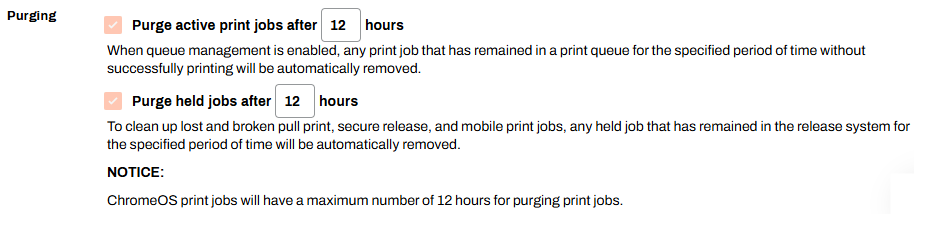
Note that ChromeOS print jobs support a maximum 12-hour purge time.
Release Held Jobs
After you configure Pull Print or Direct Secure Release, users' held jobs display in the Release Portal. You can use the printer object's Release Tab, which provides a central location to view, release, and delete held jobs for that printer.
Refer to the following topics for more information about other secure release options for users:
Requirements
Review the following requirements:
- Admin Console administrator access.
- A configured identity provider. For more details refer to Identity Providers (IdPs).
Offline Secure Release
Review the following requirements:
- OSRP supports devices with the Windows, macOS, Linux, or Chromebook Agent installed; it also supports Android and iOS devices.
- You need at least one Service Agent running the OSRP service on a Windows device. For more details refer to Service Agents.
- The OSRP service uses port 31989. Open this port on the Service Agent device.
- The OSRP Service Agent must be able to reach the printers over the network. Add additional Service Agents if printers are on different networks.
Next Steps
- Pull Print.
- Pull Print Coach (Checklist Style).
- Direct Secure Release.
- Offline Secure Release Print (OSRP)
- Direct Secure Release Coach (Checklist Style).
- Delegated Release.
Troubleshooting Help
-
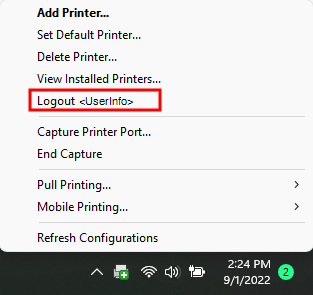
Verify that you are logged in to the Agent. You can right-click the PrinterLogic icon to confirm you are signed in.
-
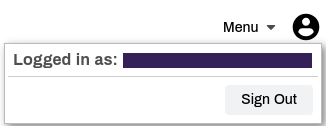
You can also go to the Self-service Portal and select the user avatar to check who is signed in.
If you your Secure Release Print jobs do not appear in the release portal, check the following:
-
Verify that you are logged in to the Client on the workstation you used to send the print job. You can right-click the PrinterLogic icon to confirm you are signed in.
-
Verify that you are signed in to the Self-service Portal / Release Portal. Select the user avatar to verify user identity.
In this topic:
PrinterLogic Output provides robust security features that protect sensitive documents during transmission and storage, ensuring that only authorized users can access critical information. It includes:
- Detailed Audit Trails: Track document access and delivery for compliance and security audits.
- Zero Trust Remote Printing: Allow secure print jobs from remote facilities without costly VPNs.
- Information Security: Document and print jobs are stored locally and encrypted when at rest on our services.
Vasion's Secure Release Print capabilities ensure that print jobs are accessible to only authorized users. Users must authenticate at the printer before releasing their documents, whether by badge swipe, entering credentials at the CPA, or scanning a QR code, preventing sensitive documents from falling into the wrong hands.
Additionally, Vasion's SaaS platform is ISO27001:2022 and SOC 2 Type 2-certified to mitigate risks to customer data and help manufacturing organizations better meet their business, legal, and regulatory requirements.