Release Portal
Last Updated: September 11, 2026
The Release Portal is web interface where you can see your held print jobs. When using features like Secure Release Print, held jobs remain in queue until you authenticate and release them to the printer. The Release Portal is only available if your administrator implemented any of these features.
Access the Release Portal
If your company uses this feature, you can find the Print Job Management option in a few different areas:
- Open the Print Job Management folder from the Windows Start Menu.
- Right-click on the System Tray (Windows)/ Menu Bar (macOS) icon:
- Hover over Pull Printing or Mobile Printing then select Print Job Management.
- From the Self-service Portal, select the Print Jobs option.
- Add /release to the end of the Self-service Portal URL.
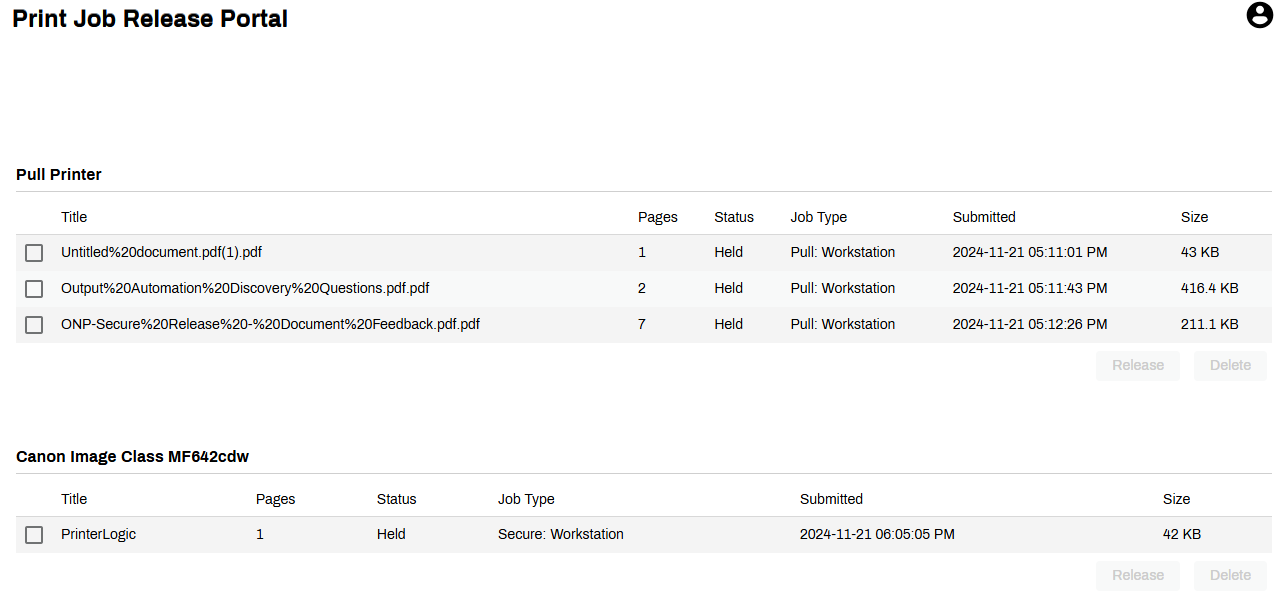
Release Portal Details
The Release Portal shows the following information for held jobs in a table format.
- Title: The name of the document.
- Page: The number of pages to print.
- Status: The status of the print job.
- Delegates: If the held job was assigned delegates.
- Job Type: The type of secure print method.
- Submitted: The date and time the job was sent to print.
- Size: The memory size of the print job.
Held Jobs
How the print job is held and released depends on the job type.
Pull Print
Pull Print is considered the one-to-many option. A pull printer object is a virtual print queue to hold the job. The pull printer object is installed on your system and appears like a regular printer. Jobs sent to it are automatically held, and these held jobs can be released to any printer object designated as a release printer.
Release a Pull Print Job
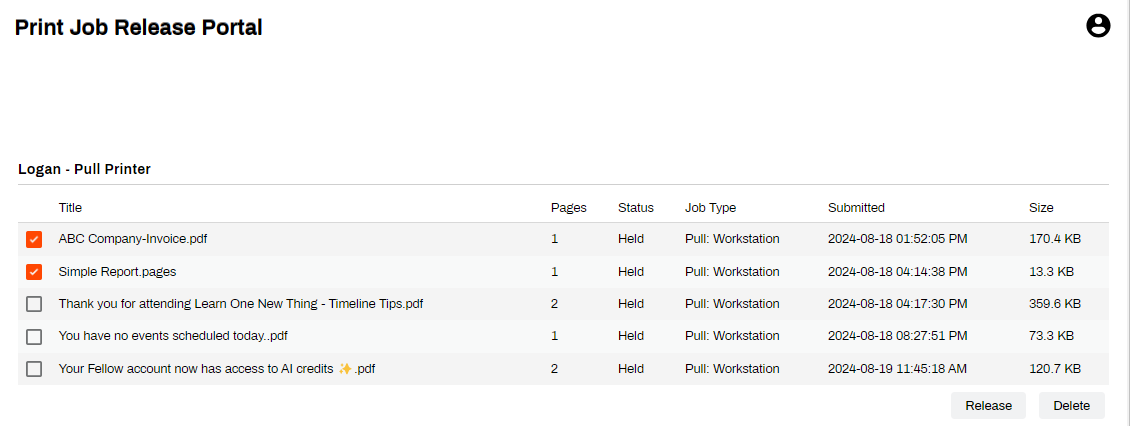
- Select the jobs you want to print.
- Select the Select Printer option.
-
In the Select a Destination Printer modal search or browse for a printer.
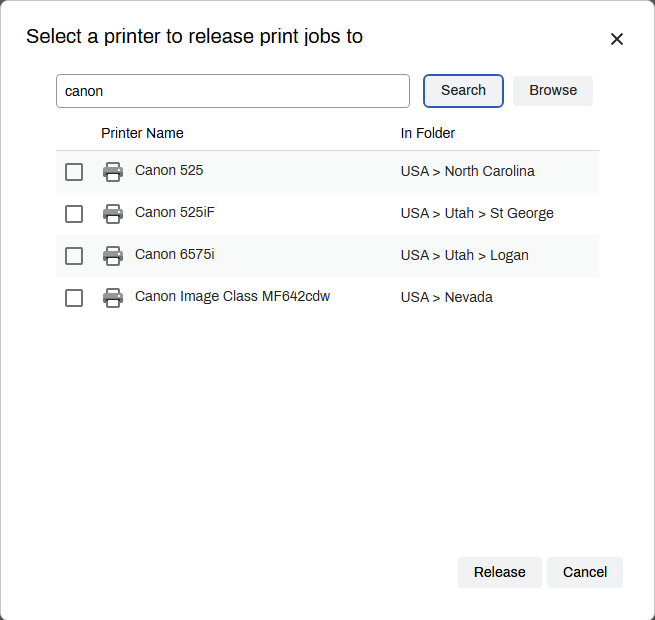
- Select the printer you want to use.
- Select Release.
Direct Secure Release
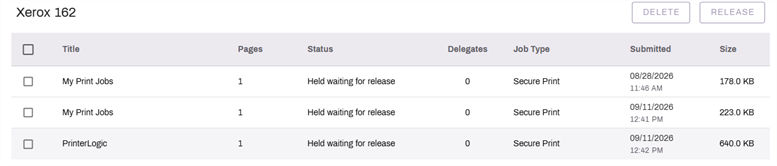
Direct Secure Release is also a method of holding a print job but is considered a one-to-one option. You can print from your system and then hold the job to release at a specific printer. To allow this function, the printer must be configured as a Secure Release printer. Jobs sent to that printer and held are displayed under the printer's name in the portal.
Release a Secure Job
- Go to the Release Portal.
- Locate the printer, and select the job you want to release.
- Select Release.
Jobs can only be released to the printer you selected when you sent it to print.
You can also use the Release Portal to release jobs sent using Email Printing. For complete details, refer to Email Print Guide.
Troubleshooting Help
-
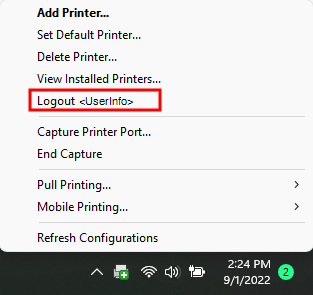
Verify that you are logged in to the Agent. You can right-click the PrinterLogic icon to confirm you are signed in.
-
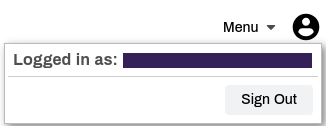
You can also go to the Self-service Portal and select the user avatar to check who is signed in.
If you your Secure Release Print jobs do not appear in the release portal, check the following:
-
Verify that you are logged in to the Client on the workstation you used to send the print job. You can right-click the PrinterLogic icon to confirm you are signed in.
-
Verify that you are signed in to the Self-service Portal / Release Portal. Select the user avatar to verify user identity.
In this topic:
