Self-service Portal
Last Updated: October 08, 2026
The Self-service Portal is your resource where you can install printers and drivers you need, with a few clicks. The portal installs both the printer and the associated driver with a simple click, and you are ready to start printing.
Requirements
To use the Self-service Portal you need the following:
- The Vasion Agent Software installed on a server or device that communicates with the PrinterLogic instance. The Agent installs and manages printers. installed on your system.
- The PrinterLogic web browser extension installed and turned on for your system.
- The Self-service Portal URL: If you do not have your company's Self-service Portal URL and you cannot access the Add Printers Agent option in your system tray or Start menu, contact your IT admin.
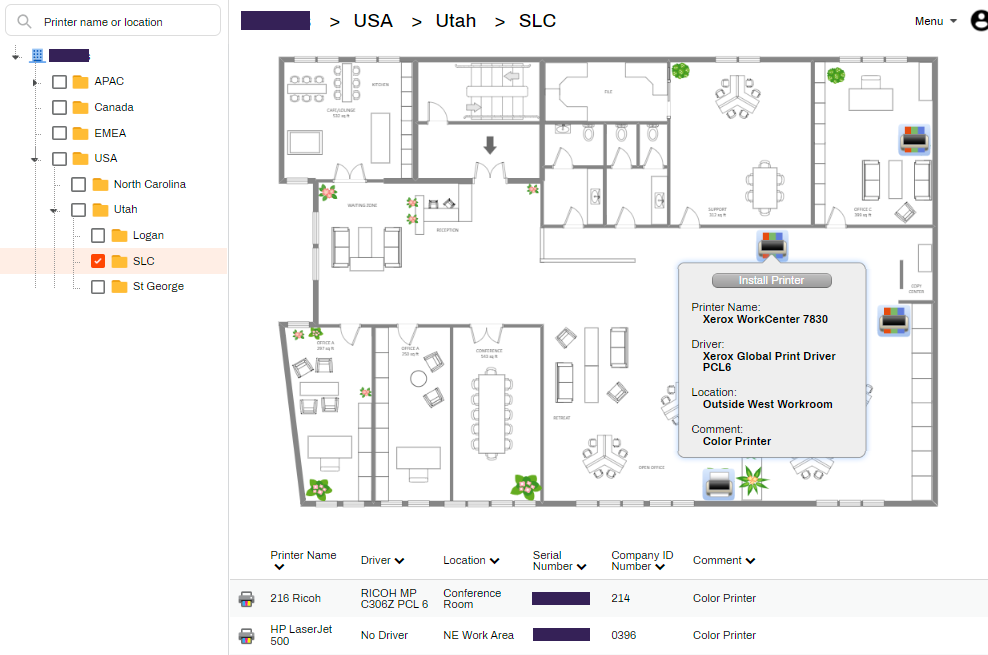
- Name and location of your printer: The Self-service Portal shows the folders and printers available for you to install and, if configured, a map with your office layout and printer locations. If the printer you want to install is not listed or is not on the map, contact your IT administrator.
Access the Self-service Portal
Admins provide you with the portal URL to bookmark and use, but there are other methods for accessing the portal once you have the Agent installed.
- Open the (Windows) Start Menu, locate the Printer Installer options and select Add Printer.
- Select the PrinterLogic icon
 in the System Tray (Windows) / Menu Bar (macOS).

If the Agent is installed, but these options do not appear or you do not know the URL, contact your IT administrator.
Install a Printer
Depending on how security is configured, you may have access to only specific folders or printers. If there are multiple folders and you are unsure of where the printer is located, contact your IT administrator.
- On the Self-service Portal, select the folder for your location.
- There are two options for installing printers:
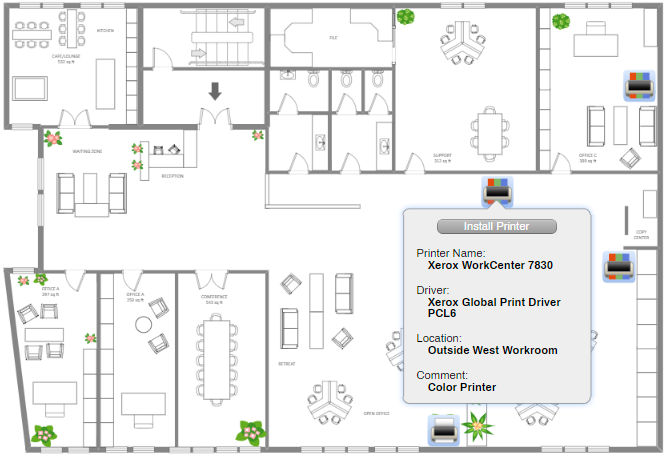
- Hover over the printer icon on the map and select Install Printer.
- Select the printer from the list.
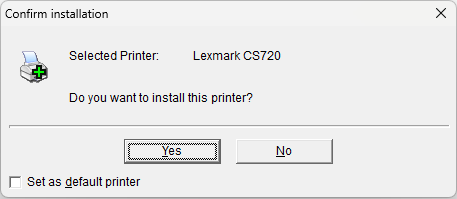
- If you want to set the new printer as your default printer, select the Set as Default Printer option.
-
On the Confirm Installation modal, select Yes.
-
It may take 10 seconds or more while it installs the printer and driver. Select OK to dismiss the installation notice.
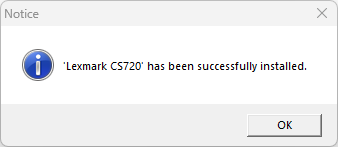
Once installed, the printer is ready for you to print.
The Self-service Portal Menu
The Menu drop-down on the top-right provides access to other features. Not all of these options may be visible on your system, depending on your print environment.
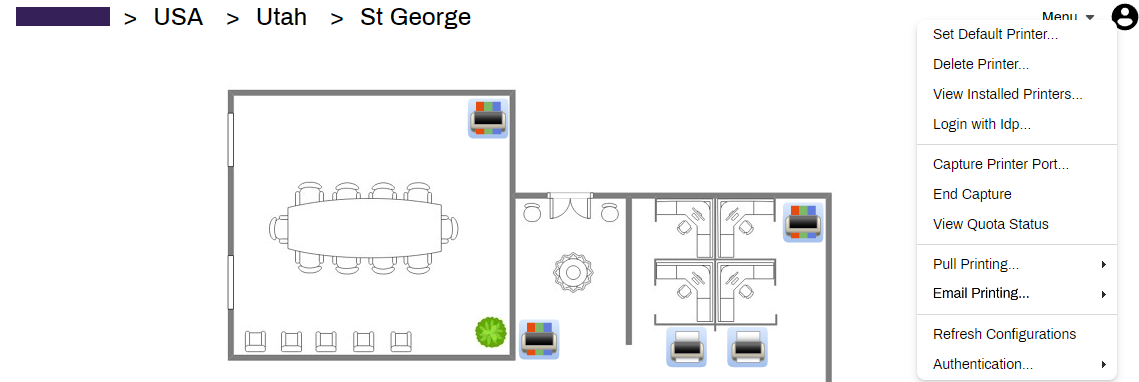
Menu Options
-
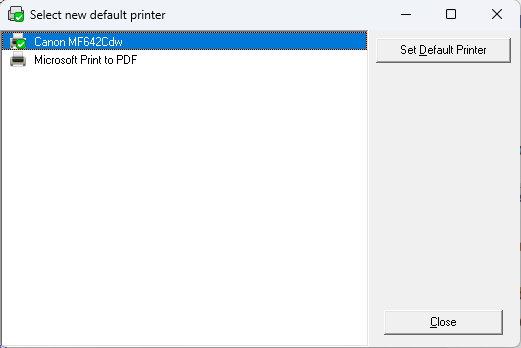
Set Default Printer: Shows a list of printers installed on your computer with an option to set a default printer.
-
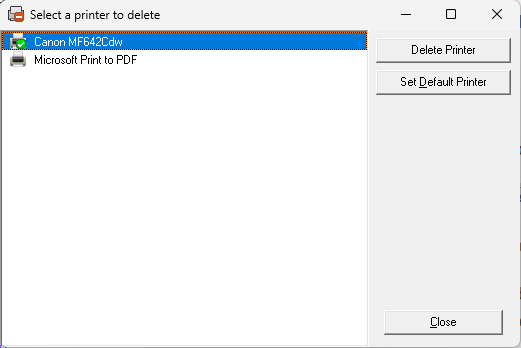
Delete Printer: Shows a list of printers installed on your computer with options to remove a printer or to set a default printer.
- View Installed Printers: Shows the operating system list of printers installed on your computer.
- Login with / Logout: If your administrator has set up Single Sign-On (SSO) you can use this option to quickly open a web browser and sign in to your identity provider.
-
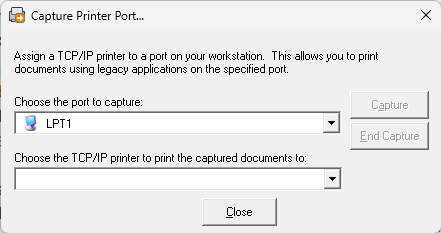
Capture Printer Port / End Capture: Assign a TCP / IP to a port on your workstation. This allows you to print documents using legacy applications on the specified port.
- View Quota Status: Shows the total print quota and remaining value for the period. Quota Management is optional and requires additional licensing.
- Pull Print: Select this option to access the following:
Secure Print Settings: Opens a window that displays installed printers and their secure print options. Use the Secure Print Enabled drop-down to override the default setting. For more details refer to Secure Print Settings.
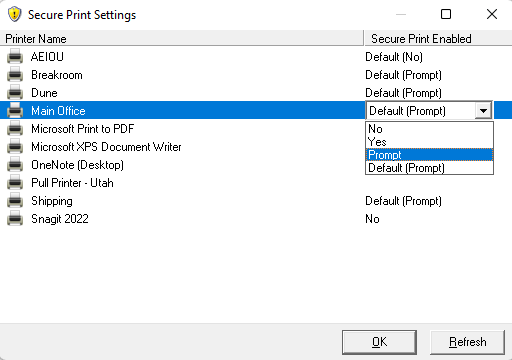
- Print Job Management: Opens the web-based Release Portal, where you can release held jobs. For more details refer to Release Portal.
- Email Printing: Select this option to access the following:
Set Email Pull Printer: Opens a modal where you can select a default printer to use when you email print jobs. For more details refer to Email Print Guide.
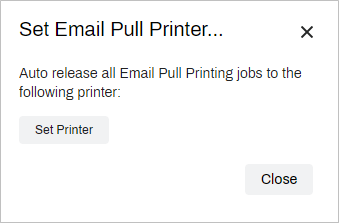
- Print Job Management: Opens the web-based Release Portal, where you can release held jobs. For more details refer to Release Portal.
- Refresh Configurations: Triggers a manual Agent check-in so you can access the latest changes and updates.
- Authentication: For environments that use the Control Panel Application (CPA) or Simple Badge Release use this option to access:
- Manage PIN: Use this option to create or manage your PIN. For more details refer to PIN Self-Registration.
- Manage Badge: Use this option to self-register your badge. For more details refer to Badge Self-Registration.
In this topic:
