Secure Print Settings Guide
Last Updated: October 08, 2026
The Secure Print Settings modal lets you designate your Secure Release printers and turn on / off "hold" prompts when sending print jobs to them. The steps below guide you through accessing the Secure Print Settings window and adjusting Secure Release printers.
Secure Print Settings
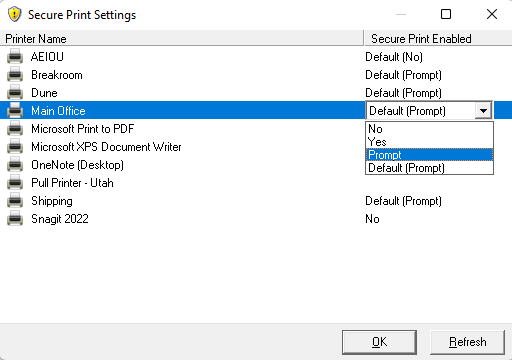
The Secure Print Settings modal displays installed printers and shows whether Secure Release Print is turned on. If your administrator has turned on the end-user override, you can adjust the secure print settings for installed printers. To adjust settings, use the dropdown in the Secure Print Enabled column to select the desired option. If you can access the Secure Print Settings modal but cannot make adjustments, your administrator has not turned on the end-user override option.
- Default (No) / No
- Secure Release Print is not turned on for this printer. This printer immediately processes print jobs.
- Default (Yes) / Yes
- Secure Release Print is turned on. This printer holds print jobs for later release.
- Default (Prompt) / Prompt
-
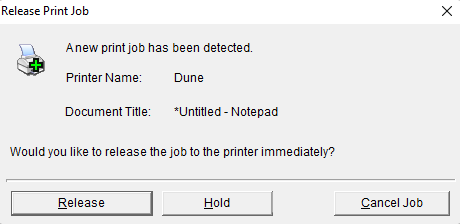
Secure Release Print is turned on. When you send a print job to this printer, a prompt appears, asking whether to print or hold the job for later release.
In this topic:
