ChromeOS Agent
Last Updated: October 08, 2026
The PrinterLogic ChromeOS Agent extension is a component required by your ChromeOS workstation to communicate with the print management system. Unlike the Agent in other operating systems, you access the functionality using the Chrome browser extension.
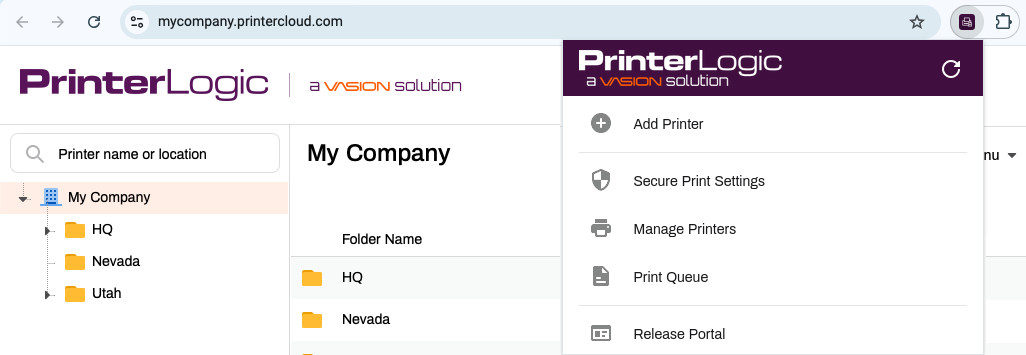
Agent Options Overview
- Add Printer: Opens the Self-service Portal, where you can add a printer. For more details refer to Add Printer.
- Secure Print Settings: Shows you the installed printers that have secure printing turned on. For more details refer to Secure Print Settings.
- Manage Printers: Shows the list of printers installed on your Chromebook with the printer name, URL or IP address, and status. For more details refer to Manage Printers.
- Print Queue: Shows your active print jobs with the printer name, date and time the print job started, and status. For more details refer to Print Queue.
- Release Portal: Opens the Release Portal. For more details refer to Release Portal
- Refresh Configurations: Use the Refresh button
 to trigger manual Agent check-in so you can access the latest changes and updates.
Option Details
Add Printer
The Add Printer option opens the Self-service Portal, a browser-based tool where you can easily install printers on your computer. For complete details about the Self-service Portal, see the documentation about the Self-service Portal. The following steps walk you through adding a new printer.
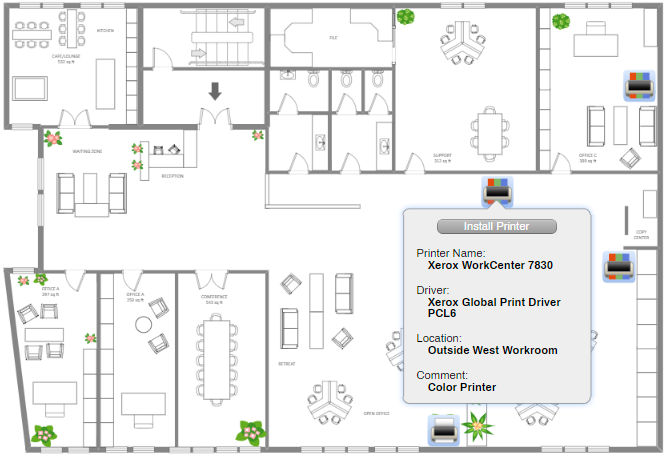
- On the Self-service Portal, select the folder for your location.
- There are two options for installing printers:
- Hover over the printer icon on the map and select Install Printer.
- Select the printer from the list.
-
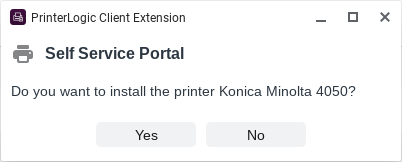
On the Confirm Installation modal, select Yes.
-
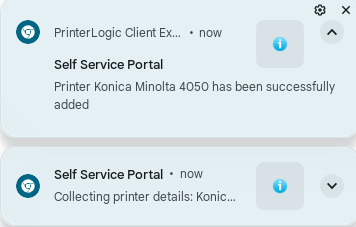
It may take 10 seconds or more while it installs the printer and driver. ChromeOS notifications show when the printer is successfully installed.
Secure Print Settings
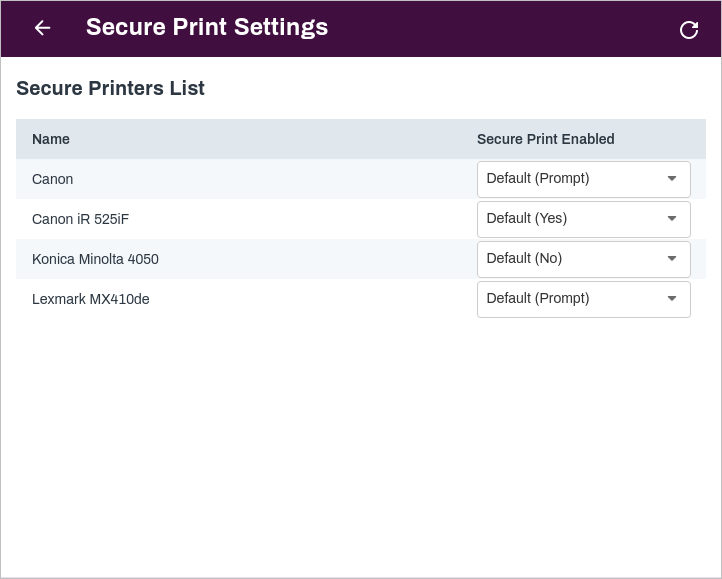
The Secure Print Settings modal displays installed printers and shows whether Secure Release Print is turned on. If your user account has permission to override, you can adjust the secure print settings for your installed printers. To adjust settings, use the dropdown in the Secure Print Enabled column to select the desired option. If you can access the Secure Print Settings modal but cannot make adjustments, your user account does not have permission to override.
- Default (No) / No
- Secure Release Print is not turned on for this printer. This printer immediately processes print jobs.
- Default (Yes) / Yes
- Secure Release Print is turned on. This printer holds print jobs for later release.
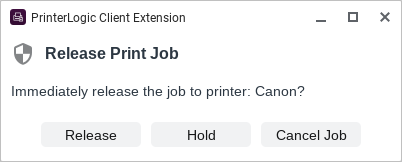
- Default (Prompt) / Prompt
-
Secure Release Print is turned on. When you send a print job to this printer, a prompt appears, asking whether to print or hold the job for later release.
Manage Printers
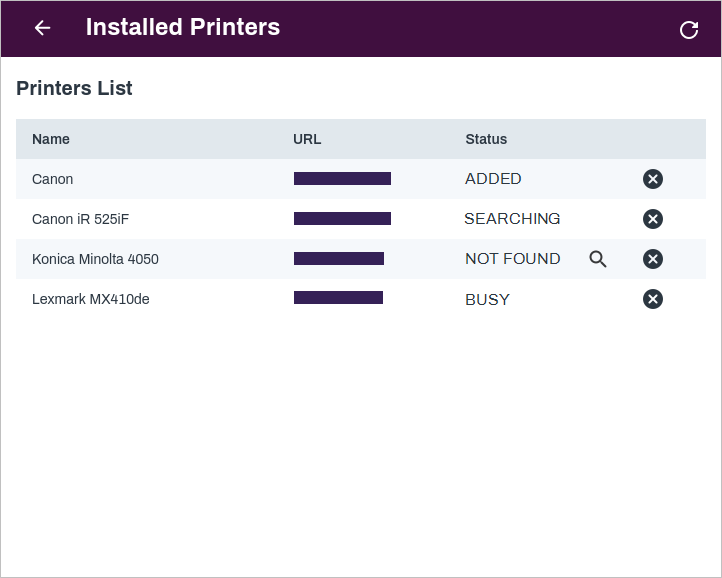
View a list of the printers that are available to you. This list contains both printers that you have installed from the Self-service Portal and printers deployed by your system administrator. Here is an overview of status messages you may see.
- Ready
- The printer was added, contacted, found printer attributes, and it is ready to print. You can only print If a printer is in a Ready state.
- Added
- The Agent extension received the printer details from PrinterLogic and is ready to start searching for that printer.
- Searching
- The Agent extension is trying to contact the printer.
- Busy
- The printer is busy (probably printing another job). You can still send print jobs to a printer in a busy status. When available, the printer will queue the print job and eventually print it.
- Offline
- At some point the printer was in a Ready status but is not responding. The Agent extension will keep trying every 20 seconds.
- Not Found
- When the printer was added, the Agent extension did a search for the printer but got no response. This could mean that the printer was offline when the search was done, or the Printing Protocol (IPP) is not turned on for the printer or is not supported.
- Select the Search icon
 to trigger the Agent to query the printer.
 - Warning
- The printer is running low on supplies like paper or ink.
- Error
- The printer requires attention. Possible causes could be a paper jam or incorrect paper size.
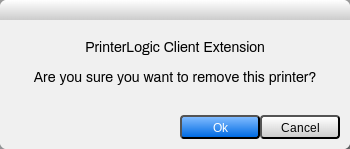
If configured by your administrator, you may be able to uninstall a printer. Select the Remove button  and select Ok on the confirmation modal to uninstall an installed printer from your Chromebook.
Print Queue
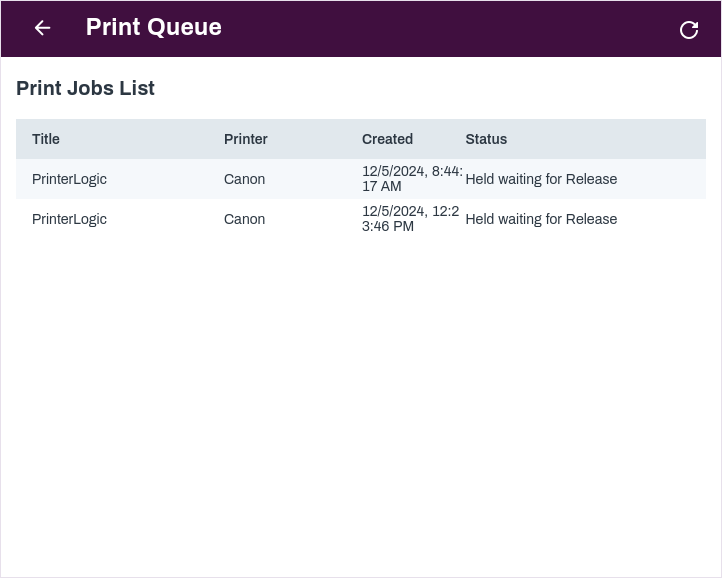
The Print Queue option shows your print jobs actively printing or on hold. The columns display the name of the printed item, the printer name, when the print job was created, and the print job status. Here is an overview of the print queue status.
- Queued
- The print job is being converted to a format the printer understands, and is being sent to the printer.
- Queued by printer
- The printer has received the print job and is processing it.
- Held waiting for release (Pull Print)
- The print job is held for secure release. A secure print job stays in this state until it is released at the printer.
- Printing
-
The print job is actively printing at the selected printer.
If the Printing status displays longer than normal, there may be a problem at the printer, such as being out of paper, missing paper tray, or etc.
Release Portal
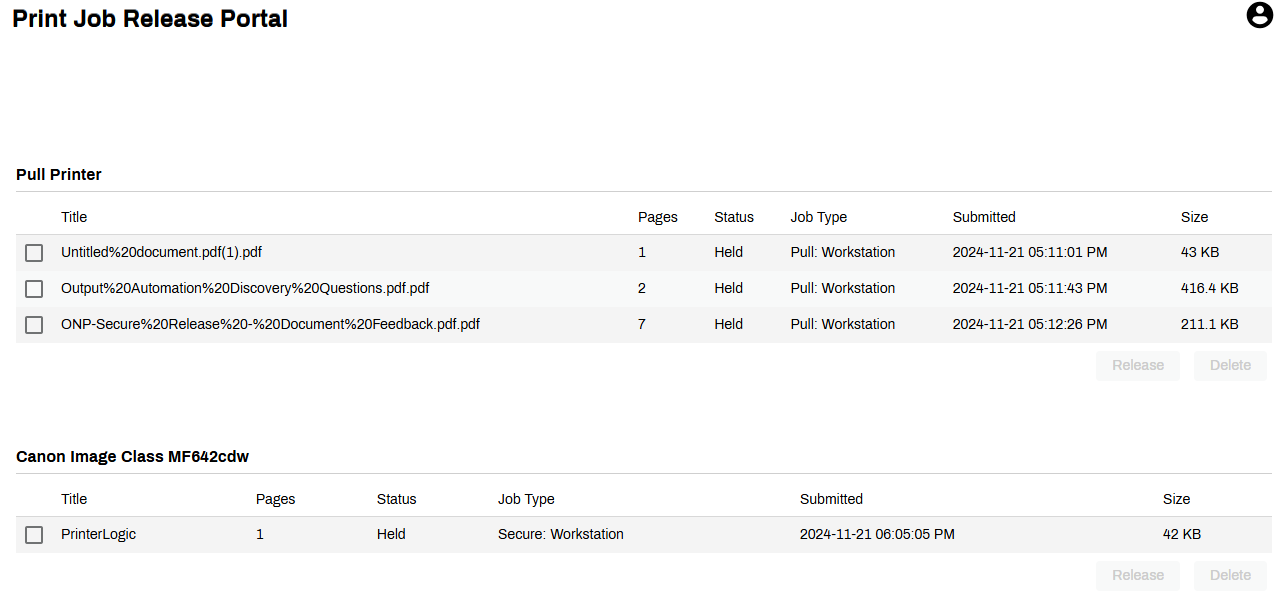
The Release Portal is a web interface where you can view held print jobs. When using features like Email Printing, Pull Print A virtual print queue that holds a print job on the user's device until the user authenticates and releases it to a pull print-enabled printer., and / or Direct Secure Release A printing method that holds print jobs in a queue until the user authenticates at the printer. Users authenticate using a PIN, password, or badge, preventing unauthorized access to sensitive documents., held jobs remain in queue until you authenticate and release them to the printer. The Release Portal is only available if your administrator implemented any of these features. For more details refer to Release Portal.
Refresh Configurations
The Refresh button re-establishes the connection with the printers that are installed, and gets the most up-to-date status of the print environment.
