PIN Self-Registration
Last Updated: September 14, 2026
Based on how your admin implemented the Control Panel Application (CPA) to use Secure Release Print or other functionality, you might have the option to set and manage your PIN using the Self-service Portal.
Set a PIN
Follow these steps:
- Sign in to the Self-service Portal.
- Select Menu in the upper-right corner.
-
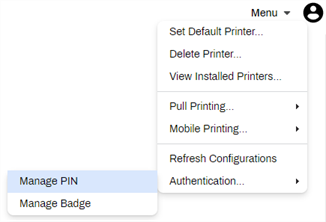
Select Authentication and then Manage PIN.
-
In the Set User PIN modal, enter and confirm your PIN.
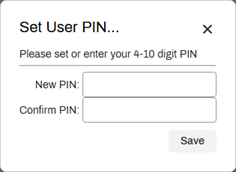
- Select Save.
The PIN is now registered, and you can use it to sign in to the CPA.
Reset a PIN
To reset your pin, follow the same steps listed above, and replace the PIN in the provided fields.
In this topic:
PDFs
CPA Guide

Vasion Print User Guide
PIN Self-registration