Badge Self-Registration
Last Updated: July 30, 2026
Based on how your admin implemented the Control Panel Application (CPA) to use Secure Release Print, or other functionality, you may have the option to self-register your badge using the Self-service Portal. There are two options based on whether you know your badge number or not. Both of these options are covered below.
If the option does not appear in the Self-service Portal, your print environment might not allow self-registration. Ask your admin.
Badge Number Known
- Sign in to the PrinterLogic Self-service Portal.
-
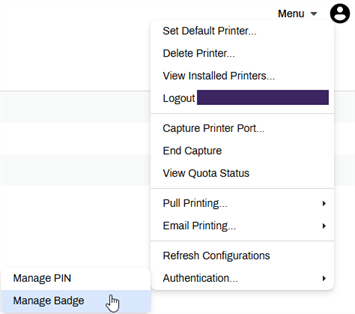
Select Menu on the top-right, hover the pointer over Authentication, and select Manage Badge.
- Enter your badge number into the field.
-
Select Save.
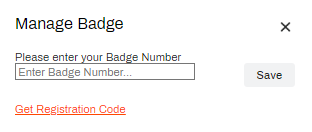
The badge is now registered, and you can scan it to login to the CPA.
Badge Number Unknown
- Sign in to the PrinterLogic Self-service Portal.
-
Select Menu on the top-right, hover the pointer over Authentication, and select Manage Badge.
-
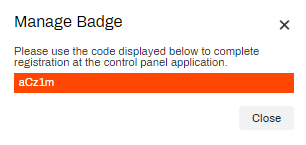
Select the Get Registration Code link.
-
Make a note of the registration code, and then select Close.
- Go to any badge reader printer with the CPA installed.
- Scan your badge on the badge reader.
- Enter the code in the Registration Code field.
-
Select Register.
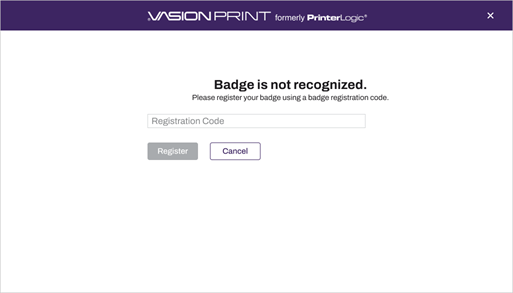
The badge is now registered, and you can scan it to sign in to the CPA.
In this topic:
