Reports
Last Updated: October 02, 2026
The Reports menu in the Admin Console contains resources for auditing printers, tracking usage, error reporting, and more.
Key Points
Review the following key points:
- Reports include print job information sent through the Vasion app.
- Vasion does not report on print jobs not sent through the app or printed directly at the printer using a third-party device, such as a USB.
- Reporting for Copy / Scan Tracking requires an app installed on the printer. For more details refer to Copy / Scan Tracking.
- Use the settings below to turn on print job auditing, include local USB printers, include print job titles, and more.
Settings
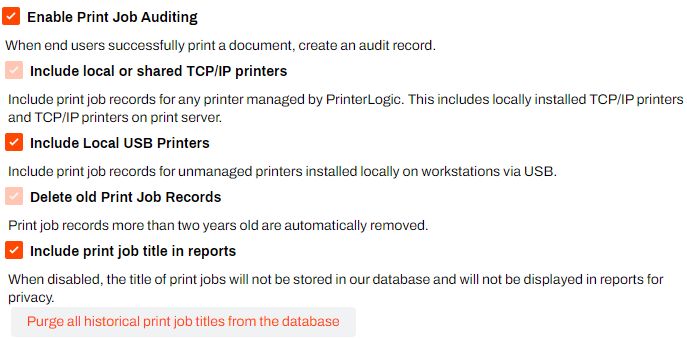
The content that appears in the reports depends on which report settings you turn on. Go to Tools  Settings Printing in the Admin Console, and turn on the settings that are best suited for your environment.
- Enable Print Job Auditing
- When users successfully print documents, create audit records.
- Include local or shared TCP/IP printers
- Include print job records for printers managed by PrinterLogic, which includes locally installed TCP / IP printers and TCP / IP printers on print servers.
- Include Local USB Printers
- Include print job records for unmanaged printers installed locally on devices with a USB.
- Delete old Print Job Records
- Automatically delete print job records that are more than 2 years old.
- Include print job title in reports
- When this setting is turned off, the titles of print jobs are not stored in the Vasion database and do not appear in reports for increased privacy.
- Purge all historical print job titles from the database
- Purge all print job titles from the database.
Report Localization
The Admin Console provides localization features that affect the data that appears in reports, alerts, and the timezone that the instance uses.
Localization Settings
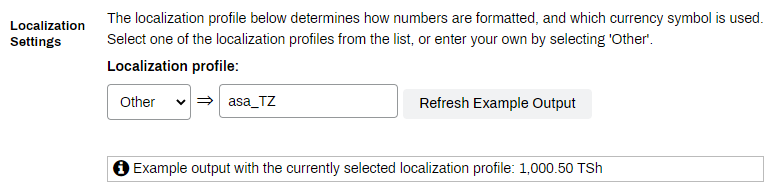
The localization profile applies to reports and print job costs templates and defines which currency symbol and number format is used. Select an existing profile, or select Other and enter a location profile string.
Refer to Location Profile Strings for potentially available profiles.
Follow these steps:
- Go to Tools Settings General.
- Scroll down to the Localization Settings section.
- From the dropdown menu, select a localization profile.
- If you select Other, enter a location profile string.
- Select Save in the upper-right corner.
Time Zone Settings
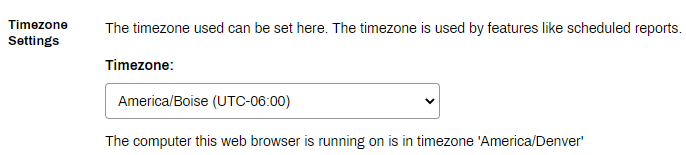
You can set a time zone for your instance for scheduled reports by doing the following:
- Go to Tools Settings General.
- Scroll down to the Timezone Settings section.
- From the Timezone menu, select the time zone for your instance.
- Select Save in the upper-right corner.
The following topics cover these reports in more detail.
In this topic: