Administrative Audit Records
Last Updated: August 10, 2026
The Administrative Audit Records report details the activity of all users who sign in to the PrinterLogic Admin Console and documents any changes made.
Changes include additions, deletions, and modifications of the following:
- Security changes in the console, including admin and portal security.
- Folders and objects, including printers, Service Agents, and IP address ranges.
- Features and their settings.
- Templates and their settings.
- General settings, including portal, printing, scanning, etc.
Timestamps in this report save in UTC (Coordinated Universal Time), but the browser renders them into local time.
To access the Administrative Audit Records report, go to Reports  Administrative Audit Records.
Report Results
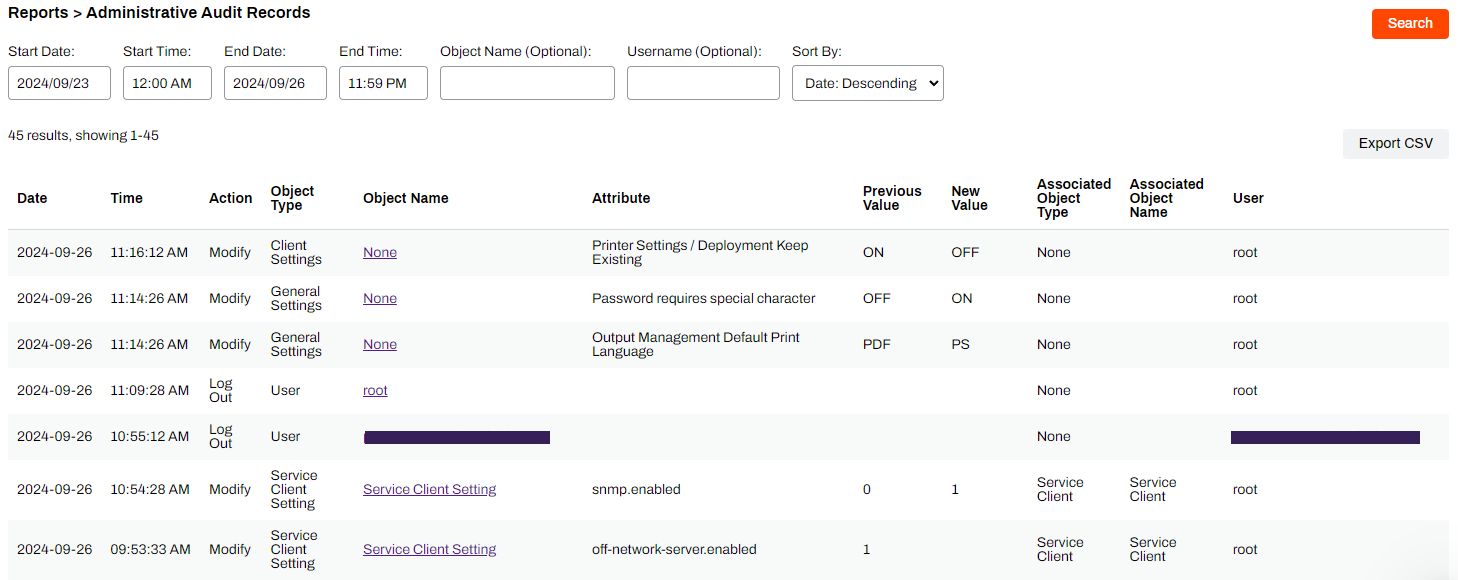
Depending on the action or type of change, some columns might not have data. The report results show the following information:
- Date: Date of the activity.
- Time: Time of the activity.
- Action: Type of action recorded.
- Object Type: Type of item updated.
- Object Name: Name of object, when applicable.
- Attribute: Item updated, when applicable.
- Previous Value: Value prior to change, when applicable.
- New Value: Value after the change, when applicable.
- Associated Object Type: Filter or subsetting of an object, when applicable.
- Associated Object Name: Value or name, when applicable.
- User: Username of the person who made the change.
Report Actions
On the Administrative Audit Records page, there are a few actions you can take.
Filter
Use the fields at the top of the page to filter the data. Select Search to run the report. You can filter using the following fields:
- Start Date and End Date.
- Start Time and End Time.
- Object Name (Optional) and Username (Optional).
- Sort By: Date: Ascending or Date: Ascending.

View Object History
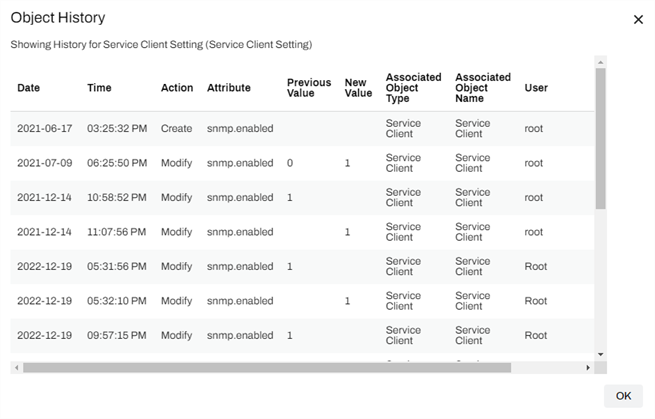
After running a report, select an object name to view additional history about the object.

Settings not tied to a specific object do not show more information. History appears in ascending order from the first change. Select OK or the Close button to close the modal.
Export
To export the report as a CSV file, select the Export CSV button.
If you already exported a CSV of the current filtered page, the export option becomes unavailable. Rerun the search if you need to export again.
In this topic: