Print Job Records
Last Updated: October 08, 2026
The Print Job Records page includes options that help you with print audits and identifying usage patterns. The overview reports show data and graphs, and the report types, such as Records and User, show data in columns. To access these reports, go to Reports  Print Job Records in the Admin Console.
Key Points
Review the following key points:
- Vasion is implementing updates to enhance our identity services. In environments that use an identity provider (IdP) for authentication, you might notice that the Job Title (Optional), Manager Name (Optional), and Department Name (Optional) fields are blank in the report. This data loss is temporary, and the information will return to its standard appearance after improvements are complete.Lightweight Directory Access Protocol (LDAP) configurations are not affected by this work.
- The content in the reports depends on which settings you turn on. For more details refer to Settings.
Overview Reports
The overview reports include data and usage on various printing aspects, and most reports visually represent the data with graphs.
Overview - All
This report opens a new tab and shows the data from the other overview reports. Pop-up blockers can affect this report. The report shows the following information:
- Job Type: Black and white, color, duplex, and simplex.
- User Overview: Total number of users, job average per user, job count, page average per user, and cost average per user based on Print Job Cost templates.
- Printer Overview: Total number of printers, average pages per printer, and cost average based on Print Job Cost templates.
- Annual Estimate: Total number of days in report, annual page estimate, and annual cost estimate based on Print Job Cost templates.
- Data or graphs: Total pages by week, total costs by week, pages by hour in local time zone, application usage, document type, job and page counts, page count range, simplex versus duplex pages, simplex versus duplex cost, black and white versus color, and paper size.
Filtering
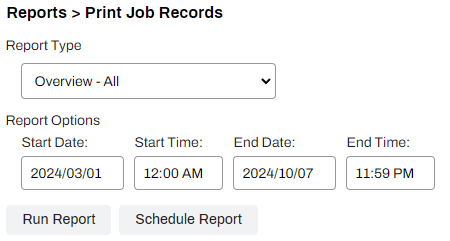
The overview reports include filters for the following:
- Start Date.
- Start Time.
- End Date.
- End Time.
Enter your parameters, and then select the Run Report button.
Select Schedule Report to configure the automatic delivery of reports to one or more email addresses.
Additional Overview Reports
The following additional overview reports allow targeting of specific data points in the list above:
- Overview - Summary.
- Overview - By Week.
- Overview - By Hour.
- Overview - Application Usage.
- Overview - Job and Page Counts.
- Overview - Simplex/Duplex.
- Overview - B&W/Color.
- Overview - Paper Size.
Export
There are two options to export the overview reports data in PDF format:
- Use the browser's Print functionality.
- Create Scheduled Reports that send the data in PDF format.
Records Report
The Records report contains detailed information about print jobs sent by managed printers.
Records
This report appears in columns on the Print Job Records page and includes the following data:
- Date and time of the print job.
- Username of the person who sent the job.
- Local device computer name reported by the Agent.
- Job title, manager name, and department name. Include this data in your IdP configuration for it to appear in the report.
- Printer name, job type, paper size, black and white or color, simplex or duplex, and pages.
- Document name, which appears only if you turned on the Include print job title in reports option.
- Total cost of the print job according to the assigned Print Job Cost template.
Filtering
The Records report includes filters for the following:
-
Start Date.
-
Start Time.
-
End Date.
-
End Time.
-
Username (Optional), Job Title (Optional), Computer Name (Optional), Manager Name (Optional), Department Name (Optional), and Printer Name (Optional).
-
Printer Type, which includes Any, TCP / IP, and USB.
-
Job Type, which includes All, Normal, Secure, Pull Print, Copy, and Scan.
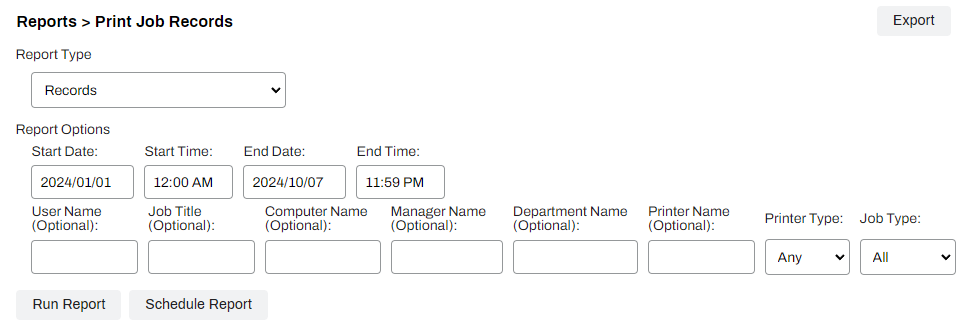
Enter your parameters, and then select the Run Report button to populate data. Select Schedule Report to configure the automatic delivery of reports to one or more email addresses.
Additional Reports
Additional reports allow targeting of specific data points. Available filters depend on the report type:
-
User.
-
Start Date, Start Time, End Date, and End Time.
-
User Name.
-
-
Job Title.
-
Start Date, Start Time, End Date, and End Time.
-
Job Title.
-
-
Manager.
-
Start Date, Start Time, End Date, and End Time.
-
Manager Name.
-
-
Department.
-
Start Date, Start Time, End Date, and End Time.
-
Department Name.
-
-
Printer.
-
Start Date, Start Time, End Date, and End Time.
-
Printer Name.
-
Include Printers.
-
Include USB Printers.
-
-
Folder.
-
Start Date, Start Time, End Date, and End Time.
-
Search In.
-
Accumulate statistics from sub-folders.
-
-
Simplified Scanning.
-
Scan Date (Optional).
-
Printer Name (Optional).
-
Document Name (Optional).
-
Destination (Optional).
-
Export
You can export the report data as a CSV file with the Export CSV button.
Refer to Scheduled Reports to configure routine export of data from the Records reports.
In this topic: