Workstations Report
Last Updated: September 14, 2026
The Workstations report shows basic device information from workstations with the PrinterLogic Agent installed. This report helps administrators keep track of which devices have the Agent installed, the Agent version on those devices, and a tool to monitor end-points when deploying a Agent update from the Admin Console.
Go to Reports  Workstations to access this report.
Report Results
This report includes:
- User logged into the machine during the latest Agent check-in.
- Workstation Short / Long Name.
- Operating System.
- IP Address.
- Current Agent version.
- Initial Check-in Time / Date.
- Latest Check-in Time / Date.
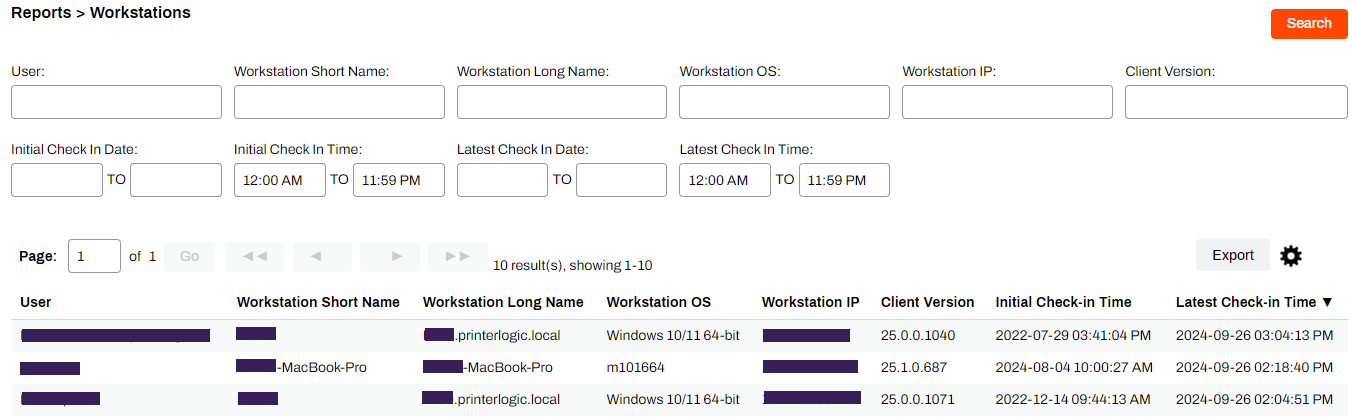
For the most up-to-date information on Agent check-ins, set the Latest Check-in Date to include the last 30 days. Devices that have not checked in within the past month are likely not communicating with your instance properly or the device is no longer in use.
If you need the report data on the go, select Export, on the right side, to download a CSV file with the information from the report.
Report Actions
Filtering
Use the appropriate fields to define the filtering scope for the data. Select Search to initialize the report.

After running a report, select the column header for additional filtering options.
Table Settings
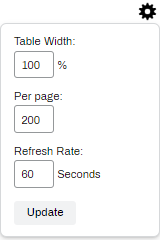
You can select the Settings button  , and adjust the following:
- Table Width: Adjust the width of the table using a percent basis.
- Per page: Adjust how many records appear per page.
- Refresh Rate: Adjust the refresh time in seconds.
Export
You can export the report data as a CSV file with the Export CSV button.
In this topic: