webprint
Web Print
Last Updated: October 02, 2026
Web Print provides a secure solution for guest printing. The user navigates to a web page, uploads their document, and prints without needing to install software or drivers on their device. This feature ensures the security of your print environment while automating the printing process for guests.
For more information on using the Web Print Portal, refer to Web Print Guide.
Key Points
Review the following key points:
- Web Print uses the same logo as the Self-service Portal.
- You can configure the Web Print Portal to require authentication for internal users.
- When using authentication Web Print works with Quota Management to track printing usage and enforce limits.
- If you turn on guest printing, the user prints using their email and a release code.
- Web Print supports, Pull Print, Direct Secure Release, and Delegated Release. For more details refer to Secure Release Print.
- The printers you designate for Web Print do not work for normal Secure Release Print with prompts. Prompts appears when using Web Print, but devices do not show the prompts when printing outside of this feature.
How Web Print Works
Web Print does not require the Agent, printers, or drivers installed on devices, which makes it a good fit for student printing and bring your own device (BYOD) environments.
The user accesses the Web Print Portal using the URL, then signs in or enters an email address as a guest. The user then uploads a document and selects an available printer. Using Secure Release Print with Web Print provides an additional option for users to print immediately or holds in a virtual queue.
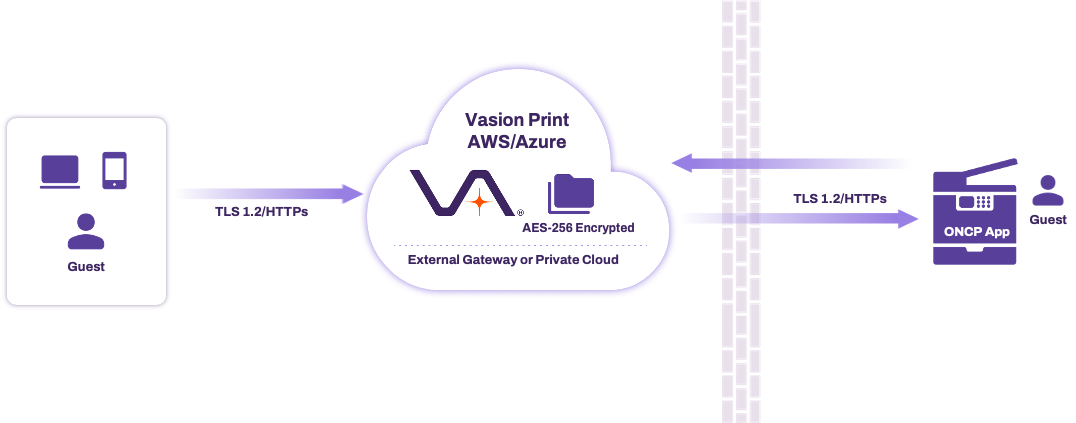
Authenticated Users
Review the following about authenticated users:
- Users authenticate to the portal using their identity provider credentials.
- Web Print works with Quota Management to track printing usage and enforce limits.
- Releasing jobs using the PrinterLogic mobile app does not require the Secure Release Print feature.
- If the user releases the job at the printer, you must install the Secure Release Print feature on the printer.
Guest Printing
Review the following about guest printing:
- You must turn on Allow Guests in the Web Print settings.
- The user enters their email address to authenticate to the Web Print Portal.
- Because guests have no other release method available, you must install the Secure Release Print feature on the printer with Web Print code authentication turned on.
You can install Secure Release Print and Web Print code authentication at the same time from the printer's Apps tab. If you use the CPA Manager, install Secure Release Print first, then add Web Print code authentication using the Modify option.
Printing Formats
Web Print supports the following formats:
- Images: BMP, GIF, JPG, PNG, and TIF.
- Microsoft Office: DOC, DOCX, PPT, PPTX, XLS, and XLSX.
- Microsoft Visio: VDX, VSD, and VSDX.
- OpenOffice and LibreOffice: FODP, FODS, FODT, ODP, ODS, and ODT.
- Documents: PDF.
- Text: CSV, RTF, and TXT.
Logo
The logo that appears in the Web Print Portal is the same logo that you upload in the Portal Settings in the Admin Console. You can access the Portal Settings by going to Tools  Settings Portal.
Reports
The Print Job Records report includes users printing with Web Print:
- The source is defined as Web Print.
- The user information for authenticated users appears.
- Guest emails start with "guest_".
Requirements
Review the following requirements:
- Web Print requires additional licensing. Contact your Vasion representative for more information.
- You must turn on and configure ONCP for the selected printers. For more details refer to Off-Network Cloud Print (ONCP).
- For authenticated users or guests to release held jobs at the printer, you must install the Secure Release Print feature on the printer.
- Add print-api.app.printercloud.com
- Some Fujifilm devices require a PostScript (PS) module to use the Web Print feature.
Next Steps
Refer to the following:
- Configure Web Print.
- Web Print Coach (Checklist Style).
In this topic: