PrinterLogic Components
Last Updated: September 24, 2026
PrinterLogic is comprised of four main components. The Admin Console The central management platform for PrinterLogic, where admins manage printers, users, deployments, and system settings., the Vasion Agent Software installed on a server or device that communicates with the PrinterLogic instance. The Agent installs and manages printers., the Self-service Portal A web portal where end users can install printers and drivers, manage printer settings, and access the Release Portal., and the Release Portal A web portal where users sign in to view and release held print jobs before they are sent to physical printers.. Certain components manage the print environment and release print jobs, while other components let end users install drivers on their workstation, or let the administrator manually update drivers already installed on workstations. Below is a brief overview of each.
Admin Console
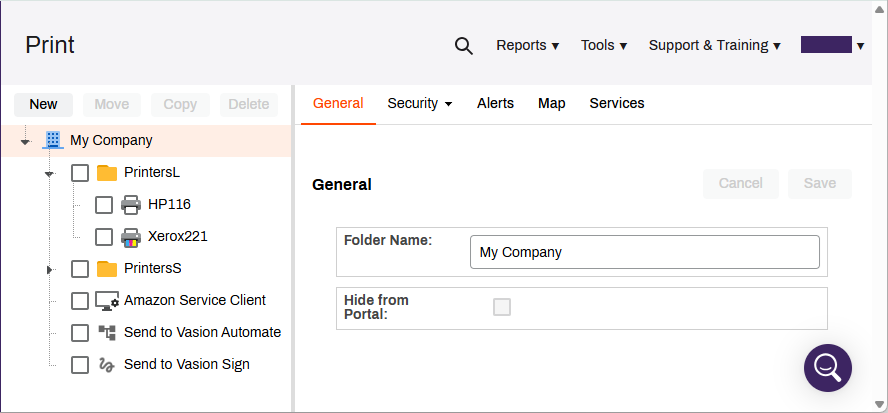
Think of the Admin Console as the central hub for your instance. This is the management platform for every printer in your organization — all from one location, regardless of whether you have one physical location or a hundred sites across as many countries. You create the printer objects, upload drivers, and configure the features and services that PrinterLogic offers. In the Admin Console, you can set up printer deployments and objects like pull printers, IP address ranges, and Service Agents.
The Admin Console consist of three areas:
- The tree view, where you can see all the printers and objects, like Service Agents and IP address ranges added to your PrinterLogic instance. Organize printers and objects into a hierarchy of folders, using portal security to control which folders are available to end users in the Self-service Portal.
- The tabs section, where various settings are available for you to configure, displays different options depending on the selected object type, e.g., printers, folders, and Service Agents.
- The navigation menu at the top of the screen allows you to access various tools, settings, and account information.
Vasion Agent
The Vasion Agent is software installed on the end users' workstations. The Agent creates a connection between the workstation and the PrinterLogic webservice using a security token. This lets the Agent do the following:
- Install printers on the device.
- Install and update drivers on the device.
- Collect print-job metadata for reports.
- Hold print jobs in a print queue.
- Release held print jobs to a printer.
Changes in the Admin Console are synced and pushed out to the workstation through the Agent. Updates on the workstation happen during the Agent check-in, which occurs by default during device startup / login. You can configure the Agent check-in to run every few hours; the minimum is 240 minutes. The individual workstations can also trigger the check-in manually.
When you update a driver for a printer object in the Admin Console, the new driver is installed and associated with that printer object on the workstation during the next Agent check-in.
The Agent runs in the background on any workstation that has it installed and should not require any intervention on the part of the end user.
You can install the Agent manually through the Admin Console with a Windows startup script, with a third-party application, or with a Group Policy Software Installation Package (GPO) A set of settings and rules that control the working environment of user and computer accounts in Microsoft Active Directory. GPOs are used to manage and configure operating systems (OSs), apps, and user settings. on workstations with a supported Windows, Mac, or Linux operating system.
Self-service Portal
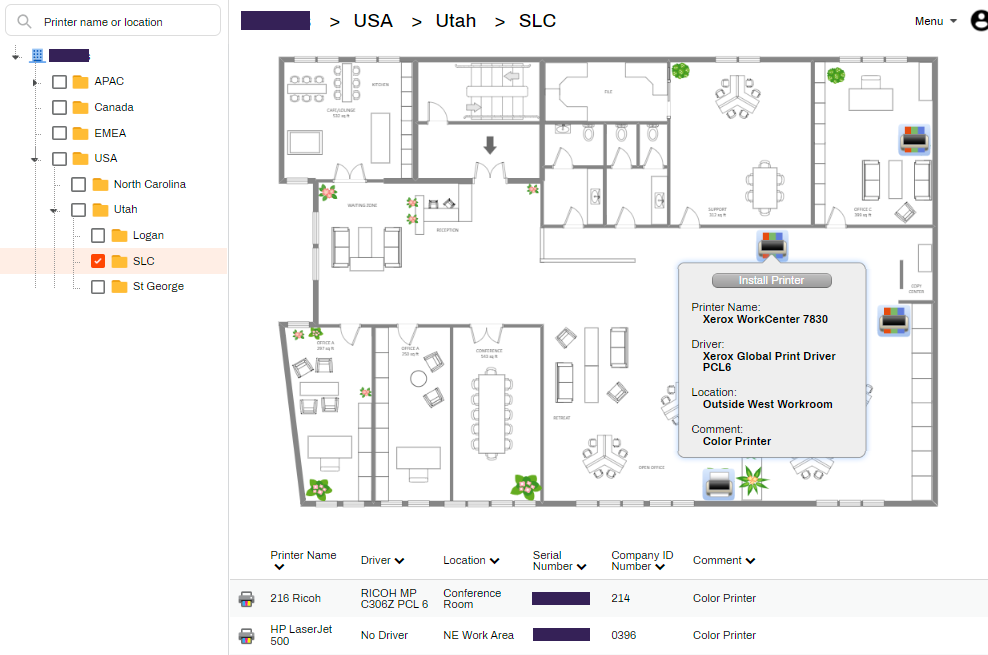
Tracking down the correct printer and driver is a challenge in any environment. The Self-service Portal simplifies this process using customizable map uploads and descriptive printer names. Let end users easily install the printers they need from a recognizable map with the click of a button.
Secure the portal to simplify this process even further, so end users only see the folders and printers they need. For more details refer to Portal Security.
If self-installation of printers does not fit your environment, check out Printer Deployment, where printers are installed on workstations automatically.
Release Portal
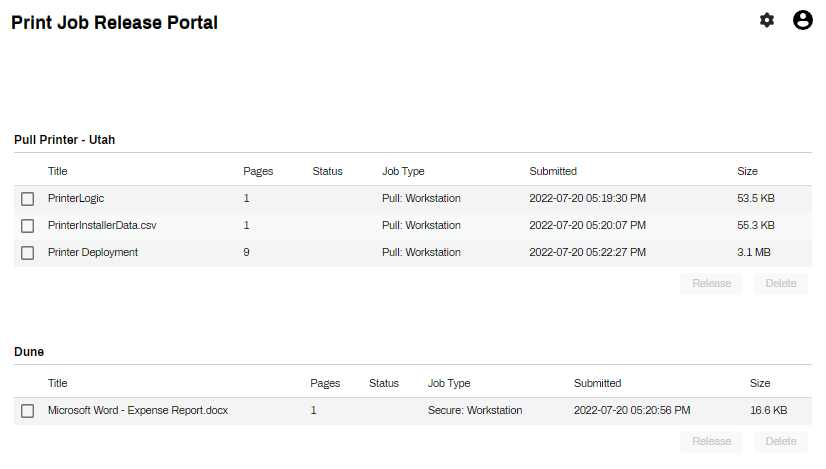
The Release Portal is a tool for releasing held print jobs. When using features like Email Printing, Pull Print, and / or Direct Secure Release, held jobs remain in queue until the user authenticates and releases them to the printer. The Release Portal is the web interface option end users can access from devices with the Vasion Agent installed.
The view here is from the workstation Release Portal showing a user's held print jobs.
To learn more about the Release Portal, refer to Release Portal Overview. For more information about features using the Release Portal and different types of held jobs, refer to Secure Release Print.
In this topic: