PrinterLogic Portals
Last Updated: October 02, 2026
PrinterLogic has two web portals for end users:
- The Self-service Portal, which is where end users install printers.
- The Release Portal, which is where end users release held print jobs.
Self-service Portal Overview
End users use this portal to install printers and drivers on their devices, which decreases the number of support calls for printer installation. You can add maps, configure portal security, and add custom fields to further simplify the installation process. If you want to restrict printer self-installation, use printer deployments to automatically install printers on end users' devices. For more details refer to Printer Deployment.
Access the Self-service Portal
To access the Self-service Portal, ensure that the Vasion Agent and browser extension are installed on the device and the extension is turned on. Do one of the following to access the Self-service Portal:
- Select the PrinterLogic icon in the Windows system tray or the macOS menu bar.
- Select the Add Printer icon in the Windows Start menu.
- Use your Admin Console URL, but remove the /admin from the end.
- On the Admin Console, go to Tools
 PrinterLogic Portal.
 - On the Admin Console, go to Tools Settings Portal, and select the link at the top.
Tree Structure and Maps
By default the printer tree structure appears the same as in the Admin Console. Use portal security to define which folders and printers appear for end users when they access the Self-service Portal. For more details refer to Portal Security. Configure associations based on users, groups, IP address ranges, and more. If there is a folder or printer that you do not want visible for any users, select the Hide from Portal option on the printer's General tab.
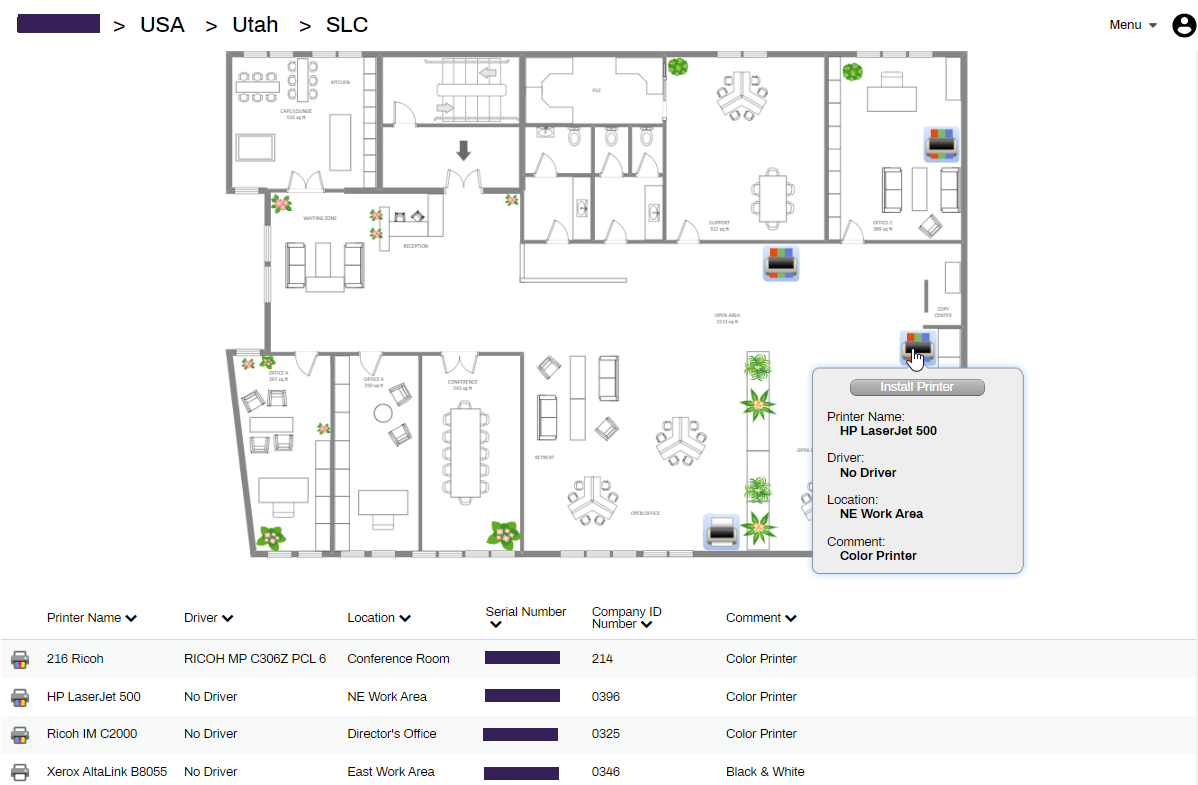
Maps are key components of the Self-service Portal. You can assign each folder its own map so that you can include multiple sites and floors. After you upload a map or floor plan, drag printer icons onto the map relative to their physical location to provide a visual reference for end users and keep self-installation simple.
Custom Fields
If you have any custom fields that you want to appear on the Self-service Portal, go to Tools Settings General, and turn them on. For more details refer to Custom Printer Fields.
Menu
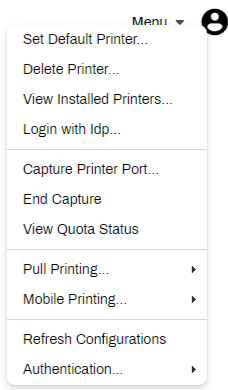
Select the Menu in the upper-right corner to view all the Agent options that you turned on for the instance. For more details refer to Shortcut Options.
Menu options include the following:
- Set Default Printer: This option sets the default printer for the device.
- Delete Printer: This option removes a printer from the device.
- View Installed Printers: This option provides a list of printers installed on the device.
- Capture Printer Port: This option assigns a TCP / IP printer to a port on the device, which lets the end user print documents using legacy apps on the specified port.
- End Capture: This option turns off Capture Printer Port.
- View Quota Status: This option appears for only environments in which you turn on Quota Management and shows what remains of the print quota assigned to the end user.
- Pull Printing
- Secure Print Settings: This option shows a list of the printers installed on the device and whether they have Secure Release Print turned on.
- Print Job Management: This option opens the Release Portal.
- Email Printing
- Print Job Management: This option opens the Release Portal.
- Set Email Pull Printer: This option sets the printer to where the end user sends autorelease email print jobs.
- Refresh Configurations: This option triggers a Agent check-in with the instance.
- Authentication: This option appears for only environments in which you turn on Control Panel Application (CPA) badge or PIN authentication.
- Manage PIN: This option appears only when you set the PIN settings on the CPA to Database. The end user can select this option to set their PIN. For more details refer to PIN Self-Registration.
- Manage Badge: This option appears only when you set the badge settings on the CPA to Database. The end user can select this option to access the badge self-registration options. For more details refer to Badge Self-Registration.
Refer to Self-service Portal Setup to learn how to set up your Self-service Portal.
Release Portal Overview
The Release Portal is available only when the print environment uses the Pull Print or Direct Secure Release features. The Release Portal shows held jobs. Held jobs remain in the queue until the user authenticates and releases them to the printer.
Requirements
Secure Release Print and Mobile App Release require additional licensing. If you are interested in these features, contact your PrinterLogic representative. Devices require the Vasion Agent and the browser extension to access the Release Portal.
Access the Release Portal
Do one of the following to access the Release Portal:
- Select the Menu in the Self-service Portal, select Pull Printing or Mobile Printing, and then select Print Job Management.
- Add /release to the end of the Self-service Portal URL.
- Right-click the PrinterLogic icon in the system tray or menu bar, select Pull Printing or Mobile Printing, and then select Print Job Management.
Held Jobs
How the print job is held and released depends on which type of printer you select.
Pull Print, which is a one-to-many option, uses a pull printer object as a virtual print queue to hold the job. You install the pull printer object on the end user's device, and it appears like a regular printer. Jobs that end users send to the pull printer are automatically held, and they can release these held jobs to any printer object with the Allow Pull Print jobs to be released to this printer setting turned on. For more details refer to Pull Print.
Secure Release Print also holds print jobs, but it is a one-to-one option, which means end users can release the print job to only a specific printer. To turn on this function, you must configure the printer as a secure release printer in the Admin Console. For more details refer to Secure Release Print.
Release Held Jobs
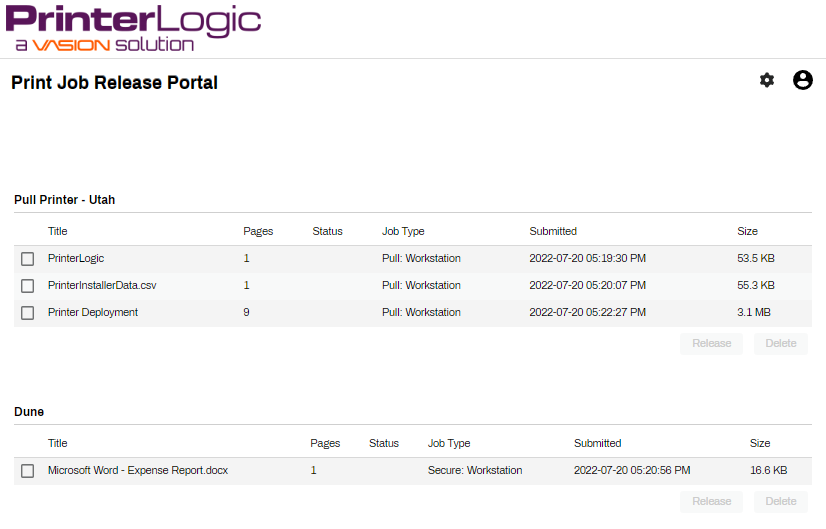
Held print jobs appear in the Release Portal under the associated printer object. With Pull Print, you choose which printer you release the job to. With Direct Secure Release, you can release print jobs to only the printer you initially sent them to.
Do the following to release a held job:
- Select the Menu in the Self-service Portal, select Pull Printing or Mobile Printing, and then select Print Job Management.
- Select the checkbox next to the held print job.
- Select the Release button.
Additional Pull Print Steps
Do the following after you select Release:
- In the modal, search or browse for the printer to which you want to release the job.
- Select the Select button to start the print job.
Delete held jobs by selecting the checkbox next to the print job and selecting the Delete button below the held jobs list.
Manage Print Job Release Access
You can control the access and behavior of the Release Portal for your instance in the Admin Console. Use this option to require users to use secure release mechanisms, such as CPA, Simple Badge Release, etc.
- In the Admin Console, go to Tools Settings Portal.
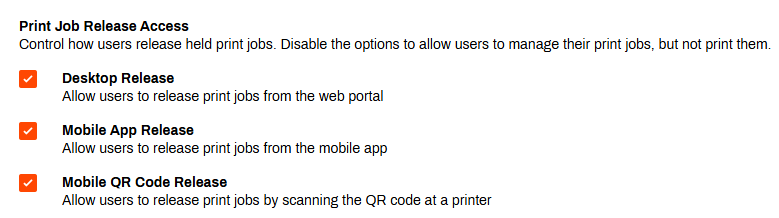
- In the Print Job Release Access section, choose from the following:
- Desktop Release: Select this option if you want end users to release their print jobs using the web portal. When this option is deselected, end users can view and delete their print jobs but not release them.
- Mobile App Release: Select this option if you want end users to release their print jobs from the Release screen on the mobile app. When this option is deselected, users can view and delete their print jobs on the mobile app but not release them.
- Mobile QR Code Release: Select this option if you want end users to release print jobs by scanning a QR code at the printer.
- Select Save in the upper-right corner.
In this topic: