Queue Tab
Last Updated: September 22, 2026
You use the Queue tab to quickly manage printer-queue problems in your environment. This tab relates to the Secure Release Print feature and functions only after you go to Tools  Settings Printing and select the Enable queue management option in the Print Jobs section.
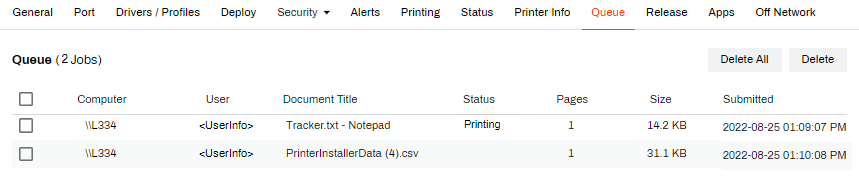
The Queue tab shows the following job information in a table:
- Computer: The name of the device from which the user sent the job.
- User: The username of the user who sent the job.
- Document Title: The title of the document.
- Status: The status of the job.
- Pages: The number of pages in the document.
- Size: The file size of the document.
- Submitted: The date and time that the user sent the job.
Delete a Queued Job
Do the following to delete a queued job:
- Go to the Queue tab of the desired printer object.
-
Select the checkbox next to the held job.
Selecting the checkbox at the top of the column selects all print jobs in the queue.
- Select Delete in the upper-right corner.
Select Delete All to clear all queued jobs from the printer.
In this topic: