Print Job Costs
Last Updated: September 22, 2026
You can use print job cost templates to control printing expenses and view report and audit data.
To configure cost templates, go to Tools  Print Job Costs in the Admin Console.
Key Points
Review the following key points:
- Each instance includes a Default Costs template that applies to all printers that do not have a cost template assigned. You can edit this cost template, but you cannot delete it.
- A printer object can have only one cost template.
- Define multiple paper sizes with one cost template.
- To include print job costs in reports, select the Enable Print Job Auditing option.
Paper Sizes
Cost templates support the following paper sizes:
- Letter
- Tabloid
- ANSI C
- Government-Letter
- Government-Legal
- Legal
- Junior Legal
- Half Letter
- Executive
- A0 to A10
- B4 to B6
- C3 to C6
- Business
- Foolscap
- Folio
- Postcard
- Square 8.5
Turn On Print Job Auditing
Do the following to turn on print job auditing:
- In the Admin Console, go to Tools
 Settings Printing.
 -
In the Print Jobs section, select Enable Print Job Auditing.
The Include local or shared TCP/IP printers and Delete old Print Job Records options are selected by default.
- Select Save.

Create a Cost Template
Do the following to create a new cost template:
- In the Admin Console, go to Tools Print Job Costs.
-
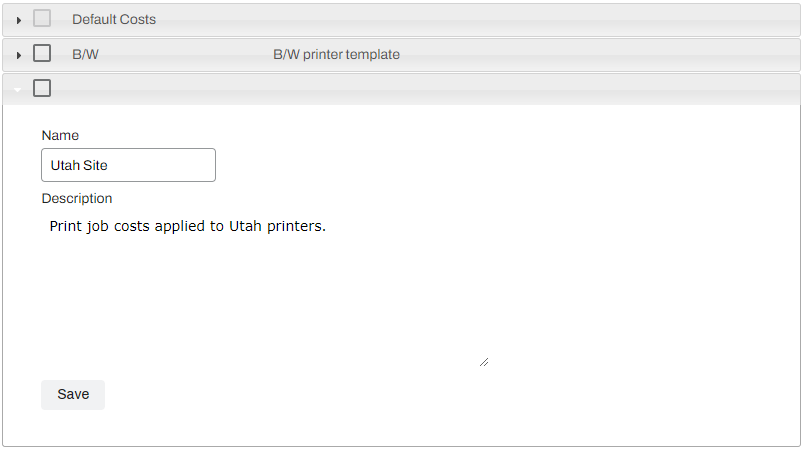
Select Add New Template in the upper-right corner.

- Name the template.
- (Optional) Add a description.
- Select Save.
Configure or Edit a Cost Template
The steps to configure a new cost template are the same as the steps to edit an existing template:
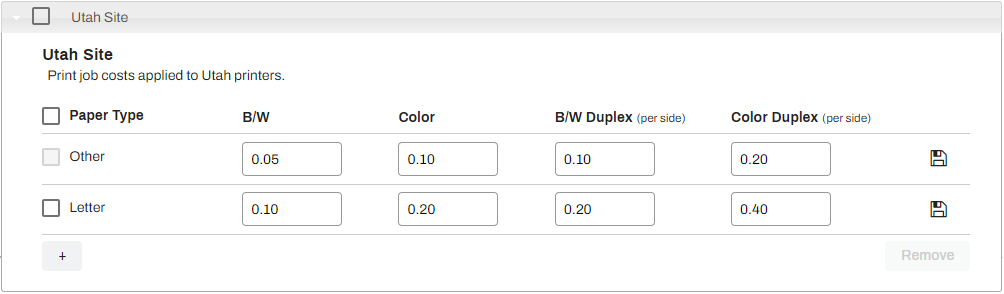
- Enter the costs associated with the Other line item.
You must configure the Other line item before options for additional paper sizes appear. Any paper size that you do not define in the template uses the cost values of the Other line item.
- Select the Save button
 at the end of the row.
 - After saving the line item, select the + (plus) button
 that appears.
 - Use the Paper Type dropdown menu to select the desired paper size.
- Enter the costs associated with the new line item.
- Select the Save button at the end of the row.
- Repeat as needed for other paper types.
Apply a Cost Template
Do the following to apply a cost template to a printer object:
- Go to the printer object in the tree structure.
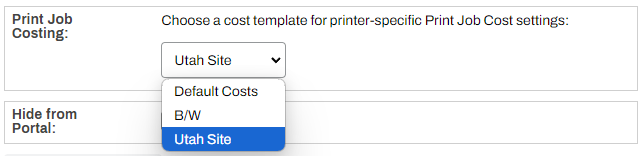
- On the printer object's General tab, locate the Print Job Costing section.
- Use the dropdown menu to select the desired template.
- Select Save.
- Repeat as needed for each printer object.
Delete a Cost Template
The steps below guide you through deleting line items from a cost template and deleting a cost template. Note that you cannot delete the default Other line item from a cost template.
Line Items
Follow these steps to delete a line item:
- Expand the desired cost template.
- Select the checkbox next to the line item.
- Select the Remove button.
-
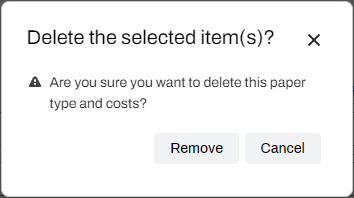
On the modal, select Remove.
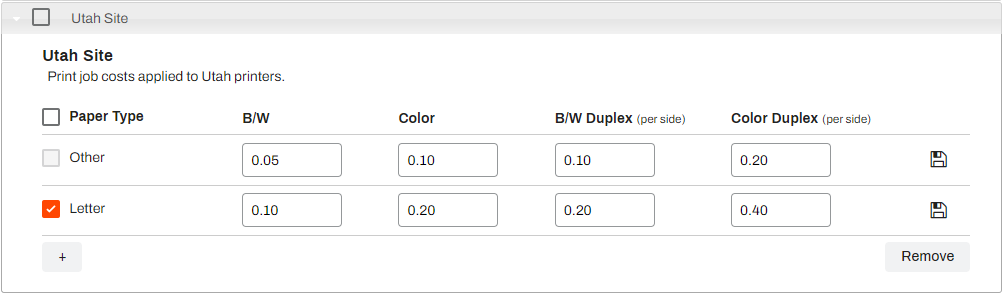
To delete all line items from a cost template, select the checkbox next to the Paper Type column header to select all line items. Then select Remove.

Cost Templates
Note that you cannot delete the Default Costs template.
Follow these steps to delete a cost template:
- Select the checkbox in the Template Name column.
-
Select Delete in the upper-right corner.
-
In the modal, select Delete.
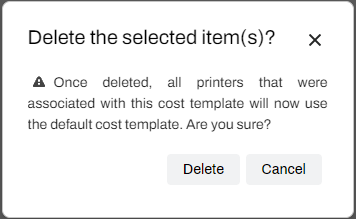
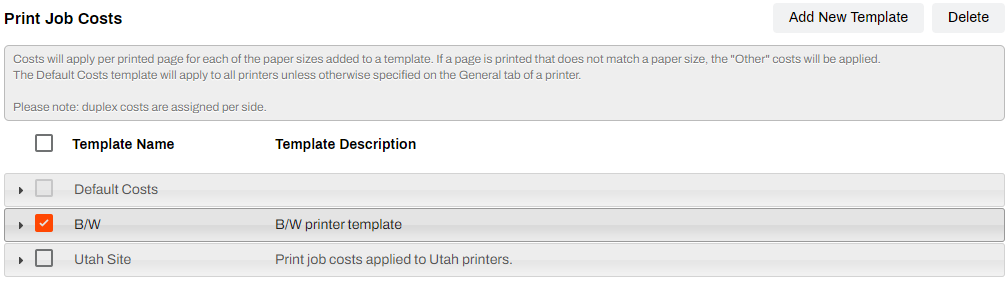
To delete all cost templates, select the checkbox next to the Template Name column header to select all cost templates. Then select Delete.

In this topic: