Driver Management
Last Updated: October 02, 2026
A driver is software on a device that converts the data that needs to be printed into a format that a printer understands.
Each printer manufacturer has unique drivers for specific printer models and operating systems (OSs), and each driver has customizable profile settings (color, duplex, etc.), which can be time-consuming to manage. The Admin Console simplifies driver management by providing a central location to add, update, and remove drivers and profiles.
The Admin Console provides three methods to upload a new driver to the database:
- Uploading drivers while creating printer objects.
- The Drivers / Profiles tab on the printer object.
- The Driver / Profile Repository option in the Tools menu.
All drivers that you upload to the PrinterLogic instance appear in the Driver / Profile Repository and can be attached to other printer objects.
Key Points
Review the following key points:
- When you upload a driver with the printer's Drivers / Profiles tab, it attaches directly to that printer. We recommend using this method when uploading new drivers for existing printer objects.
- When you update a driver, use the Replace button in the Driver / Profile Repository, which updates all printer objects using the old driver to the new driver.
- You can upload Windows drivers with only a Windows device.
- You can upload macOS drivers with only a macOS device, and you must install them on the device.
Type 4 Drivers
Understand that Type 4 drivers are incompatible with TCP / IP printer objects when implementing PrinterLogic because they turn off port monitoring, which is a key feature for the app. A TCP / IP printer that is installed on a device and uses a Type 4 driver can affect printing. Other printers, such as USB and software printers, like Adobe and XPS Document Writer, can still use Type 4 drivers without issue.
Universal Drivers
Printer manufacturers provide "universal" or "global" drivers that are compatible with multiple models. Rather than uploading printer-specific drivers for each model in an environment, you can upload a single compatible universal driver. If a printer is incompatible with a universal driver, upload the driver that the manufacturer recommends.
OSs with different bit types, 32-bit or 64-bit, require different universal drivers.
Driver / Profile Repository
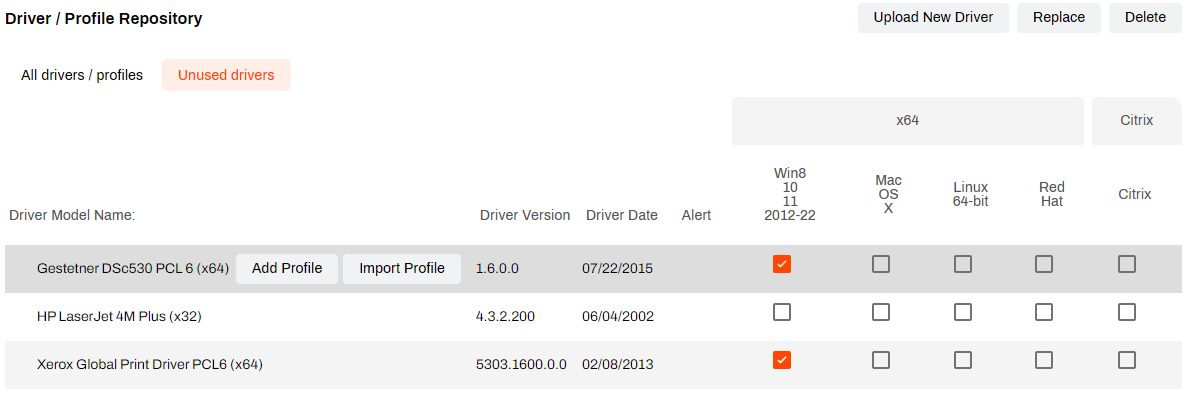
The Driver / Profile Repository, which you can locate by going to Tools  Driver / Profile Repository, is the management hub for all drivers and profiles in your environment. The repository lists all drivers uploaded to your instance, and you can use it to add, modify, replace, and remove drivers and profiles. For more details refer to Driver / Profile Repository.
After you upload drivers to the repository, you still need to assign the drivers to printers using their Drivers / Profiles tabs.
Driver Profiles
Driver profiles are customizable settings, like color, black and white, duplex, simplex, etc., that you assign to a driver and include during printer installation. For more details refer to Profile Management.
Annotation Strings
When you upload a driver, PrinterLogic uses the name of the printer model as the name for the driver. However, you cannot have multiple drivers in the repository with the same name. Each driver that you upload must have a unique annotation string. The annotation string appends to the driver name so that you can store multiple versions of the driver.
Add a New Driver
Download the driver from a trusted source, and follow the steps below:
- Windows
- macOS or Linux
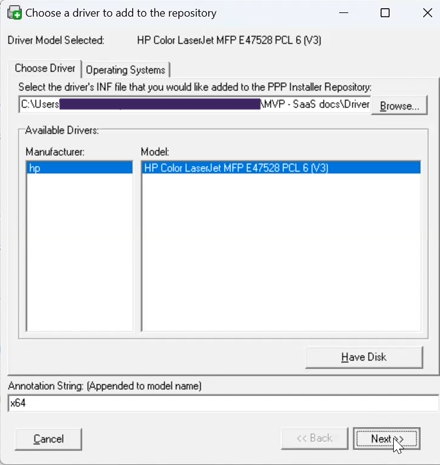
Windows requires an INF file. Note the following:
- If you have an EXE file, extract the files to a folder and find the INF file.
- Some drivers might require installation to access the INF file.
- Some drivers show multiple INF files. These files could be 32-bit, 64-bit, or model specific.
Upload a Printer Driver
-
In the Admin Console, select the printer object's Drivers / Profiles tab.

- If you are using the Driver / Profile Repository, go to Tools Driver / Profile Repository.
- If you are using the Driver / Profile Repository, go to Tools
-
Select the Upload button next to the OS you are using.

-
If you are using the Driver / Profile Repository, select Upload New Driver in the upper-right corner.
-
- Select Browse in the modal.
- Navigate to the INF file that you want to upload, select it, and select Open.
- Select the model if more than one option appears.
- Modify the Annotation String with a unique identifier, and select Next.
- If both 32- and 64-bit options appear, select the one that you want and select Upload.
- After the driver uploads, select Save.
- If you upload the driver to the Driver / Profile Repository, use the printer's Drivers / Profiles tab to attach the driver to the printer object.
Depending on the internet connection speed and the size of the driver, the upload might take some time.
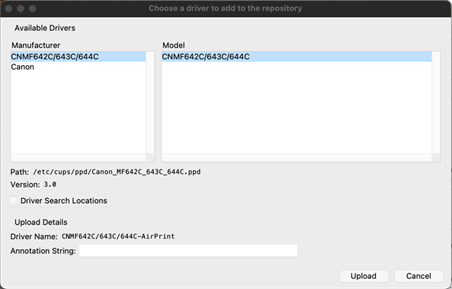
macOS and Linux generally require PPD files. Note the following:
- Some drivers might require installation to access the PPD file.
- If the driver is not installed on the device, select the Driver Search Locations checkbox in the modal below to manually locate the file.
Upload a Printer Driver
-
In the Admin Console, select the printer object's Drivers / Profiles tab.
- If you are using the Driver / Profile Repository, go to Tools Driver / Profile Repository.
- If you are using the Driver / Profile Repository, go to Tools
-
Select the Upload button next to the OS you are using.

- If you are using the Driver / Profile Repository, select Upload New Driver in the upper-right corner.
- Select the manufacturer and printer model from the list of installed drivers.
- Modify the Annotation String with a unique identifier, and select Upload.
- After the driver uploads, select Save.
- If you upload the driver to the Driver / Profile Repository, use the printer's Drivers / Profiles tab to attach the driver to the printer object.
Depending on the internet connection speed and the size of the driver, the upload might take some time.
Replace Drivers
The Driver / Profile Repository contains all the drivers that you upload to your instance, related driver profiles, and additional functions to sort, replace, and delete drivers.
Use the Replace button to change one driver to another, automatically update all related printer objects with the new driver, and remove the old driver from the repository. The best use of this button is to update a driver or migrate printers to a universal driver.
Do the following to replace a driver:
- In the Admin Console, go to Tools Driver / Profile Repository.
- Select the driver that you want to replace.
- Select the Replace button in the upper-right corner.
-
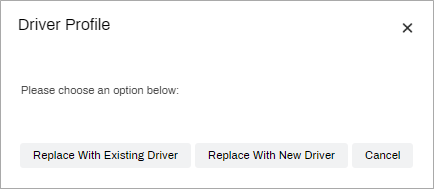
Choose either Replace With Existing Driver or Replace With New Driver.
Replace With Existing Driver
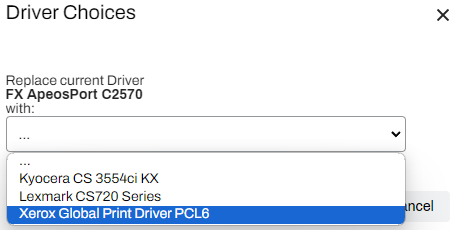
- When you select Replace, use the dropdown menu in the Driver Choices modal to select the driver that you want.
- Select Replace Driver.
-
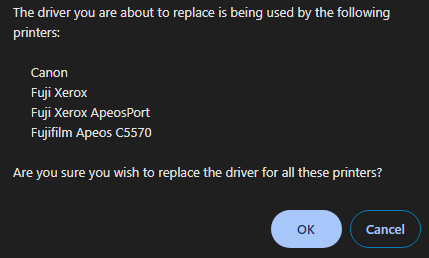
A modal appears showing all the printers that are using that driver. If the change is acceptable for all the affected printers, select OK.
Replace With New Driver
-
A modal appears showing all the printers that are using that driver. If the change is acceptable for all the affected printers, select OK.
- Select a new driver to upload in the Driver Choices modal.
- Navigate to the driver or INF file that you want to upload, and select it.
- Modify the Annotation String with a unique identifier.
- Select Upload.
This action removes the old driver from the repository and attaches the new driver to the printer objects that were using the old driver.
Delete Drivers
The Driver / Profile Repository lists all uploaded drivers and is where you can delete unused drivers.
Remove a driver from all printer objects before you delete it. You cannot delete a driver from the repository if it is attached to printer objects.
Do the following to delete a driver:
- In the Admin Console, go to Tools Driver / Profile Repository.
- Select the Unused drivers button in the upper-left corner.
- Select the driver that you want to delete.
- Select the Delete button in the upper-right corner.
In this topic: