Driver / Profile Repository
Last Updated: October 08, 2026
The Driver / Profile Repository, which is located by going to Tools  Driver / Profile Repository, is the management hub for all drivers Software on a device that converts the data to be printed to a format that a printer can understand. and driver profiles Printer driver configurations that can be managed with PrinterLogic. in your environment.
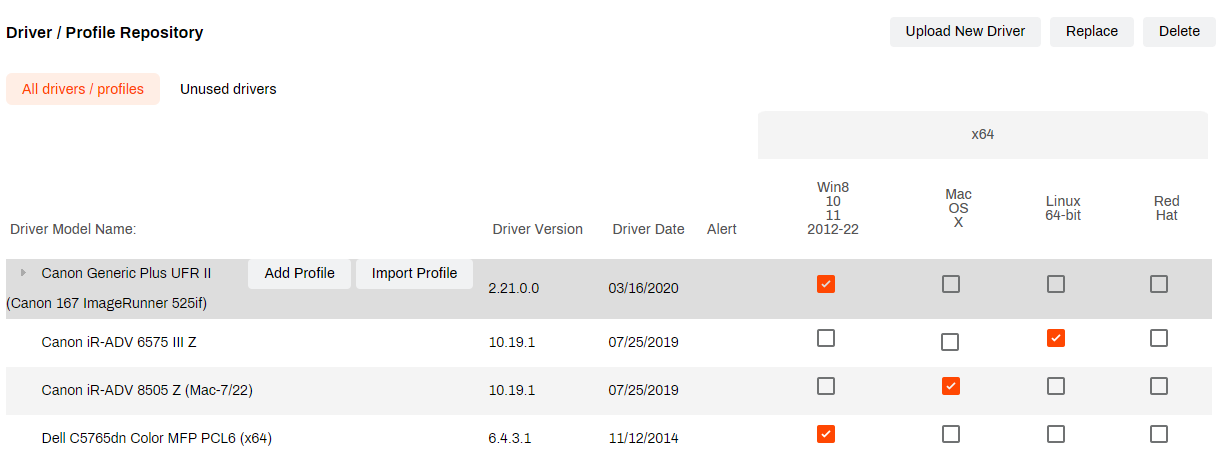
From the repository, you can do the following:
- Add new drivers and driver profiles.
- Modify, copy, export, and import driver profiles.
- Replace existing drivers.
- Delete drivers and driver profiles.
- Sort unused drivers.
Adjust the Operating System (OS) List
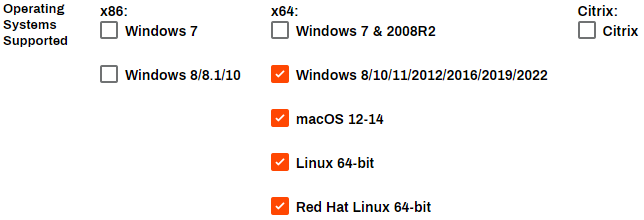
If there are OSs listed in the repository that are not relevant to your environment, adjust them by going to Tools  Settings General and deselecting the options in the Operating Systems Supported section. Adjusting these settings also removes unwanted OS options from the printer objects' Drivers / Profiles tabs. This section does not reflect the Agent OS Hardware and only affects fields that are available for driver upload.
Driver / Profile Repository Details
Driver Management
The following driver management options appear in the upper-right corner of the Driver / Profile Repository:
- Upload New Driver: Use this button to upload new drivers to the repository.
- Replace: Use this button to replace a selected driver with a new or existing driver.
- Delete: Use this button to remove a selected driver from the repository.
Driver-List Tabs
The following are tabs in the Driver / Profile Repository:
- All drivers / profiles: This tab shows all drivers and driver profiles as line items.
- Unused drivers: This tab shows drivers that are not attached to printer objects.
Driver List
The repository lists all uploaded drivers alphabetically in a table with the following information:
- Driver Model Name: This column shows the name that you gave the driver when you added it, including the annotation string, which appears to the right of the name in parentheses.
- Driver Version: This column shows the driver version.
- Driver Date: This column shows the date that the manufacturer released the driver, not the date that you uploaded the driver.
- Alert: This column shows an alert if the driver is tested and the report says that the driver is incompatible with our services.
- OS: These columns show the OS that you used to upload the driver. If you do not want an uploaded driver to appear as an option for a specific OS, deselect the checkbox. The system shows an alert that lists the printers that have that driver assigned for the OS. After you deselect the checkbox, the driver does not appear in the printer object's Drivers / Profiles tab for that OS. The OSs are organized as follows:
- x86: This section shows OSs for 32-bit systems.
- x64: This section shows OSs for 64-bit systems.
- Citrix: This section shows Citrix drivers. The Citrix Universal Printer line item is a placeholder for the system to look for a Citrix driver that is already installed.
For more details on adding, replacing, and deleting drivers, refer to Driver Management.
Add or Import a Profile
When you select a driver, the Add Profile and Import Profile options appear:
- Add Profile: Use this option to create specific driver profiles (black and white, color, duplex, simplex, etc.).
- Import Profile: Use this option to import and apply an existing driver profile in PrinterLogic.
To view driver profiles that are assigned to a driver, select the disclosure arrow  to the left of the driver name. Each driver profile line item has Edit or Copy, Export, and Delete options.
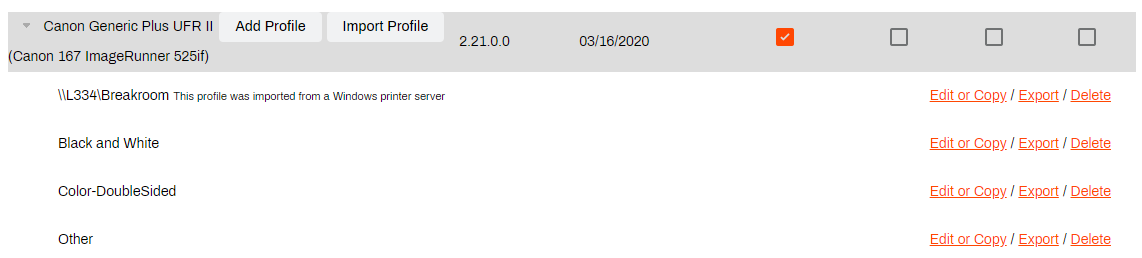
For more details on adding, modifying, copying, exporting, importing, and deleting driver profiles, refer to Profile Management.
In this topic: