Custom Printer Fields
Last Updated: October 02, 2026
You can create Custom Printer Fields to further customize printer objects in your environment. When you create a custom field, it appears on the printer object's General tab in the Admin Console. If you select the Appears In Portal option, the field also appears in the Self-service Portal.
You can use Custom Printer Fields without showing them in the Self-service Portal. For example, end users might not need a printer serial-number field, but it might be helpful to admins.
Settings
The following are setting options:
- Enabled
- Select this option to show the field on the General tab in the Admin Console.
- Appears In Portal
- Select this option to show the field as a column in the Self-service Portal.
- Name
- Enter a unique name, which appears as the label for the field on the General tab and the column heading in the Self-service Portal.
- Type
- Select one of the following options for the field type:
- Text
- Enter text for the field value.
- Number
- Enter numbers for the field value.
- Yes/No
- The field appears as a checkbox.
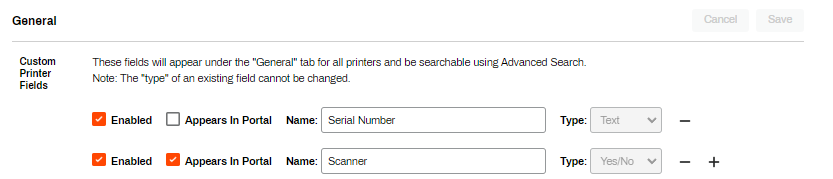
Create Custom Printer Fields
- In the Admin Console, go to Tools
 Settings General, and scroll down to the Custom Printer Fields section.
 - Do the following:
- Name: Enter a name for the custom field. This name appears on the printer object's General tab.
- Type: Use the dropdown menu to select one of the following:
- Text: Select this option to use a text description as the value for the field.
- Number: Select this option if the value for the field consists of only numbers.
- Yes/No: Select this option to set a binary option. In the Admin Console, a checkbox appears. In the Self-service Portal, the value appears as Yes or No.
- Select Enabled to show the field on the printer object's General tab.
- Select Appears In Portal to show the field in the Self-service Portal.
-
Select Save.
After you save a custom field, you cannot modify the Type.
Appearance
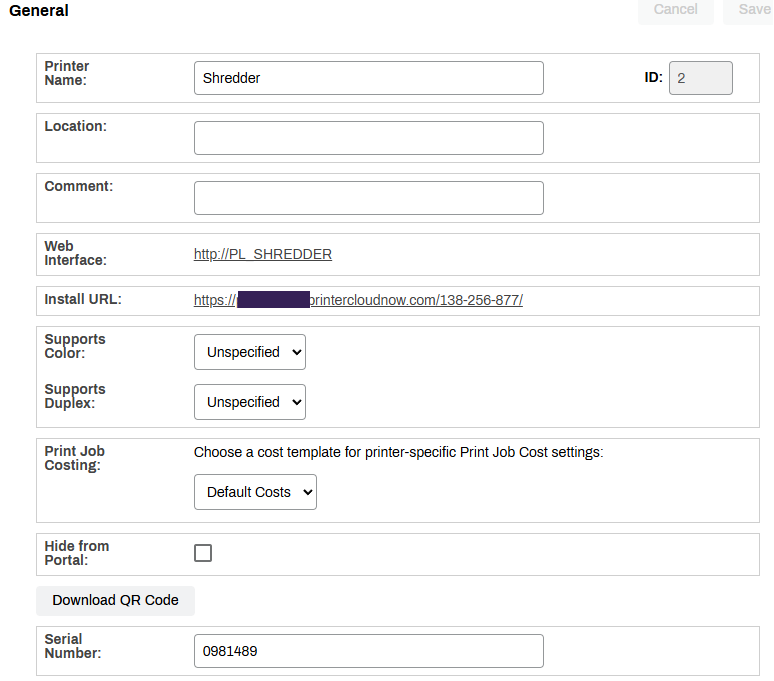
Admin Console View
Custom Printer Fields appear below the Download QR Code button on the printer object's General tab.
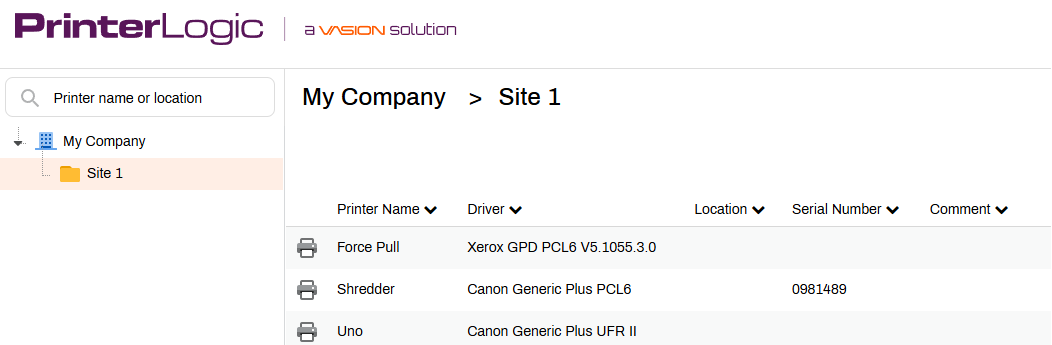
Self-service Portal View
Custom Printer Fields appear as columns in the Self-service Portal.
In this topic: