Printer Deployment
Last Updated: October 02, 2026
A printer deployment automatically installs printers and drivers on devices. Set deployment associations on each printer object's Deploy tab in the Admin Console. Devices with the Agent installed automatically install and update printers and drivers when the association criteria are satisfied.
For example, a deployment based on Active Directory or Lightweight Directory Access Protocol (LDAP) users deploys to the device when the user logs in and the Agent verifies their information. The printers install and are available without the end user needing to self-install from the Self-service Portal.
Printers without drivers attached do not deploy. Deployment options in the Admin Console include the following:
- Active Directory
 User, Computer, or Group or Container, or OU.
 - User or Group Users or Groups.
- IP Address Range.
- Hostname.
- MAC Address.
- Chromebook Serial Number.
- Chromebook Asset Id.
- Advanced Group.
Printer-Deployment Priority
Deployments occur in the following order:
- User.
- Computer.
- Group or user membership.
- Indirect user group, which means the user is in a subgroup that is part of the assigned group.
- Container user.
- Container computer.
- Child-container user.
- Child-container computer.
- IP address range that is short.
- IP address range that is long.
Set Up Deployments
- In the Admin Console, go to the printer object's Deploy tab.
- Select Add in the upper-right corner.
- Select the deployment association.
Active Directory
- Active Directory User, Computer, or Group or Container, or OU.
- Verify that the object types and locations are correct.
-
Enter the object names in the text box.
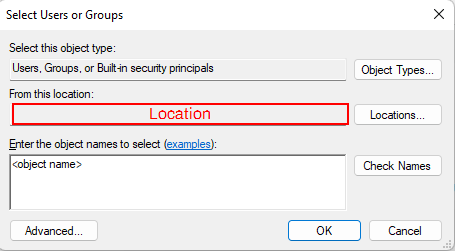
- Select Check Names.
- Select OK.
Deploy as Shared Printers
- Select the Active Directory (AD) devices.
-
Select OK.
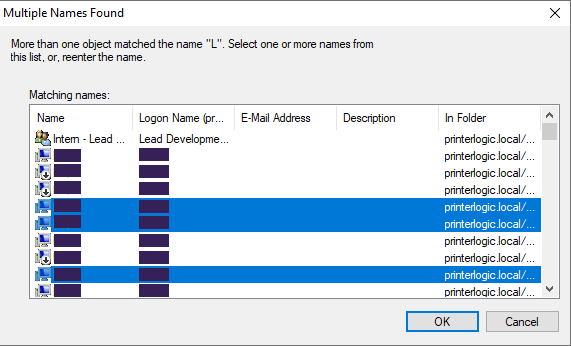
-
When the devices appears in the deployment list, select Share.
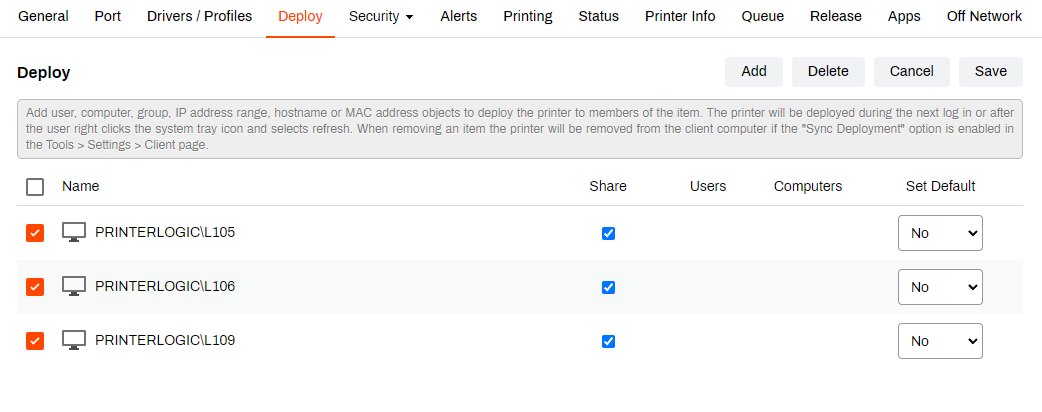
- Select Save in the upper-right corner.
- Go to Tools Settings Client.
-
In the Printer Settings section, select Create connections to shared TCP/IP printers.
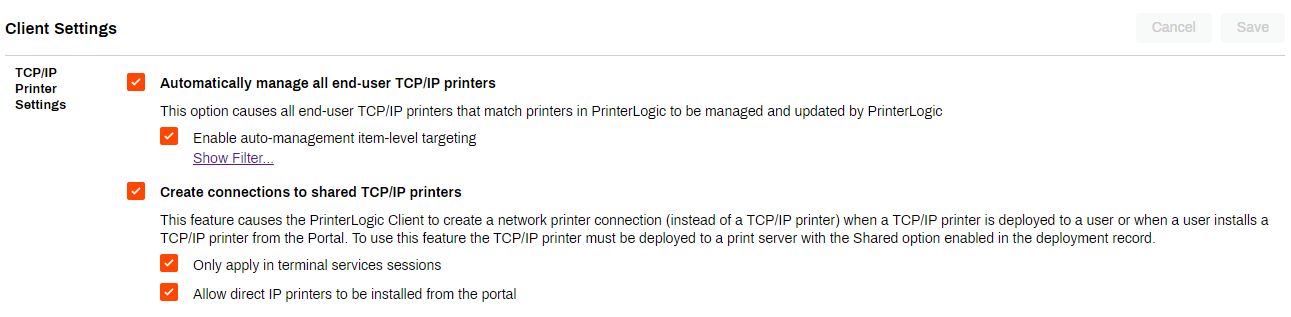
- Adjust the suboptions as needed.
- Select Save.
User or Group
- Select User or Group.
- Select Users or Groups.
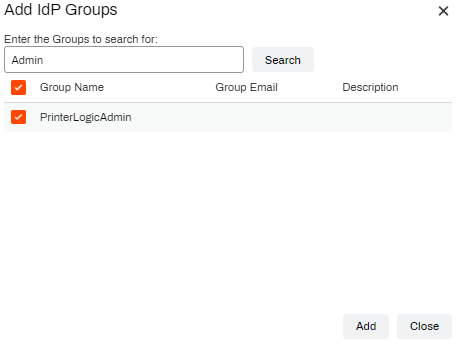
- Enter the username or group, and select Search.
- Select the checkbox next to the desired user or group, and select Add.
IP Address Range
To deploy printers by using an IP address range, the range must already exist. For more details refer to IP Address Ranges.
By Printer Object
- Select IP Address Range.
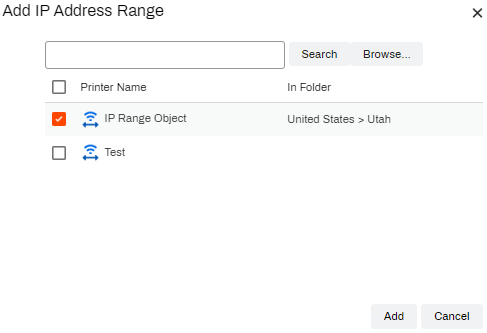
- Select Browse, or enter the name and select Search.
- Select the checkbox next to the IP address range, and select Add.
- Select Save in the upper-right corner.
By IP Address Range
Follow these steps to add individual printers to the deployment:
- Select the IP address range object in the Admin Console.
- Select the Deploy tab.
- Select Add Printer.
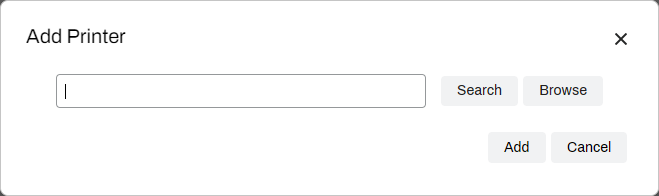
- In the Add Printer modal, do one of the following:
Enter the printer name, and select Search.
Select Browse, and locate the printer.
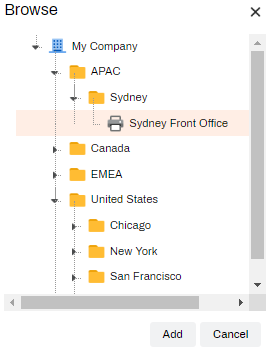
- Select the printer, and select Add.
- Select Save in the upper-right corner.
Follow these steps to mass deploy printers in the folder or to include subfolders to the devices in the range:
- Select the IP address range object in the Admin Console.
- Select the Deploy tab.
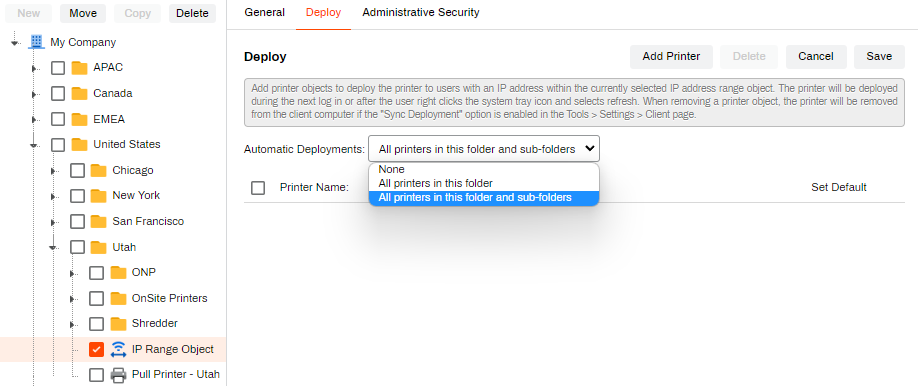
- Use the Automatic Deployments dropdown menu to select one of the following:
- All printers in this folder.
- All printers in this folder and sub-folders.
- Select Save in the upper-right corner.
Hostname
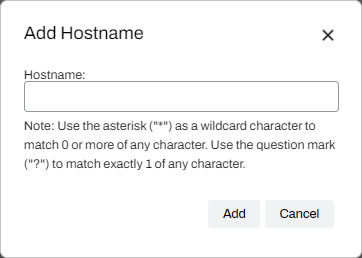
- Select Hostname.
- Enter the hostname.
- Select Add.
- Select Save in the upper-right corner.
MAC Address
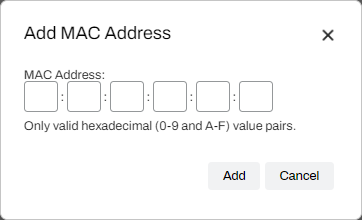
- Select MAC Address.
- Enter the address.
- Select Add.
- Select Save in the upper-right corner.
Chromebook Serial Number or Chromebook Asset Id
Serial Number
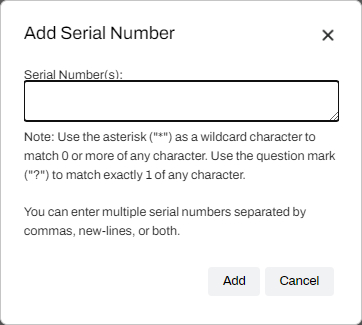
- Select Chromebook Serial Number.
- Enter the serial number, using commas, new lines, or both to separate multiple IDs.
- Select Add.
- Select Save in the upper-right corner.
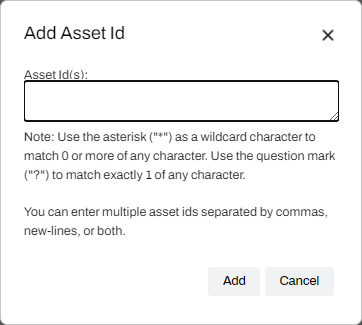
Asset ID
- Select Chromebook Asset Id.
- Enter the asset ID, using commas, new lines, or both to separate multiple IDs.
- Select Add.
- Select Save in the upper-right corner.
Advanced Group
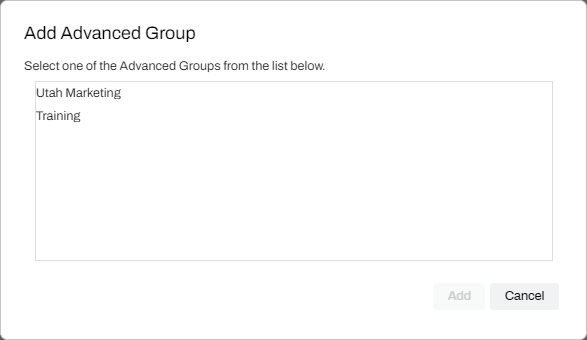
For you to deploy using an Advanced Group, the group must already exist.
- Select Advanced Group.
- Select the group from the list.
- Select Add.
- Select Save in the upper-right corner.
Sync Deployments
The Sync Deployment setting helps you manage deployed printers. When a deployment association is not present, the deployed printers uninstall from the device. For example, if a user receives an IP address range printer deployment, those printers uninstall when the device leaves that IP address range. With the Keep Existing Printers option selected, printers are not removed if they existed on the device before the deployment.
- In the Admin Console, go to Tools Settings Client.
- In the TCP/IP & Windows Shared Printer Settings section, select Sync Deployment.
- Optional: Select Keep Existing Printers.
- Select Save in the upper-right corner.

For more details on sync-deployment settings, refer to Sync Options.
Set a Default Printer
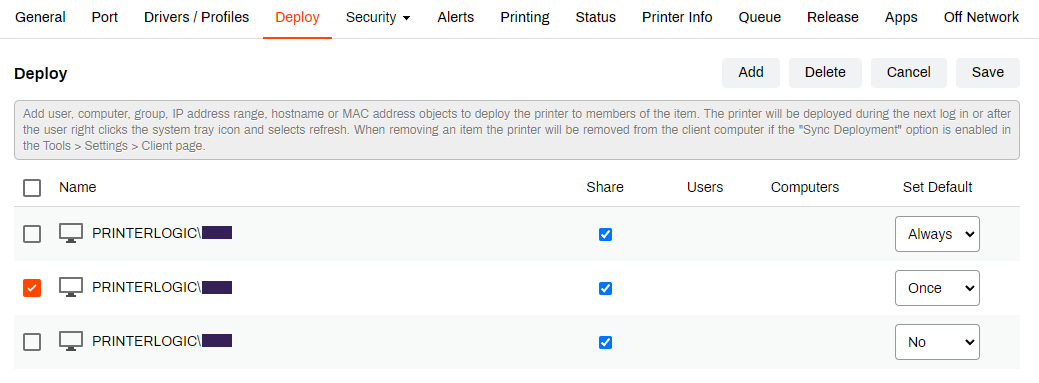
Configure a default printer on the Deploy tab so that it installs and becomes the default printer on devices. You can still assign a default printer on the device but adding a default printer during deployment removes the need for end user action.
If the default printer changes, the Always option changes the default printer back during Agent check-in.
- In the Admin Console, select the printer object's Deploy tab.
- Find the object.
-
In the Set Default column, select Once or Always.
- Select Save in the upper-right corner.
In this topic: