Profile Management
Last Updated: October 08, 2026
A driver profile is a preconfigured set of driver settings that is applied to a printer during installation. A driver profile can include predefined settings, such as color or black and white, or customized settings. Profiles save time and effort by eliminating the need to manually change settings each time you print.
The driver and assigned driver profile install when you install the printer. A driver can have multiple profiles associated with it, but you can assign only one profile to a printer object. This function allows multiple printers to use the same driver, but the driver installs with different settings.
Key Points
Review the following key points:
- You can create profiles for Windows drivers on only Windows devices.
- You can create profiles for macOS drivers on only macOS devices.
- You still need to assign driver profiles that you create in the Driver / Profile Repository to printer objects using the Drivers / Profiles tab.
-
Windows ARM-specific driver profiles can be created on Windows ARM devices only.
Because driver profiles are not locked after printer installation, the end user can adjust profile settings from their device if needed. Admins have profile options in the Admin Console to reapply profiles after each print job and during Agent check-in. These options help keep printing uniform, while allowing for adjustments. For more details refer to Profile Options.
Create a New Driver Profile
You can create driver profiles from the printer object's Drivers / Profiles tab or the Driver / Profile Repository.
The recommended practice is to use the printer object's Drivers / Profiles tab because it assigns the profile to the printer object after you finish creating it. If you use the Driver / Profile Repository, you still have to go to the Drivers / Profiles tab to assign the profile.
The steps below guide you through both approaches.
- Drivers / Profiles Tab
- Driver / Profile Repository
- In the Admin Console, select the printer object.
- Select the Drivers / Profiles tab.
-
Select the Add button in the Profile column.

- When the printer properties window appears, configure the settings.
- When you finish, apply and save the changes.
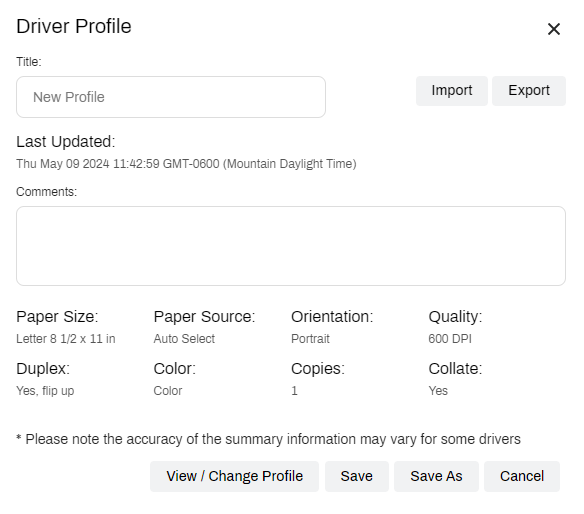
- On the Driver Profile modal, do the following:
- Title: Enter a name for the profile.
- Comments: Enter a comment to describe the profile. This step is optional.
- Select Save.
- In the Admin Console, go to Tools
 Driver / Profile Repository.
 - Select the desired driver.
-
Select Add Profile.

- When the printer properties window appears, configure the settings.
- When you finish, apply and save the changes.
- On the Driver Profile modal, do the following:
- Title: Enter a name for the profile.
- Comments: Enter a comment to describe the profile. This step is optional.
- Select Save.
- Go to the printer object in the tree structure.
- Select the Drivers / Profiles tab.
-
In the Profile column next to the driver, select the profile from the dropdown menu.

- Select Save in the upper-right corner.
Create a New Driver Profile From an Existing Profile
For printers that require slightly different setting, like color instead of black and white, you can copy an existing profile so that fewer adjustments are needed. The steps below guide you through the process from the Drivers / Profiles tab and the Driver / Profile Repository.
If you use the Driver / Profile Repository, you still have to go to the Drivers / Profiles tab to assign the profile.
- Drivers / Profiles Tab
- Driver / Profile Repository
- In the Admin Console, select the printer object, and then the Drivers / Profiles tab.
-
In the Profile column, select the Update button.
- On the Driver Profile modal, select View / Change Profile.
- When the printer properties window appears, configure the settings.
- When you finish, apply and save the changes.
- On the Driver Profile modal, do the following:
- Title: Change the name of the profile.
- Comments: Update the profile comment, if necessary.
- Select Save.
- Select Save in the upper-right corner.
- In the Admin Console, go to Tools Driver / Profile Repository.
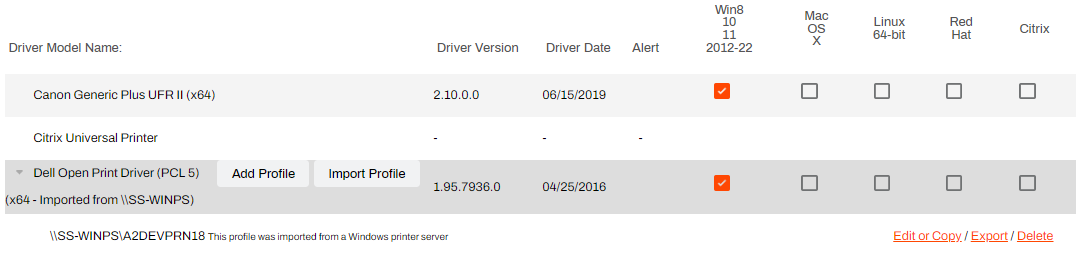
- Use the disclosure arrow
 before the driver name to view assigned driver profiles.
 -
Select Edit or Copy to the right of the profile.

- On the Driver Profile modal, select View / Change Profile.
- In the printer properties window, make the desired changes or leave it as is.
- When you finish, apply and save any changes.
- On the Driver Profile modal, do the following:
- Comments: Update the profile comment, if necessary.
- Select Save As.
- Give the new profile a unique name, and then select OK.
Modify an Existing Driver Profile
You can modify a profile using the printer object's Drivers / Profiles tab or the Driver / Profile Repository.
Follow these steps to modify a profile using the printer object's Drivers / Profiles tab:
- In the Admin Console, select the printer object, and then the Drivers / Profiles tab.
-
In the Profile column, select the Update button.
- On the Driver Profile modal, select View / Change Profile.
- When the printer properties window appears, configure the settings.
- When you finish, apply and save the changes.
- On the Driver Profile modal, select Save.
- Select Save in the upper-right corner.
Import or Export a Driver Profile
You can import or export a driver profile file (PLP) using the Driver Profile modal or the Driver / Profile Repository.
The steps below guide you through using the Driver / Profile Repository to import and export a driver profile:
Import a Driver Profile
- In the Admin Console, go to Tools Driver / Profile Repository.
- Select the desired driver.
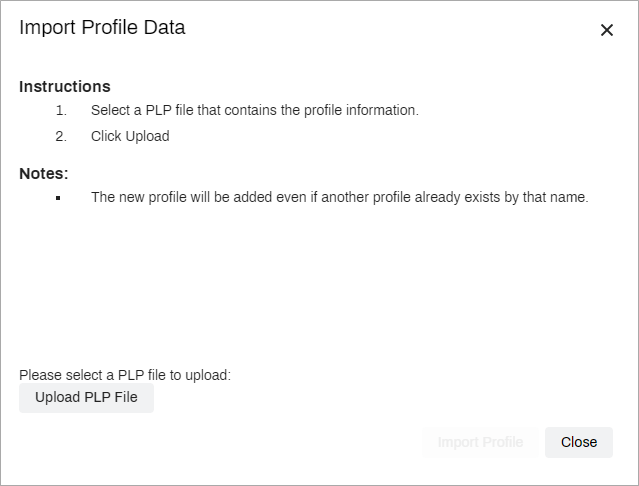
- Select the Import Profile button.
- In the Import Profile Data modal, select Upload PLP File.
- Navigate to the PLP file, and select it.
- After the imported profile appears beneath the driver, go to the printer object in the tree structure.
- Select the Drivers / Profiles tab.
-
In the Profile column next to the driver, use the dropdown menu to select the imported profile.
- Select Save in the upper-right corner.
Export a Driver Profile
- In the Admin Console, go to Tools Driver / Profile Repository.
- Use the disclosure arrow before the driver name to view assigned driver profiles.
-
Select Export to the right of the profile.
The file automatically downloads to your default download location.

Delete a Driver Profile
You can delete a driver profile from only the Driver / Profile Repository. Be sure to remove the profile from any printer objects before deletion.
- In the Admin Console, go to Tools Driver / Profile Repository.
- Use the disclosure arrow before the driver name to view assigned driver profiles.
-
Select Delete to the right of the profile.
If a printer object has the profile assigned, a message appears identifying the printer object. You can still delete the profile by selecting OK.
Profile Options
To help keep driver profiles uniform for all printer objects that have the same profile assigned, you can configure profile-sync options at the global level. This action is helpful in environments that have strict print settings, such as only printing in black and white or only printing to specific trays.
You can find the Sync Profiles options by going to Tools Settings Client in the Admin Console. Scroll down to the Printer Settings section. The following is an overview of the settings:
- Sync Profiles
- Select this option to automatically update the profile settings for all end users.
- Reapply profiles every login/client check-in or refresh
- Select this option to reapply the profiles every time an end user logs in and when the device's Agent checks in with PrinterLogic services.
- Reapply profiles after each print job
- Select this option to reapply the profiles after a print job completes.

You can configure printer-specific settings to override the global options. You can make a selection for one or both profiling options.
- Select the printer object, and select the Drivers / Profiles tab.
- In the Profiling Options section, select one of the following:
- Not set: The printer object uses the global setting, and it shows whether the setting is turned on globally.
- Enabled: Select this option to turn on the profile-sync option.
- Disabled: Select this option to turn off the profile-sync option.
- Select Save in the upper-right corner.

In this topic: