Cache Manager
Last Updated: September 22, 2026
The Cache Manager is a feature that uses file sharing to localize driver and Agent file downloads through Cache Locations on Windows devices. This solution improves printer installation for remote environments and environments with low bandwidth because devices collect driver and Agent files from a local device rather than from the server that hosts the instance.
Cached files include the following:
- Driver installation files.
- Driver profile files.
- Agent installation and update files, which are the PrinterInstallerClient.msi and PrinterInstallerClientUpdater.exe services.
How Cache Manager Works
The Cache Manager device creates a copy of the driver, driver profile, and Agent installation files, which are located in C:\Program Files (x86)\Printer Properties Pro\Printer Installer Client\cache. Whenever you update a driver or profile in the Admin Console or a new Agent version is released, the copy on the Cache Manager updates.
Cache Locations are on-site Windows devices that are connected to the file share and defined in the PrinterLogic app using an IP address range object. Cache Locations sync with the Cache Manager, creating local copies of driver, profile, and Agent version files, which are available to devices in the IP address range. Whenever a device in the IP address range installs a printer or updates the Agent version, it uses the files from the Cache Location rather than the server that hosts the instance.
Supported Caching Devices
The following are supported caching devices:
- File share.
- Riverbed appliance.
- Wide Area Network (WAN) accelerator.
1. Create a File Share
To set up caching, you must create and configure a file share. We recommended setting up the file share before you set up the Cache Manager or Cache Locations. Additionally, you should set up and test a single Cache Location before configuring additional locations. The steps below guide you through setting up the shared folder and configuring the folder properties and security settings.
Create a Shared Folder
- Log in to the Windows device that you are using for the file share.
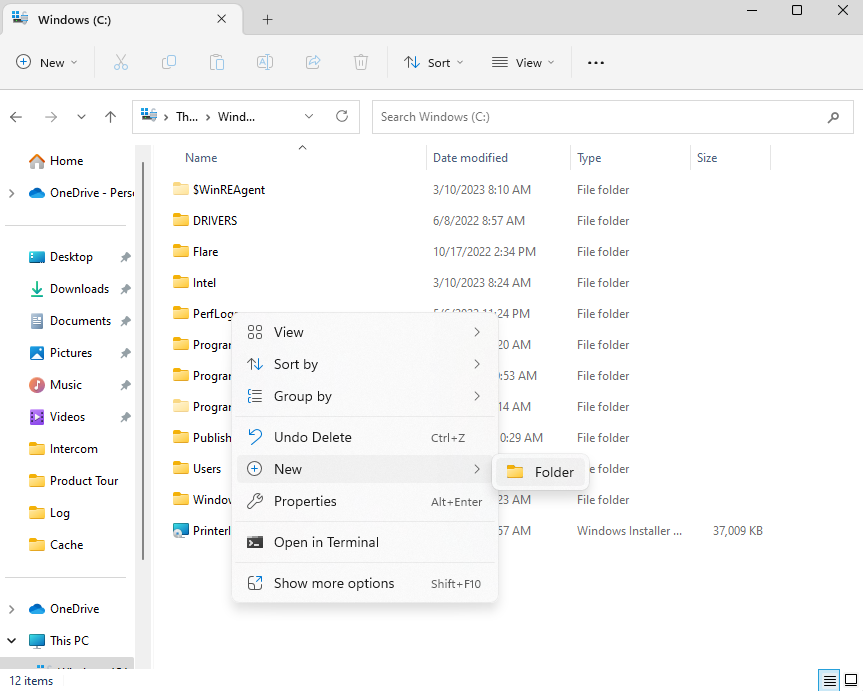
- Open File Explorer, and select the local disk, which is usually the C: drive.
- Right-click in File Explorer, and select New
 Folder.
 - Name the new folder.
Folder Share Properties
- Right-click the new folder, and select Properties.
-
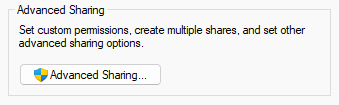
Select the Sharing tab, and then select Advanced Sharing.
-
Select the Share this folder checkbox.
- Optional: In the Share name field, enter a name. By default, the name of the folder appears as the share name.
- Optional: Adjust the simultaneous users limit to fit your needs.
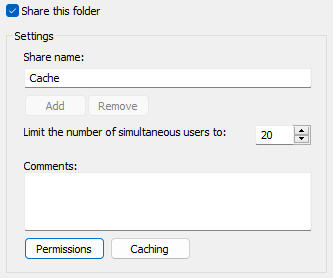
- Select the Permissions button.
- If the Everyone group is not selected by default, add the group, and set the Read permission to Allow.
- To add the Cache Manager device, select Add.
-
Select the Object Types button.
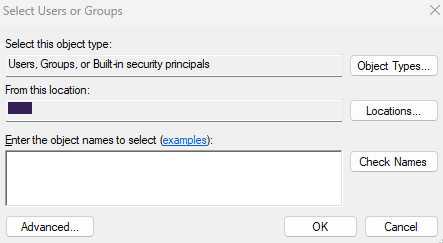
- Select the Computers checkbox, and select OK.
- Enter the Cache Manager device name followed by "$ (computer$)." Then select OK.
- Select Apply.
- Select OK on the Permissions for <folder> window and the Advanced Sharing window.
Folder Security Properties
-
In the <folder> Properties window, select the Security tab, and then select Edit.
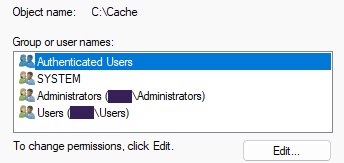
- In the Group or user names section, select Add.
-
In the Select Users or Groups window, select the Object Types button.
- Select the Computers checkbox, and then select OK.
-
In the Enter the object names to select field, enter "Everyone." If you do not want to include everyone, enter a different object name, such as the user domain.
You can use the object name in only the Security tab, not the Sharing tab. - Select OK.
- In the Permissions for <object name> field, select Allow for the Full control line item, and then select Apply.
- Select OK.
- Close the <folder> Properties window.
2. Turn On Caching
The steps below guide you through configuring the Cache Manager on a Windows device with the Agent installed:
- In the Admin Console, go to Tools
 Settings General.
 - In the Cache section, select Enable end-user redirections to cache.
-
In the Cache Manager field, enter the Fully Qualified Domain Name (FQDN) of the desired Windows device.
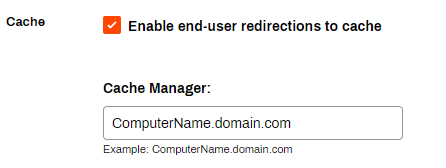
- Select Save in the upper-right corner.
- Log in to the Cache Manager device.
- Right-click the Agent icon in the system tray, and select Refresh Configurations.
After the Agent refreshes, the device behaves as the Cache Manager. Driver, profile, and Agent files copy to the C:\Program Files (x86)\Printer Properties Pro\Printer Installer Client\cache location. Allow time for the files to copy to the Cache Manager.
3. Set a Cache Location
The Cache Location is the device at the remote site that stores driver, profile, and Agent files. The Cache Location value defined on the IP address range's General tab must be the Universal Naming Convention (UNC) path to the file share.
- Navigate to the IP address range object in the Admin Console.
- On the General tab, enter the location path in the Cache Location field.
- Select Update cache files now.
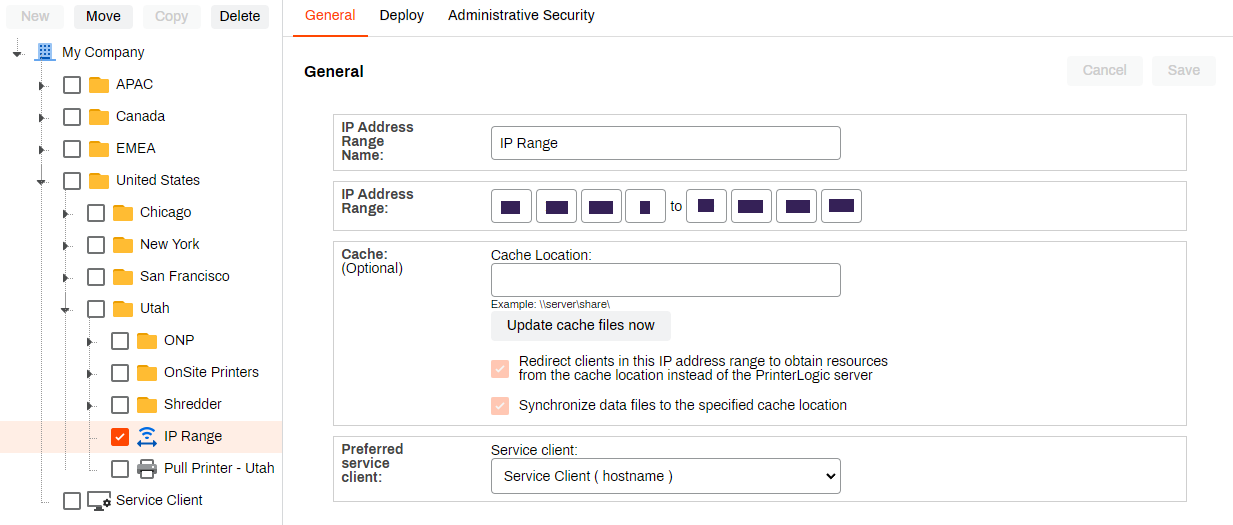
Allow time for the Cache Location to sync with the Cache Manager. Then when a user in the IP address range installs a printer or the Agent updates, the server redirects the communication to the specified Cache Location, where it obtains the necessary files.
In this topic: