Self-service Portal Setup
Last Updated: October 08, 2026
Use the processes below to customize the Self-service Portal for your organization.
Change Header Image
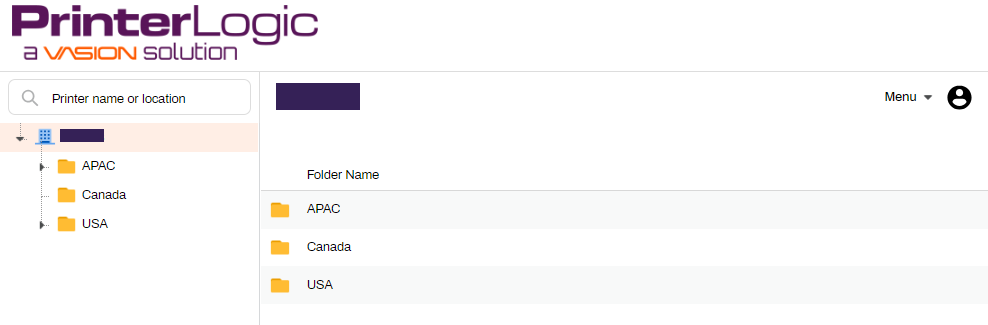
Upload a company logo or header to customize the image that appears in the Self-service Portal header:
- In the Admin Console, go to Tools
 Settings Portal.
 -
In the Header section, select Choose File.
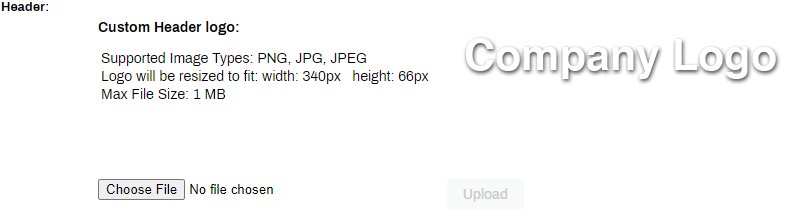
- Navigate to the file that you want to upload.
- Select Open.
- When the path and file appear, select Upload.
- Select Save.
Add Maps
Map images are static in size, and PrinterLogic does not adjust the map to the user's screen. We recommend 850 x 480 pixels because that size fits most screens. The maximum file size is 900 KB, and an error appears for larger files.
Upload a Map
After you have a map image ready, do the following:
- Select the folder in which you want to apply the map.
- Select the Map tab.
- Select Upload Background Image.
-
Select Choose File.
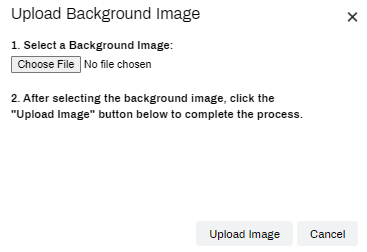
- Navigate to and select the map image.
- Select Upload Image.
- Select Save in the upper-right corner.
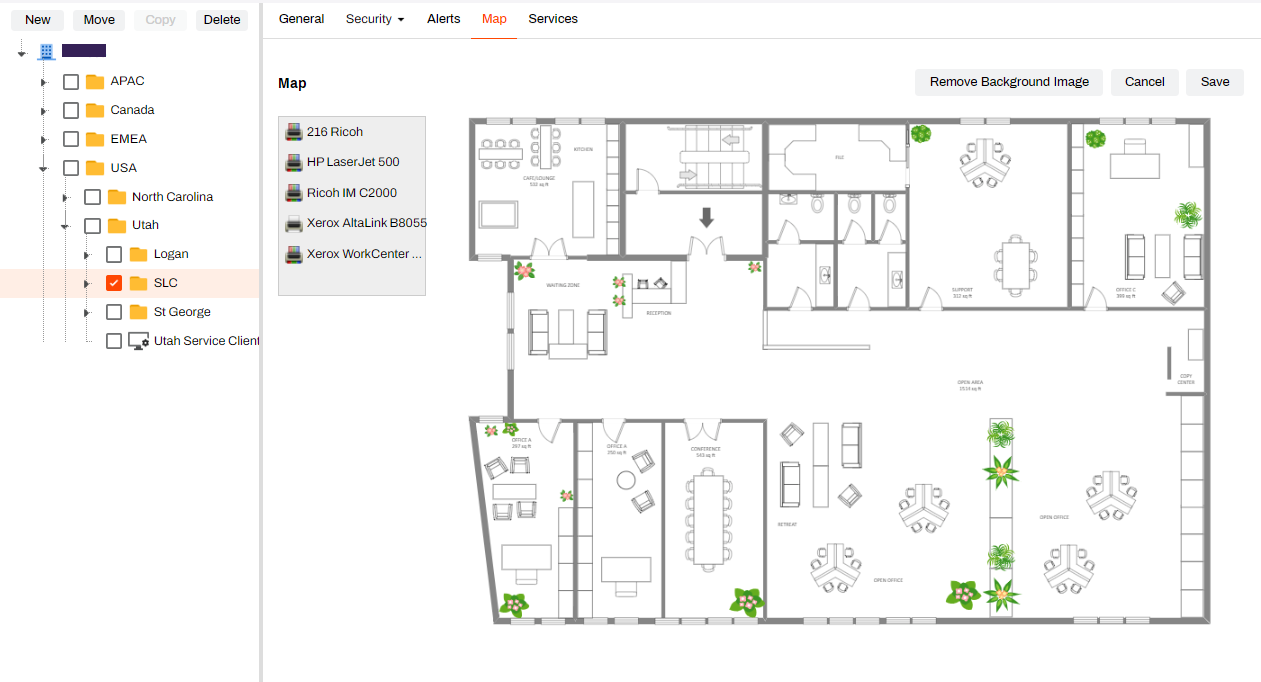
To remove a map, select Remove Background Image, and save the change.
Add Printers
Printers in the folder appear in the gray box to the left of the map. Do the following to place a printer on the map:
- Drag the printer icon to the desired location on the map.
- Select Save.
Adjust printer icons at any time in the Admin Console. When you add a new printer to the folder, it appears in the gray box to the left of the map.
Maps in the Self-service Portal mirror ones in the Admin Console.
Self-service Portal View
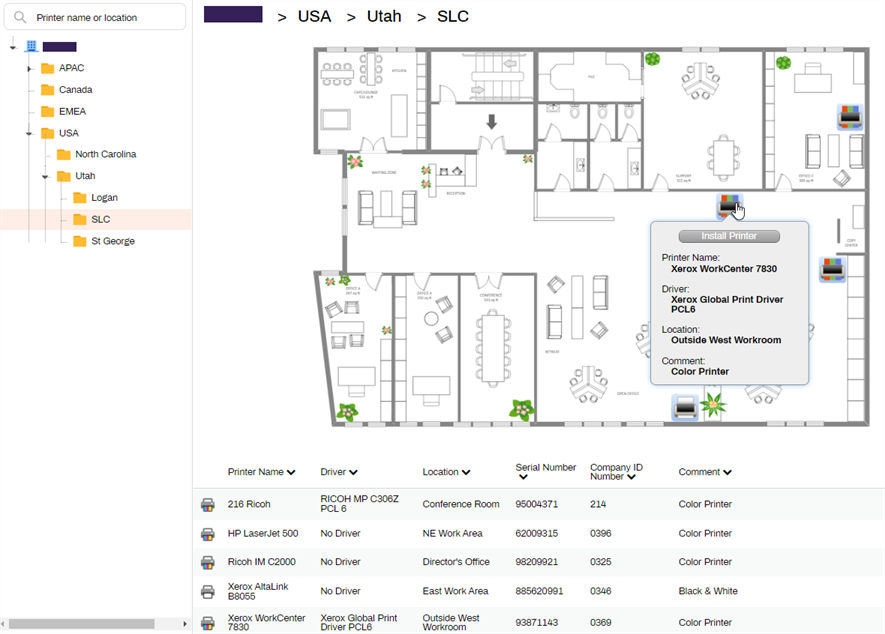
Go to the Self-service Portal after you finish adding the map. Select the folder to view the map. Hover over the printer icon to view additional information about the printer and the Install Printer button.
Printers also appear in a list below the map. Install printers from either the map or list.
Resize Printer Icons
Do the following to resize printer icons:
- In the Admin Console tree structure, select the folder that contains the map with the printer icon that you want to resize.
- Select the Map tab.
- When the map appears, right-click the printer icon.
- Select the new icon size: Small, Medium, or Large.
- Select Save in the upper-right corner.
Change the Self-service Portal Language
By default the Self-service Portal appears in the browser's default language. You can manually change the language by adding /?lang=<language code> to the end of the URL. Refer to the following list of HTML language codes.
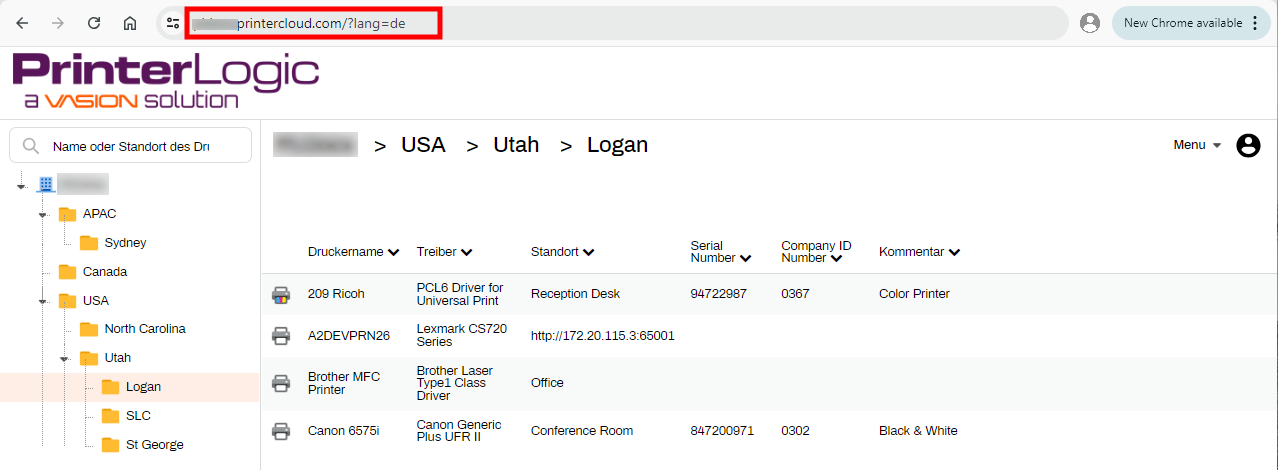
Although other codes might work, PrinterLogic supports the following HTML language codes:
- Chinese (Simplified): zh-Hans
- Dutch: nl
- English: en
- French: fr
- German: de
- Italian: it
- Japanese: ja
- Polish: pl
- Portuguese: pt
- Spanish: es
- Swedish: sv
- Thai: th
- Turkish: tr
In this topic: