Portal Security
Last Updated: October 02, 2026
PrinterLogic has two web portals for end users: the Self-service Portal, which is where users install printers, and the Release Portal, which is where users release held print jobs. For more details refer to Self-service Portal.
Portal Security applies to the Self-service Portal. Admins can define which folders and printers end users can view when accessing the portal. You can configure associations based on user, group, etc. so that end users can view and install only specific printers and drivers based on their locations or operational roles.
Configure Portal Security
If you need to limit access to folders or printer objects in a multilevel tree structure, decide at which level you want to restrict access in the Self-service Portal. If you deselect the Include Inherited Security option, access is restricted from that level down, affecting all folders and printer objects below it. Any specific permissions you add apply to all folders and printer objects at lower levels.
Below are definitions of the group and permission assignments:
- The Everyone group is available by default. Folders and printers with this group can be viewed by all users on the Self-service Portal.
- Explicit assignment means that the user, computer, or group is added directly to that folder or printer object.
- Inherited assignment means that the user, computer, or group is inherited from a parent folder higher in the tree structure.
- By default, the Include Inherited Security option is selected on all folders and printer objects.
Configuration Steps
-
In the Admin Console, select a folder or object in the tree structure.
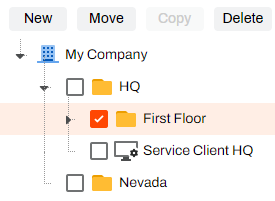
- Select Security
 Portal Security.
 - Optional: Deselect the Include Inherited Security option.
- Select Add.
- Select one of the following options:
- Active Directory: This option requires an Active Directory (AD) connection and includes the following options:
- User, Computer, or Group.
- Containers, or OU.
- IdP: This option requires an IdP configuration and includes the following options:
- Users.
- Groups.
IP Address Range.
To filter IP Address Ranges, navigate to Tools
 Settings Portal and select the Enable "Automatic Self-Service Portal and Release Portal" login option. For more details refer to Portal Settings.
- Hostname: Use this option to specify access for specific domain names.
- MAC Address: Use this option to specify access for specific devices.
- Chromebook Serial Number: Use this option to specify access for device serial numbers.
- Chromebook Asset Id: Use this option to specify access for device asset IDs.
- Active Directory: This option requires an Active Directory (AD) connection and includes the following options:
- After adding the user, computer, or group, select Save.
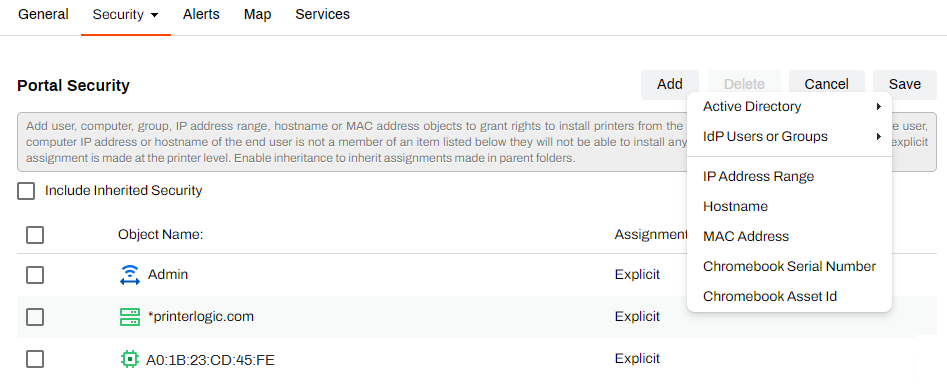
After you configure portal security, when the user visits the Self-service Portal, they can view only the folders and printers assigned to them through portal security.
For more details refer to Portal Settings.
In this topic: