Portal Settings
Last Updated: October 02, 2026
Portal Settings include additional Self-service Portal and Release Portal options to customize how the Agent accesses the portals and which options appear for the end user.
To view and configure portal options, navigate to Tools  Settings Portal.
Select or deselect options to control end user access to specific folders, printer objects, Agent installation, and how the user accesses the Self-service Portal. Below is an overview of the settings.
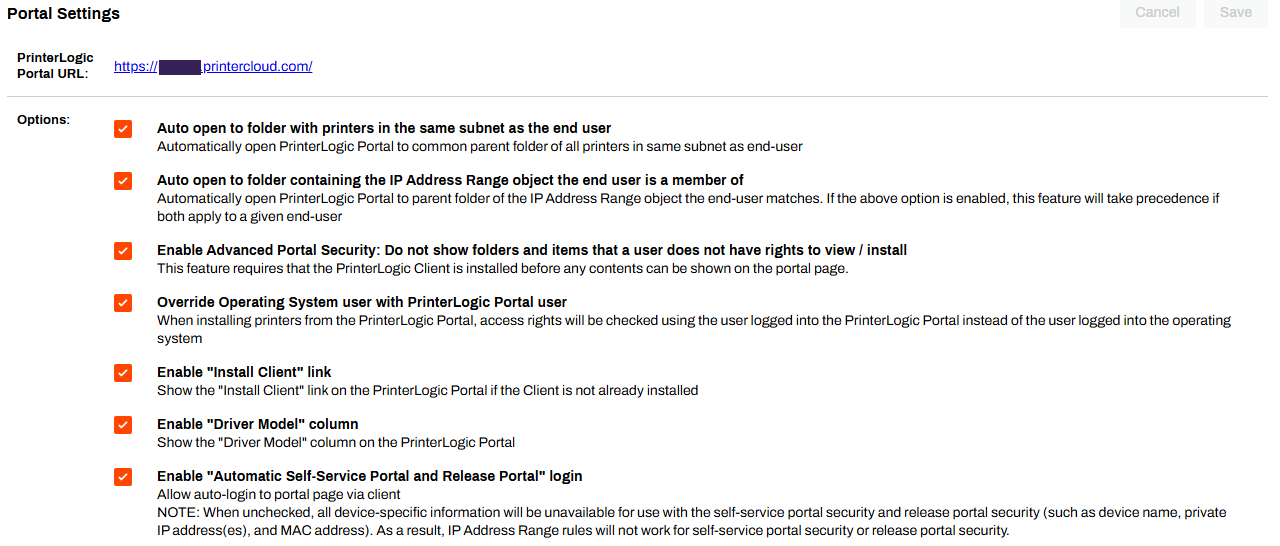
- PrinterLogic Portal URL
- This setting shows the Self-service Portal for your instance. For example, https://mycompany.printercloud.com.
- Auto open to folder with printers in the same subnet as the end user
-
This setting automatically opens the folder that has the largest number of printers located in the same subnet as the end user. The Agent knows the local IP address of the user's device and searches the database to find printers in the same subnet. If printer objects from multiple folders are in the same subnet, the system opens the parent folder for those folders.
-
The printer port values must be IP addresses for this feature to function.
- Auto open to folder containing the IP Address Range object the end user is a member of
- This setting opens the Self-service Portal tree structure to the location of a specific IP address range object. This feature takes precedence if the option above is selected and both options apply to the end user.
- Enable Advanced Portal Security: Do not show folders and items that a user does not have rights to view / install
- This setting determines whether a folder or printer appears in the Self-service Portal for a specific user or group.
- Override Operating System user with PrinterLogic Portal user
- This setting overrides the user's device network credentials with the credentials used to log in to the Self-service Portal. When this option is selected, the user can install a restricted printer on a device that is not logged in to the network because the credentials supplied to log in to the Self-service Portal have the correct permissions.
- Enable "Install Client" link
-
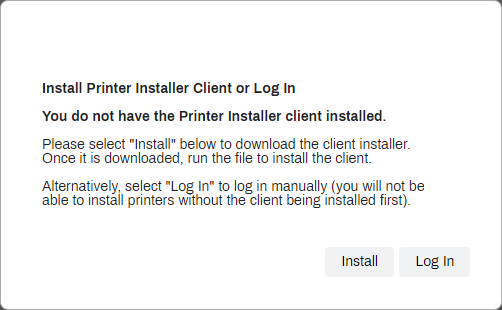
This setting allows an end user to install the Agent on their device, if the Agent is not already installed. When the end user accesses the Self-service Portal and the Agent is not installed, the following modal automatically launches.
-
- Enable "Driver Model" column
-
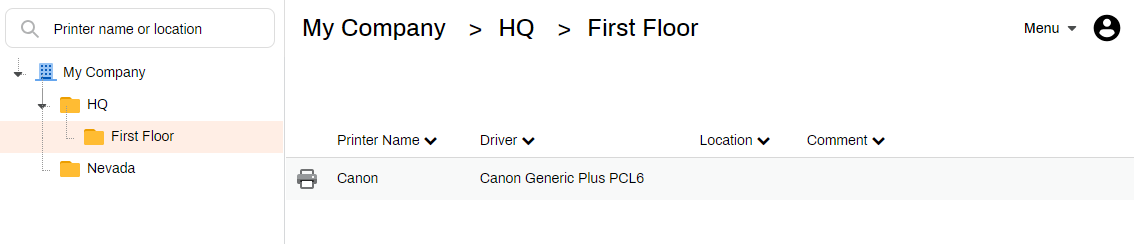
This setting shows the Driver column next to the Printer Name column in the Self-service Portal, which shows the name of the printer model driver.
-
- Enable "Automatic Self-Service Portal and Release Portal" login
-
This setting automatically logs in the user when they access the portals based on the user who is authenticated on the device. By default, this setting is deselected so that the user must log in each time they access one of the portals.
Note that selecting this feature requires you to acknowledge that security is enforced by the device's user account, which can be compromised if a connected device is not locked when left unattended.
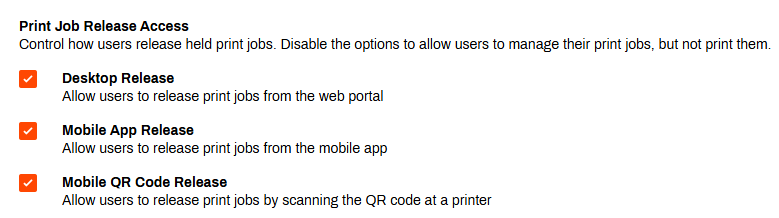
Print Job Release Access
If you want to restrict users to release print jobs only using the Control Panel Application (CPA), or Simple Badge Release, so they authenticate at the printer you can adjust the following options.
- Desktop Release
- Enable this option to allow users to release their print jobs from their desktop device when they access the portal.
- Mobile App Release
- Enable this option to allow users to release their print jobs from the Release screen when they use the PrinterLogic mobile app.
- Mobile QR Code Release
- Enable this option to allow users to scan the QR code placed on the printer using the PrinterLogic mobile app to automatically release their print job.
Security
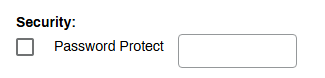
- Password Protect
-
This setting requires the end user to enter the password specified here to access the portals. By default, this option is deselected.
-
Common Configurations
- Select the two Auto open options to have the Self-service Portal automatically open to the folder in which the end user's printers are located.
- Select the Enable Advanced portal security option if you configure portal security to restrict which printer objects the end user can view in the Self-service Portal portal.
- Deselect the Override Operating System user option if you want to restrict the user from installing printers on a device that is not part of your network. For example, when an end user attempts to install a printer on a personal device that does not have network access, they receive an error that prevents printer installation, even if they use their authorized credentials to log in to the Self-service Portal.
- Select the Enable Automatic Portal login option if you want the end user to quickly access the Self-service Portal and Release Portal based on the network-approved device without requiring them to log in to the portals.
In this topic: