Create Custom Roles
Last Updated: August 06, 2026
You can view, assign, and copy standard roles, but you cannot edit or delete them. One quick way to create a new custom role is to create a copy of a standard role and modify it.
Copy a Role
- In the Admin Console, go to Tools
 Users.
 - In the Roles section, select a standard role.
- Select Copy.
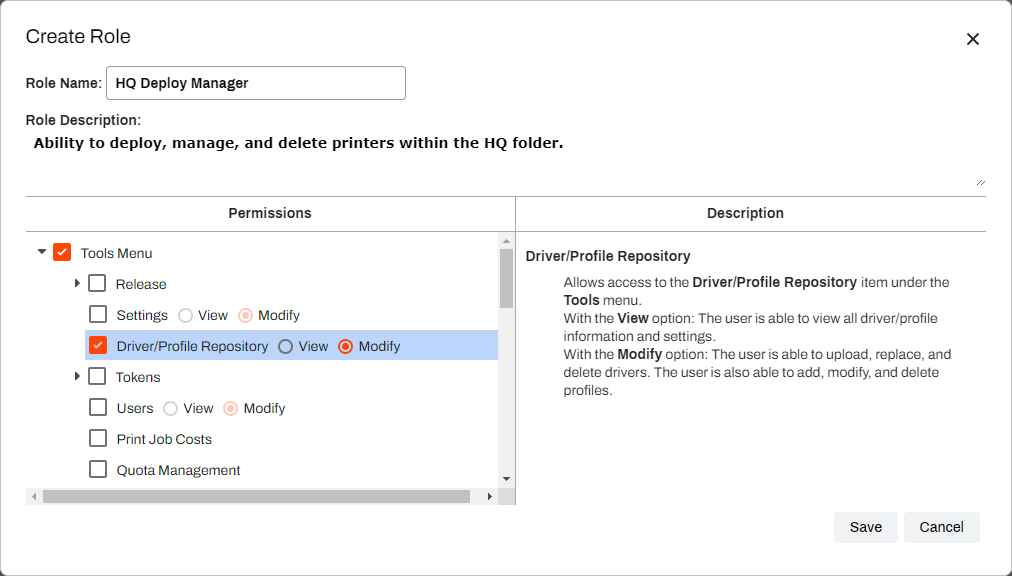
- In the Create Role modal, complete the following:
- Role Name: Update the role name.
- Role Description: Update the role description.
Permissions: Add, modify, or remove permissions by selecting or deselecting the appropriate checkboxes.
When you select an option in the Permissions column, a description appears in the Description column.
- Select Save.
Create a New Role
You can also create an entirely new role by doing the following:
- In the Admin Console, go to Tools Users.
- In the Roles section, select Add Role.
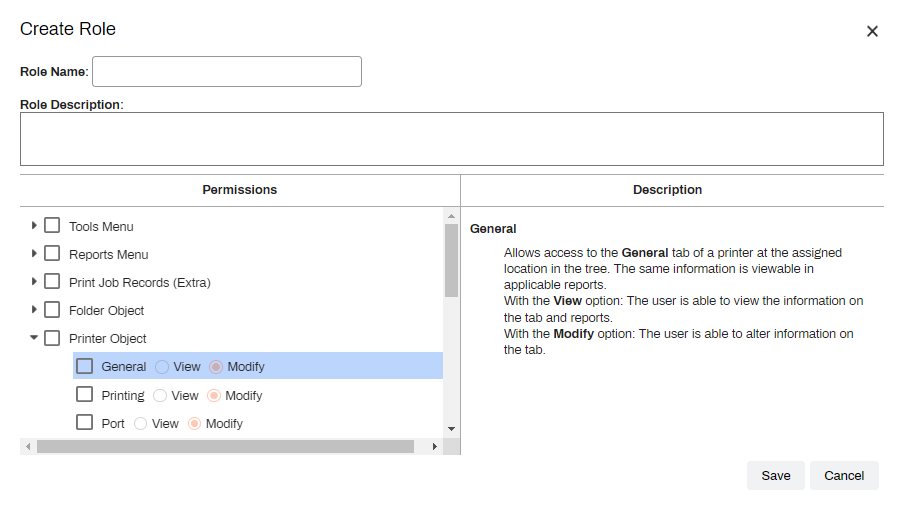
- In the Create Role modal, complete the following:
- Role Name: Enter a name for the role.
- Role Description: You can enter a summary to define the purpose of the new role.
Permissions: Add permissions by selecting the appropriate checkboxes. Some options expand to provide View and Modify options.
When you select an option in the Permissions column, a description appears in the Description column.
- Select Save.
When you finish creating the role, it appears in the list of existing roles as a Custom role. Custom roles appear at the bottom of the Roles list.
In this topic: