Device Authorization
Last Updated: September 25, 2026
Communication between the Vasion Agent and the instance A collection of services and service groups associated with a customer, created from an app template and deployed to a cloud or virtual server. requires an authorization code. When you apply an authorization code, the device receives an Open Authorization (OAuth) token, which allows the device to receive printer deployments.
The OAuth token can also allow end users to access the Self-service Portal and Release Portal without login credentials. For more details refer to Portal Security.
There are three ways to authorize a device:
- Include the authorization code in the installation scripts using a third-party app or a Group Policy Object (GPO) A set of settings and rules that control the working environment of user and computer accounts in Microsoft Active Directory. GPOs are used to manage and configure operating systems (OSs), apps, and user settings. software.
- Provide the authorization code to the end user so that they can enter the code when prompted.
- Log in to an admin account on the Admin Console on the device.
About Authorization Codes
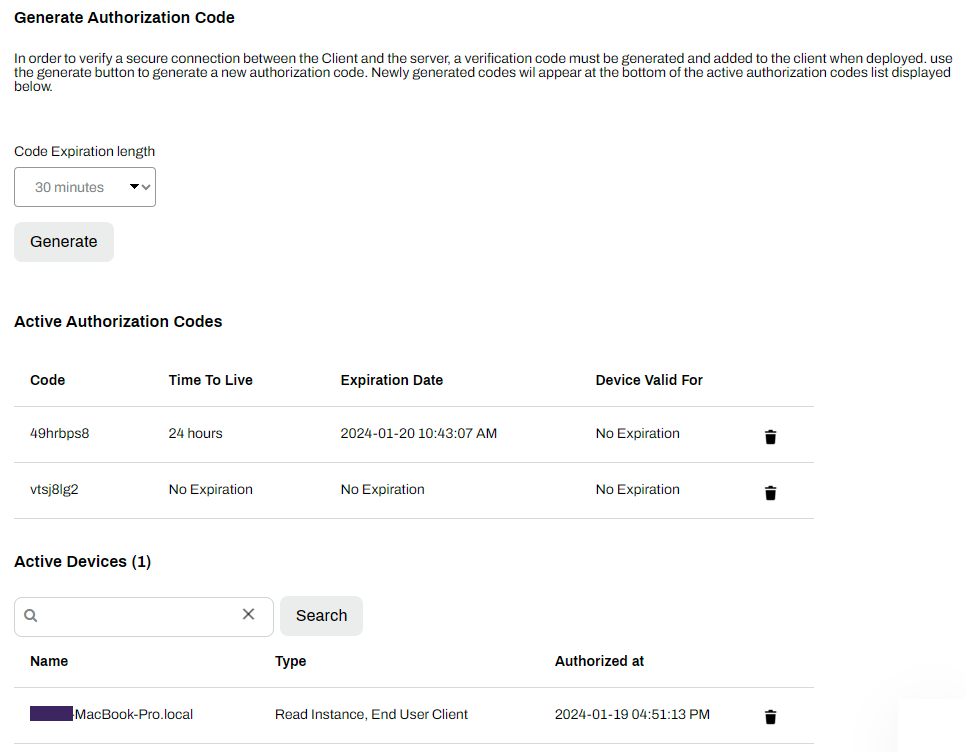
When you generate an authorization code, you have the following options for code-expiration length:
- 30 minutes.
- 60 minutes.
- 6 hours.
- 24 hours.
- 48 hours.
- No Expiration.
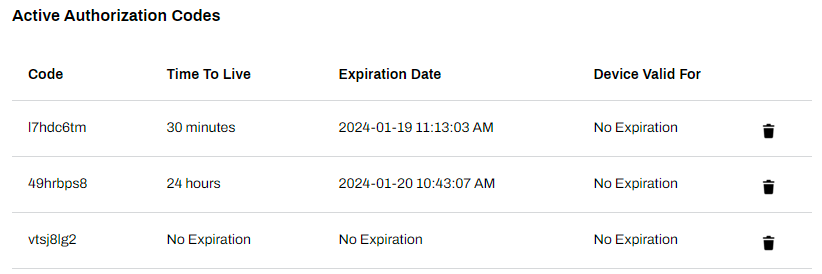
After you generate a code, it appears in a table in the Active Authorization Codes section with the following information:
- Code: the generated code.
- Time To Live: the code-expiration length.
- Expiration Date: the date and time that the code expires.
The list clears authorization codes after they expire.
Generate an Authorization Code
- Open a web browser, and log in to the Admin Console.
- Go to Tools
 Tokens Authorized Devices or Tools Authorized Devices, depending on your permissions.
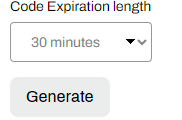
 - From the Code Expiration length field, select the expiration length.
-
Select Generate.
Remove Codes & Devices
Do the following to remove a code or device:
- In the Admin Console, navigate to Tools Tokens Authorized Devices or Tools Authorized Devices, depending on your permissions.
- In the Active Authorization Codes section, select the trash can icon to the right of the code or device.
- In the modal, select Delete.
Authorization Code & Agent Deployment
You can deploy the authorization code to end users' devices during Agent installation by using scripts. For more details refer to Install the Agent & Web Extension. This method bypasses end users needing to enter codes.
End User Authorization
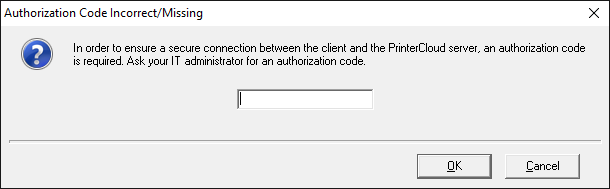
When an end user attempts to log in to the Self-service Portal on an unauthorized device, they are prompted to enter an authorization code.
When the end user enters the correct code, the OAuth token appears on the end user's device and the name of the device appears in the Active Devices section in the Admin Console. If the device is deleted from the Active Devices list, you need to reauthorize it.
Authorize with Admin Console Access
If someone with admin access uses an unauthorized device to log in to the Admin Console, the device is authorized and provided an OAuth token. The device appears in the Active Devices section and can be removed, if needed.
In this topic: