Copy / Scan Tracking
Last Updated: October 08, 2026
Copy / Scan Tracking uses Simple Network Management Protocol (SNMP) to track and report the number of copies and scans done on a supported multifunction printer (MFP). The Print Job Records report details the number of copies and scans on the selected printer for auditing and reporting purposes. Note that devices that do not have a control panel authentication method configured report Copy / Scan Tracking jobs as sent by "Guest." Devices with an authentication method configured report the user logged in to the device who made the copy or scan.
The Admin Console compiles this data in the Print Job Records report. To generate or schedule a report, go to Reports  Print Job Records in the Admin Console. When you generate a report, Vasion recommends selecting the Records option from the Report Type menu.
Installation Requirements
The Service Agent needs the following:
- You must turn on the Printer Apps service because it installs Copy / Scan Tracking on the printer.
- You must configure the SNMP service so that it can gather SNMP data from the printer. For more details refer to SNMP Status Monitoring.
For more details refer to Service Agents.
Copy / Scan Tracking Manufacturer Support
PrinterLogic supports Copy / Scan Tracking for the following manufacturers:
- Canon.
- Epson.
- Fuji Xerox.
- Fujifilm.
- HP.
- Kyocera.
- Konica Minolta.
- Lexmark.
- Ricoh.
- Sharp.
- Toshiba.
- Xerox-supported MFPs.
Turn On Printer Apps on the Service Agent
After the Service Agent is running, turn on the Printer Apps service:
- In the Admin Console, select the Service Agent.
- Select the Printer Apps tab.
-
Select the Enable Printer Apps option.
- Select Save.
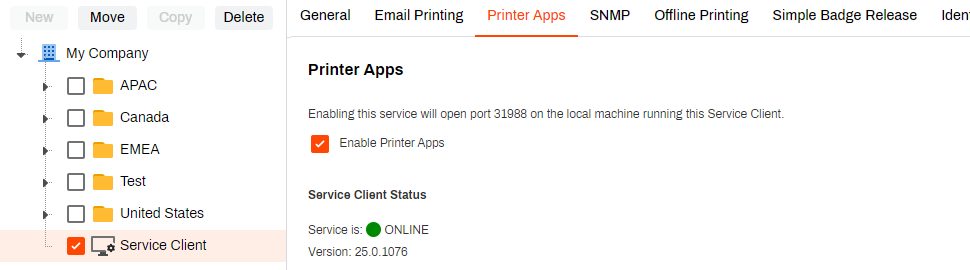
Confirm that PrinterLogicServicePrinterApp.exe is Running
Follow these steps:
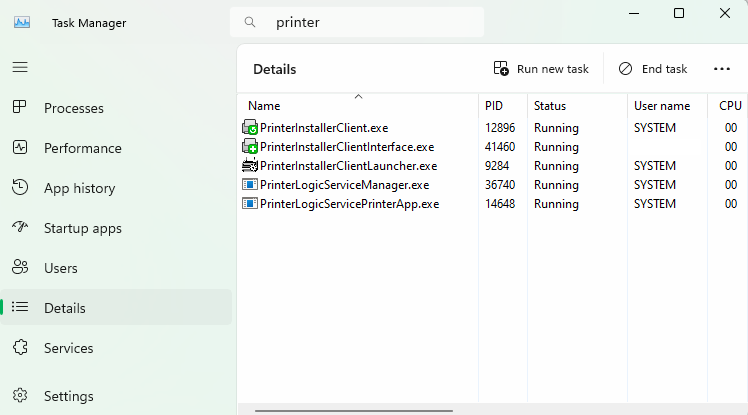
- On the Service Agent device, open the Task Manager, and select the Processes or Details tab.
- Confirm that the PrinterLogicServiceManager.exe, PrinterLogicServicePrinterApp.exe, and three Agent processes are running.
- Services for other active features on the Service Agent might also be running.
The Printer Apps service installs Copy / Scan Tracking on the printer. After you configure the Service Agent, turn on Copy / Scan Tracking on the printer's Apps tab in the Admin Console.
Install Copy / Scan Tracking
For Canon, Kyocera, Lexmark, and Ricoh devices, you must install the CPA on the printer for Copy / Scan Tracking to work.
Follow these steps:
- In the Admin Console, go to the printer's Apps tab.
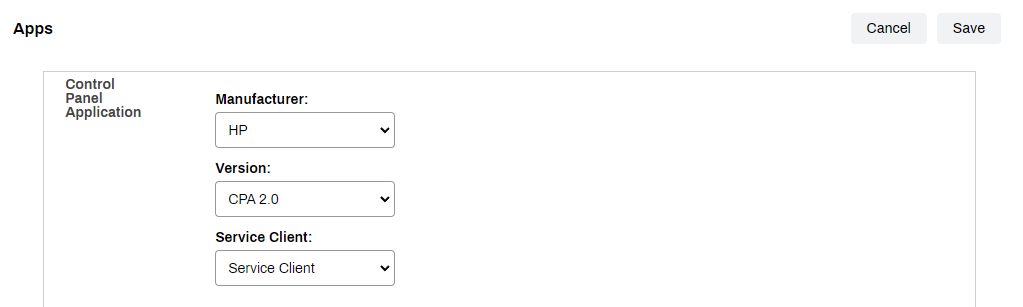
- Select one of the supported manufacturers.
-
If prompted in the Version dropdown menu, select CPA 2.0.
These fields are required to generate the option to install Copy / Scan Tracking.
-
From the Service Agent dropdown menu, select the device running the Printer Apps and SNMP services.
-
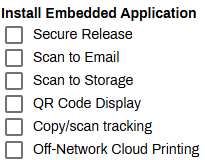
In the Install Embedded Application section, select Copy / Scan Tracking.
- For only Xerox devices, an Accounting Prompts section appears, which you configure based on your preference.
- In the section about credentials, select one of the following:
- Use default printer administration credentials: Select this option to use the default username and password to access the printer's web interface for all printers.
Use printer-specific administration credentials: Select this option to use the admin credentials set on each printer.
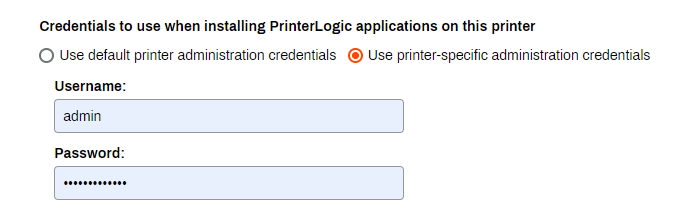
The credentials must have admin rights to the printer.
- Select Save.
Copy / Scan Tracking Reporting
The Print Job Records report shows detailed data on the print jobs that were released in a specific time period. The report includes Copy / Scan Tracking jobs after you install the feature on the printer. The Print Job Records report has a variety of report types that you can select. The most common option to select for Copy / Scan Tracking is Records.
In this topic: