QR Code Display
Last Updated: September 22, 2026
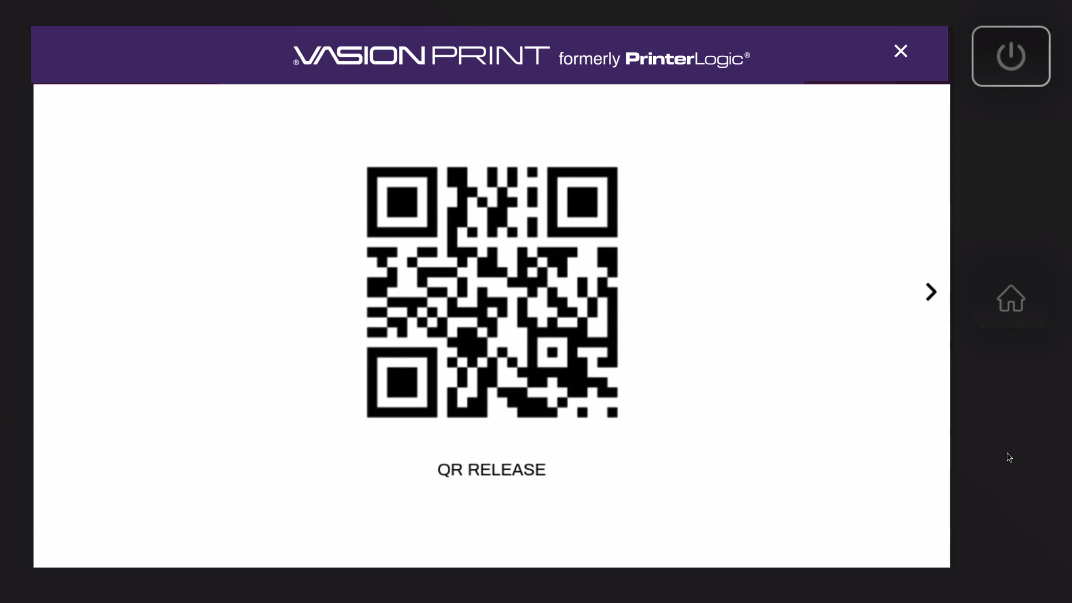
You use the QR Code Display feature with the PrinterLogic mobile app to select printers and release print jobs quickly. When you select the PrinterLogic Control Panel Application (CPA) app, the QR code for that printer appears for use with the app. When you scan the QR code, the printer appears on the PrinterLogic mobile app and shows held print jobs that are ready for release.
Selecting the arrow  on the right side of the screen brings you to the CPA login screen.
This feature is not compatible with Kyocera devices.
Turn On CPA QR Code Display
Apps Tab
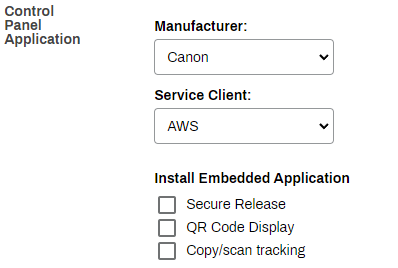
Install the QR Code Display feature on a single printer using the Apps tab. Refer to Control Panel Application (CPA) for more information and supported manufacturers.
Follow these steps:
- Select the printer from the tree structure.
- Select the printer's Apps tab.
-
In the Install Embedded Application section, select the QR Code Display option.
- Select Save in the upper-right corner.
CPA Manager
Install the QR Code Display feature on multiple printers using the CPA Manager. Refer to Control Panel Application (CPA) for more information and supported manufacturers.
Follow these steps:
- Select the Service Agent running the Printer Apps service from the tree structure.
- Select the Printer Apps tab.
-
From the Printers list, select the desired printers.
When you add multiple printers, they must all be from the same manufacturer.
-
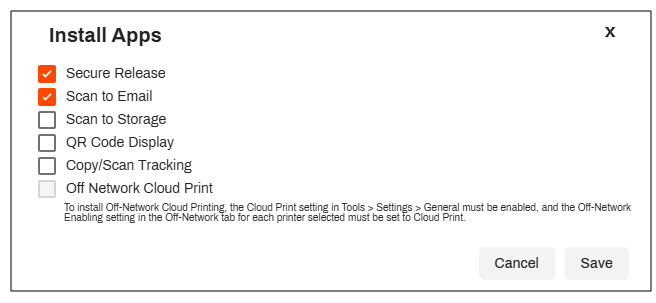
From the Actions dropdown menu, select Install Apps.
-
In the Install Apps modal, select the QR Code Display option. Other features that are already installed are selected.
- Select Save.
The QR Code Display feature becomes available on the printer after the Updating settings modal finishes. Watch the messaging in the Status column for any installation errors.
In this topic: