Transport Layer Security (TLS) Settings
Last Updated: September 24, 2026
This topic describes how to configure the Transport Layer Security (TLS) version that the Control Panel Application (CPA) uses during installation and ongoing communication.
TLS Options
Adjust TLS options in three ways, depending on your environment:
- Turn on higher security to install the CPA using TLS 1.2 and JSON Web Token (JWT) authorization.
- Allow lower-security TLS during installation for individual printers or a group of printers that do not support TLS 1.2.
- Allow lower TLS security settings for printer apps if your environment includes legacy equipment that does not function with TLS 1.2 or later.
Turn On Higher Security
Turning on higher security forces reinstallation of the CPA on all devices using TLS 1.2. Not all printer models support higher TLS versions, which affects installation.
Do the following to turn on higher security:
- Go to Tools
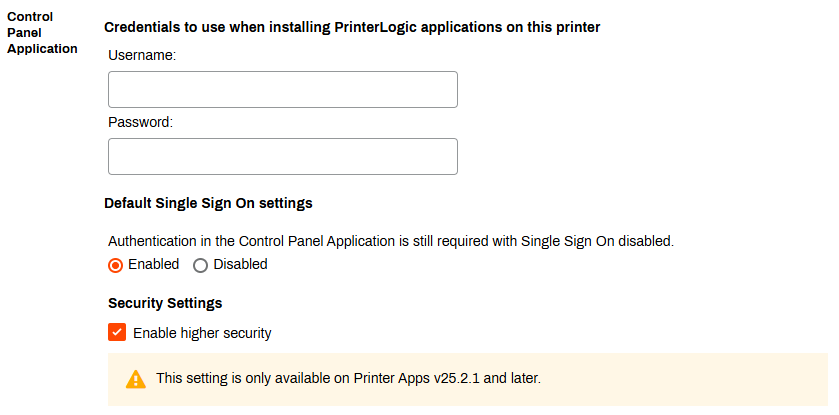
 Settings General, and scroll down to the Control Panel Application section.
 - In the Security Settings section, select Enable higher security.
- Select Enable in the modal.
- Select Save in the upper-right corner.
The CPA attempts reinstallation using TLS 1.2.
Allow Lower Security Installations
If CPA reinstallation fails with higher security turned on, then confirm that the printer supports TLS 1.2. If the printer supports only TLS 1.0, and you accept the security risk, use one of the following methods.
Apps Tab
Follow these steps to install using a lower TLS version:
- On the printer object's Apps tab, locate the Legacy Installation Option for Older Printers section.
-
Select the checkbox for Allow lower-security TLS during installation.

- Select Save.
The CPA installation starts again using TLS 1.0.
CPA Manager
Follow these steps to install using a lower TLS version:
- On the Service Agent's Printer Apps tab, confirm that the error appears in the Status column.
-
Select the checkboxes for the affected printers.
When you add multiple printers, they must all be from the same manufacturer.
- Expand the Actions dropdown menu and select Modify.
-
Select the checkbox for Allow lower-security TLS during installation.
- Select Save.
The CPA installation starts again using TLS 1.0.
This setting only allows TLS 1.0 during the CPA installation process. After installation, all CPA processes and communication use secure channels and ports.
Allow Lower Security Communication
This option is not recommended and is meant for customers with legacy equipment that does not function with a later TLS version. Simplified Scanning features might not function on devices that do not support TLS 1.2 or later. Turning on this setting accepts the risk of an insecure network traffic method.
Follow these steps to turn this setting on:
- On the Service Agent's Printer Apps tab, confirm that the error appears in the Status column.
-
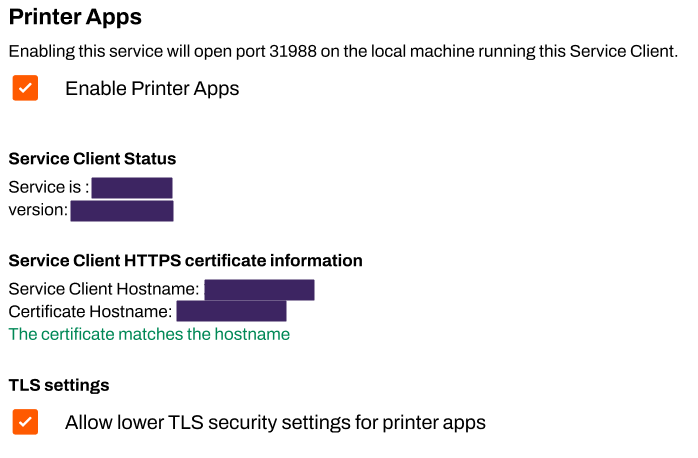
In the TLS Settings section above the Printers list, select Allow lower TLS security settings for printer apps.
- Select Save in the upper-right corner.
Installation and general communication between printers and the Service Agent tries using TLS 1.2 first but then allows TLS 1.0 if communication fails with the higher version.
Next Steps
Refer to the following:
In this topic: