Simplified Scanning
Last Updated: October 02, 2026
Simplified Scanning eliminates the need for manual document handling, printing, storing, and mailing. You can save time and resources while enhancing productivity, security, and collaboration.
Simplified Scanning is available through the Control Panel Application (CPA) An app installed on a compatible multifunction device (MFD) that aids in the release of held print jobs, supports authentication for secure printing, and provides simple scanning functionality., which is an app embedded on a Multifunction Device (MFD) A device whose primary purpose is copying and printing documents. MFDs also scan, send emails and faxes, access the internet, and print from the display panel.. The CPA provides a consistent user interface for scanning documents, ensuring a unified experience regardless of the printer manufacturer. Simplified Scanning enhances visibility into scanning activities, providing detailed insights, including information on the users who are scanning and the types of files being scanned.
Simplified Scanning offers the following:
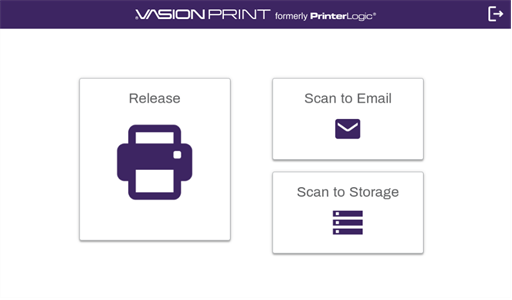
- Scan to Email.
- Scan to Storage.
- Scan to Shared (Cloud).
- Scan to Personal (Cloud).
- Scan to Network.
- Scan to Home.
Scan to Email has a file size limit of
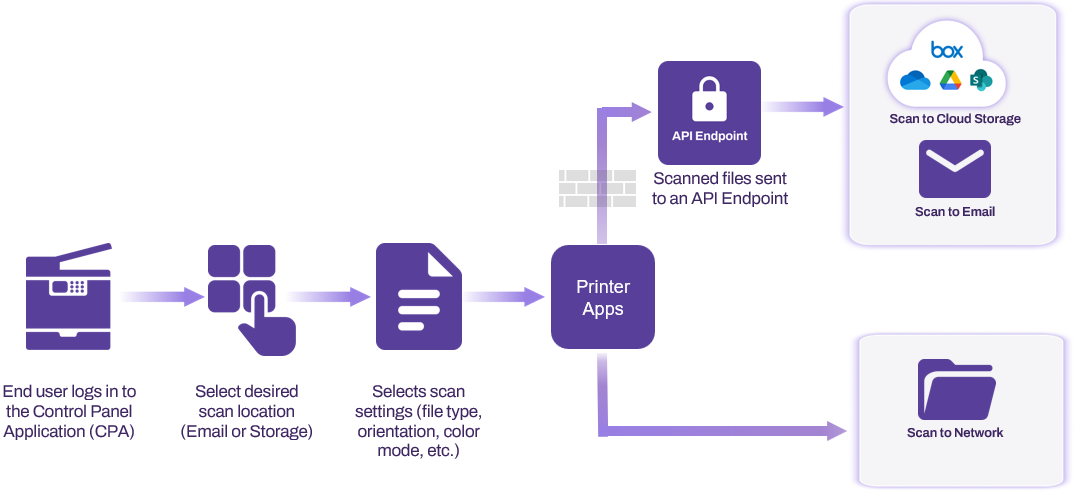
How Simplified Scanning Works
Simplified Scanning uses the CPA installed on an MFD to allow secure scanning directly to shared
Simplified Scanning uses Open Authorization (OAuth) authentication with cloud storage providers, letting users grant access without sharing passwords, letting you revoke permissions at any time, and providing an additional layer of security and control. A scanned file routes through the application programming interface (API) gateway to its destination. The file goes to either an email through preconfigured Simple Mail Transfer Protocol (SMTP) in the app, eliminating the need to manage SMTP configurations on each MFD, or to a cloud storage location, with network scans routing from the MFD through the Service Agent to the network drive.
All scans are secured with encryption at rest and in transit and require user authentication at the CPA before scanning. Vasion retains only job metadata for reporting purposes and not the scanned files, ensuring compliance with regulations, such as Health Insurance Portability and Accountability Act (HIPAA), General Data Protection Regulation (GDPR), and California Consumer Privacy Act (CCPA), while eliminating risks associated with shared folders, such as unauthorized access, misfiling, and data breaches.
Continuous Scan
If your instance has Continuous Scan, you can batch scan with the automatic document feeder (ADF), the glass, or both and receive one combined PDF instead of separate documents. Continuous Scan is designed for high-volume, multipage, and mixed-media workflows where users frequently exceed feeder capacity, turn book pages, or switch between loose documents and bound materials.
You start a scan job from a Simplified Scanning destination, such as Scan to Email or Scan to Shared (Cloud). After the batch finishes, the MFD prompts you to continue scanning or complete the job. If you continue, you can add more pages from the same source, ADF or glass, or switch to a different source. When you finish, the device combines all scanned pages into one PDF, preserving the scan order, and sends it to the selected destination.
Contact your Vasion representative to request Continuous Scan.
Requirements
The following are required to turn on Simplified Scanning:
- Opt in to the Unified Login experience. For more details refer to Unified Login Experience, or contact your Vasion representative.
- The PrinterLogic Mobile Scan feature does not require CPA installation.
-
Scan to Personal (Cloud) requires you to turn on the Enable higher security option, which is supported by Printer Apps v25.2.1 and later. You can find this setting by going to Tools
 Settings General and scrolling down to the Control Panel Application section.
- Simplified Scanning might not function on devices that do not support Transport Layer Security (TLS) 1.2 or later. For more details refer to Transport Layer Security (TLS) Settings.
- Configure Global Scan Settings in the Admin Console.
- Create the scan destination folders prior to configuring the global settings.
Scan to Storage Requirements
Scan to Storage is available only to customers who migrated to the Unified Login experience because it requires additional functions available only with Vasion Automate. For more details refer to Unified Login Experience. If you have not received the opt-in invitation when logging in to the Admin Console, contact Product Support or your representative to request it. Please specify that you want to implement Scan to Storage.
Refer to Scan to Storage for additional requirements.
Supported Manufacturers
The following MFD manufacturers support Simplified Scanning:
- Canon.
- Epson.
- Fujifilm.
- HP.
- Konica Minolta.
- Kyocera.
- Lexmark.
- Ricoh.
- Sharp.
- Toshiba.
- Xerox.
- Use Printer Apps version 25.0.2457 or later.
- Install an updated Multifunctional Embedded Application Platform (MEAP) JAR file v1.1.103 or later.
Supported Storage Providers
Simplified Scanning supports the below storage providers. Select the links to view setup instructions:
Scan to Shared (Cloud)

You also need to create storage folders prior to configuring the global scan settings. You can set up multiple connections to your preferred storage provider, but you can only configure a connection to a folder once. When you connect your provider, you assign a unique name, which appears on the Global Scan Settings page in the Preset Scan Locations section.
Scan to Personal (Cloud)
User Experience
The user signs in to the CPA using a configured authentication option, which can be username credentials, a PIN, or a badge. For more details refer to Control Panel Application (CPA).
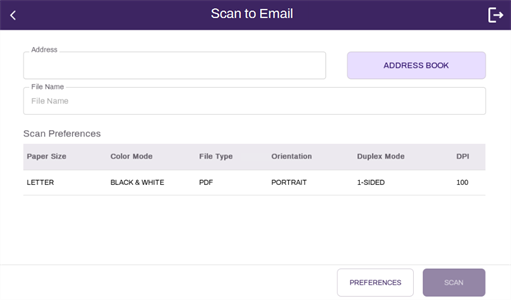
Depending on how you configure settings, after a user signs in, they can select the Email Address field, the Address Book button, the File Name field, and scan preferences, such as paper source, color mode, orientation, etc.
When the user loads the document and selects Scan, the file is sent through the API gateway to the email server and delivered to the recipient.
Next Steps
Refer to the following:
In this topic: