Google Drive Integration
Last Updated: October 09, 2026
This topic covers the storage provider connection for
Requirements
Review the Requirements section before configuring this feature. In addition this storage provider requires the following:
- Admin access to the Admin Console.
- Access to the Google Cloud console and permission to create projects.
Self-Hosted App
The steps in this integration use the Self-Hosted App option. Refer to the Vasion App (Cloud Hosted) section if you are not hosting the app.
1. Create the Google Drive Project
Follow these steps:
- Open a new browser tab, and go to https://console.cloud.google.com.
- Log in to your Google admin account.
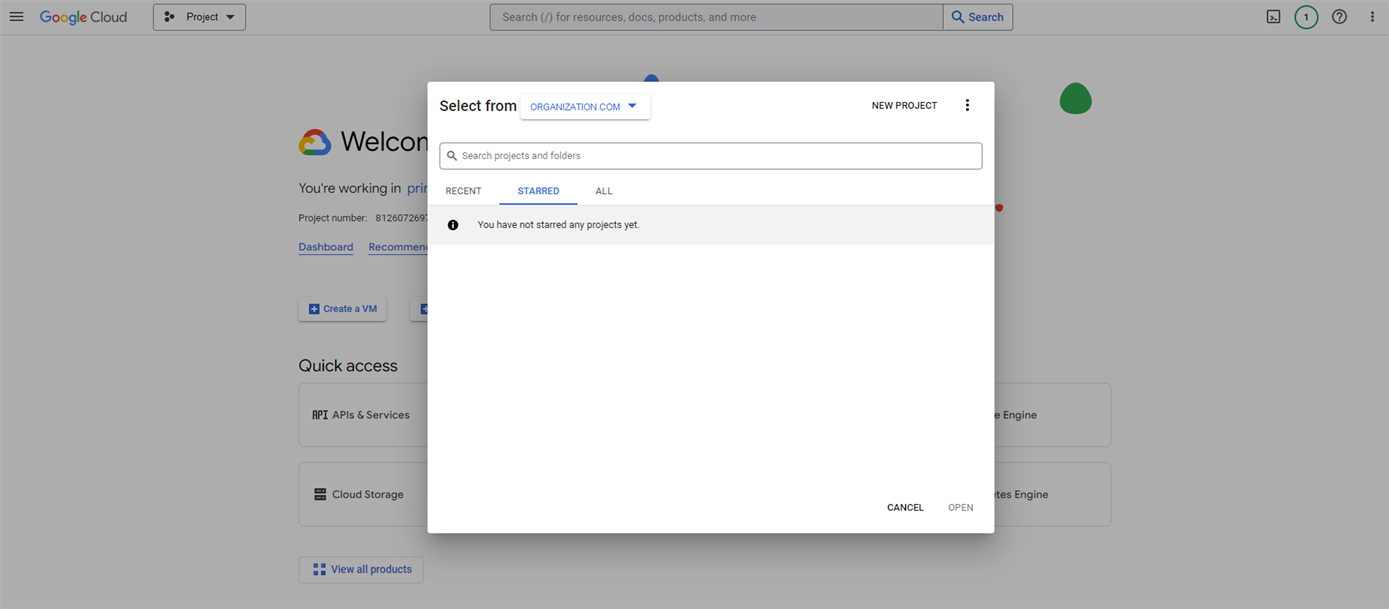
- Select the Project dropdown menu at the top.
- Select New Project.
- Enter a project name, and ensure that the Organization and Location fields are correct.
- Select Create.
-
Select Select Project in the Notification section, or select the new project from the Project dropdown menu.

2. Turn On the Google Drive API
Follow these steps:
-
Expand the navigation menu, and select APIs & Services
 Enabled APIs & Services.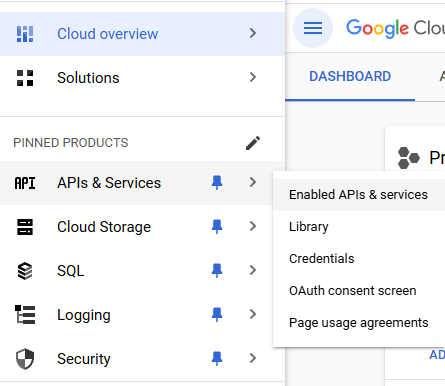
- Select the + Enable APIs and Services button.
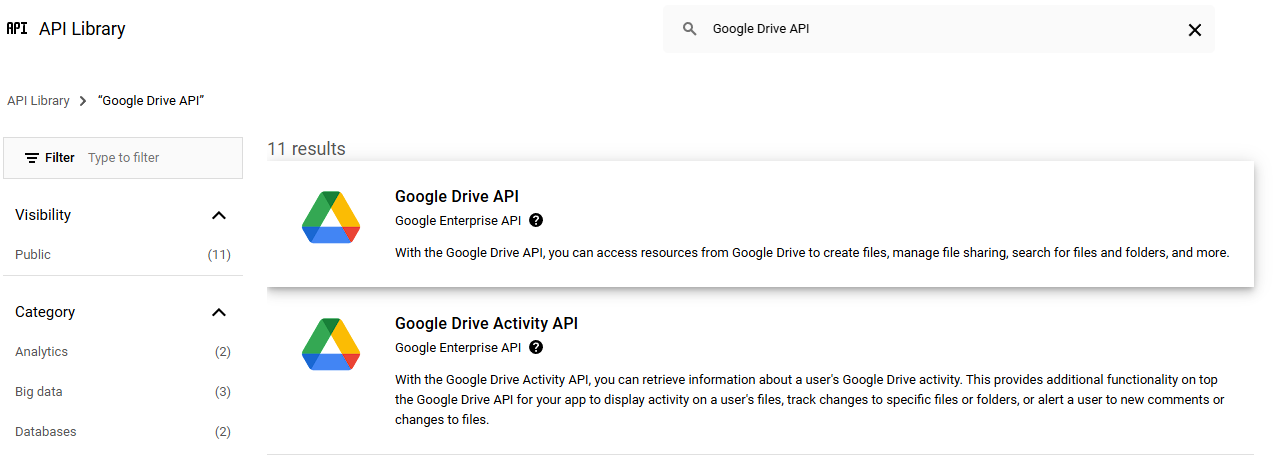
- Search for and select the Google Drive API.
- Select Enable.
3. Configure the OAuth Consent Screen
Follow these steps:
-
Select OAuth consent screen from the left-side navigation, or select APIs & Services
OAuth consent screen from the navigation menu.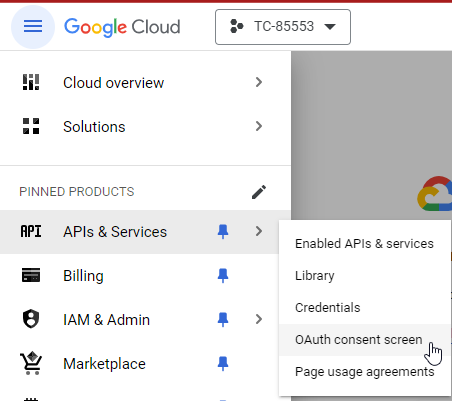
-
Select the Get Started button.
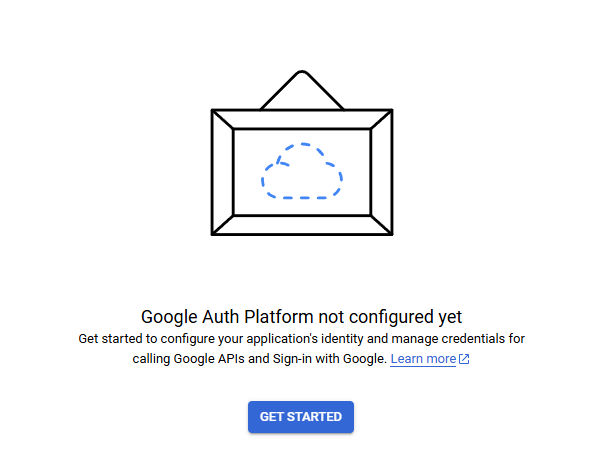
- Enter the App name and User support email, and then select Next.
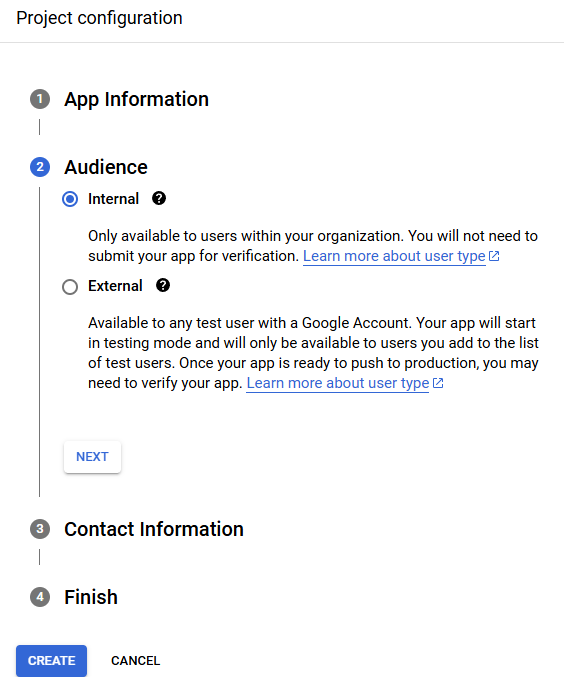
- Select Internal for the Audience, and then select Next.
- Enter the Contact Information, and then select Next.
- Select the checkbox to agree, and then select Continue.
- Select Create.
4. Add the Vasion Connection
Follow these steps:
-
In the Admin Console, select Admin from the left-side navigation.
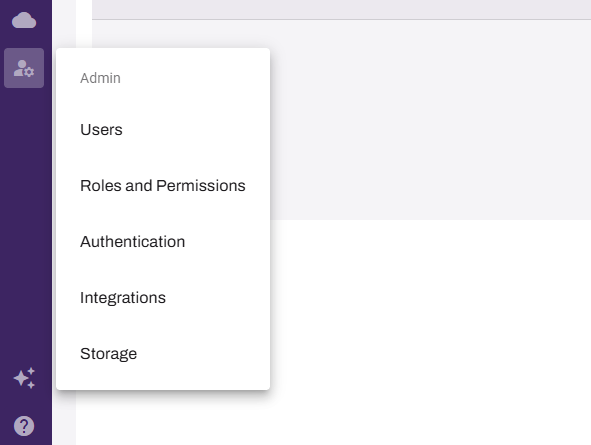
- Select Integrations.
-
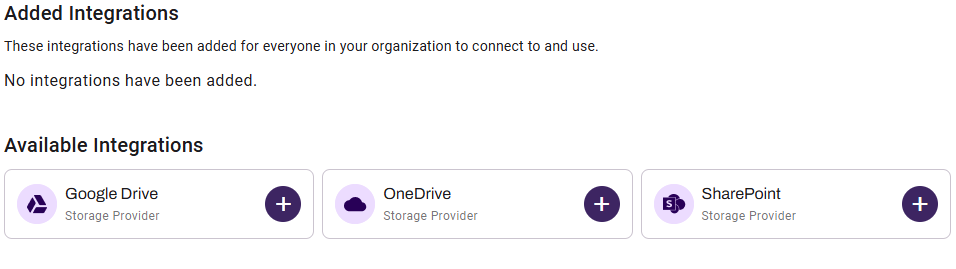
Select the plus sign (+) icon next to Google Drive.
-
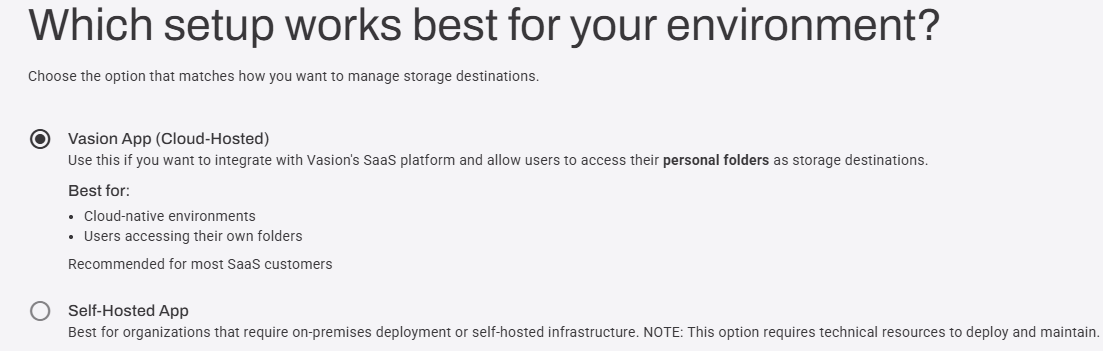
Select Self-Hosted App, then select Next.
-
On the Storage Type page, select Personal Folders, then select Next.
Leave the current browser open for later steps.
5. Create the OAuth Client ID
Follow these steps:
-
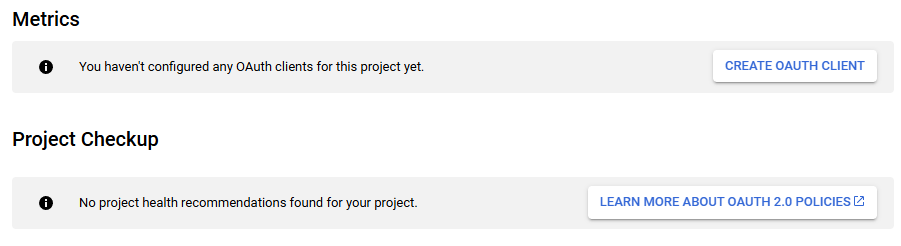
In the Google Cloud console, go to the OAuth Overview tab, and select the Create OAuth Client button.
- For the app type, select Web Application.
- Enter a name for the web client.
- In the Authorized redirect URIs section, select + Add URI.
- Copy the Vasion Redirect URI, and paste it in the Google Cloud URIs field.
- Select Create.
6. Connect and Authorize
Follow these steps:
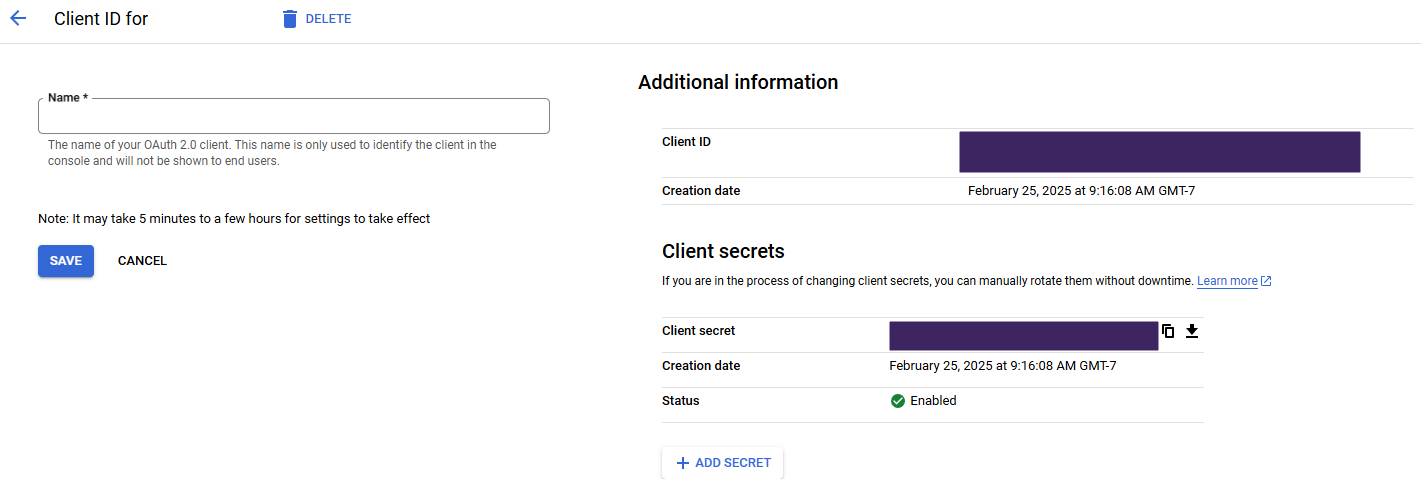
- In the Google Cloud console, select the OAuth client you created to view additional details.
- Copy the Google Client ID, and paste it in the Vasion Client ID field.
- Copy the Google Client Secret, and paste it in the Admin Console Client Secret field.
- Enter a description for the connection in the Admin Console.
-
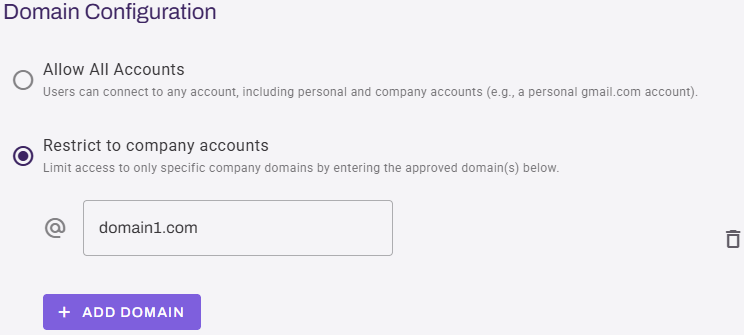
Select the domain configuration:
- Allow All Accounts: Users can connect to any account, including personal and company accounts.
-
Restrict to company accounts: This option limits access to specific company domains that you enter.
- Enter the domain using the field below.
- Select the + Add Domain button for additional fields.
- Select the trash can icon to remove a field.
- Select Next in the upper-right corner.
-
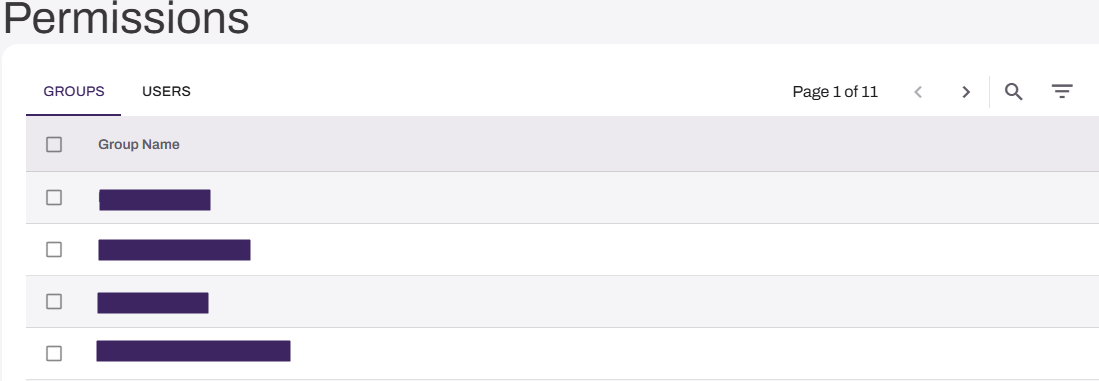
On the Permissions page, search for and select the users or groups who should have the integration option after signing in to the CPA.
- Select Save.
The integration becomes available for assigned users and groups using Scan to Personal (Cloud).
Next Steps
In this topic: